Wooassist

Assistance for Your Woocommerce Store

  • How it Works
  • Pricing
  • Services
    • Site Maintenance
    • AI SEO and Content Marketing
  • Blog
    • How-To Articles
    • Code Snippets
    • SEO For E-Commerce
    • Theme and Plugin Reviews
    • Wooassist News
    • WordPress/WooCommerce News
    • Interviews
  • About Us
  • Contact
You are here: Home / Archives for WooCommerce

Wooassist Interviews WooCommerce Entrepreneurs – Nicholas Jones on GardenWare

August 27, 2018 By John Leave a Comment

We  are starting a series of interviews with different WooCommerce entrepreneurs. We’ll listen to their stories — how they became successful and what their thoughts are on the ecommerce landscape. We’re starting our series with our very own Nicholas Jones or Nick J. as we call him. Nick started GardenWare back in 2003 and later on, Wooassist. He has since stepped down from managing Wooassist to focus on his other WooCommerce businesses and now only takes on a consulting role.

So, let’s get started.

Nicholas Jones Interview

How did GardenWare start?

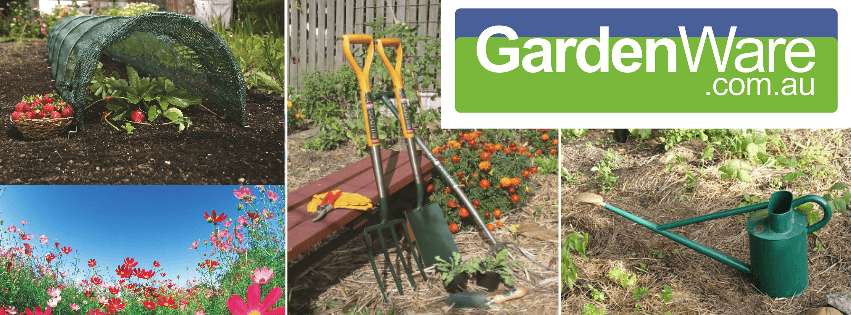
I was working as an accountant for a footwear importer that were selling Sloggers garden clogs and boots. Customers would ring from small country towns and ask where they could buy them. There were no stockists within hundreds of kilometres so we would take their credit card and address details and send them some in the post. After a couple years there was about 100 people. It was 2002 so ecommerce was not very big, but I thought a small catalogue might work. We designed the catalogue and a small website, placed a small add in Gardening Australia magazine, and mailed out to our small list.

We got a few sales and added garden clothing, gloves and hats to the range. In 2004 we added tools and watering cans not long after. Back then only 25% of sales were online. Most came from the catalogue, but every year that changed a little until the business was 95% ecommerce.
What are some of the major challenges for GardenWare?

Initial growth was the biggest challenge. I wanted to focus solely on my online business but the revenue was not enough, so I needed to supplement my income by consulting and my partner working a separate job. I wanted us both working for GardenWare full-time and pushed growth to make that happen. I would bet heavy on certain advertising and promotional campaigns, but they never met my expectations. I learnt the hard way that businesses growth comes best from demand not from supply. For a small business without funding it is much better to be patient and work those second jobs to supplement your income.

What has been the biggest challenge in your career?

The most rewarding has come from personal discipline and time management. When I am healthy mentally, emotionally and physically I am able to make better decisions. A 30-hour week’s work where I have exercised, meditated, read some good books, and spent time with loved ones can be much more effective than a 60-hour week where I don’t look after all the other areas of my life so well. Although the occasional 60-hour week is still needed.

What are your tips on how to make a business start-up a successful one?

Know yourself, product, and market. Waking up every morning to give your heart and soul to a business that may not succeed is a challenging task. You don’t have to love it, but doing something you don’t hate is very important. It is much easier if you have a personal interest in the product, or at least distribution or marketing channel. Take a thorough assessment of your personal strengths and weaknesses, likes and dislikes. I am an introvert and enjoy working on my own in my own time. It’s not surprising I have built a network of successful ecommerce businesses and my few attempts at bricks and mortar retail stores have failed.

How has ecommerce changed over the past 10 years?

Ecommerce hasn’t changed much for my businesses. While the technology has changed, the marketing principles are decades and hundreds of years old. You find a product people want, let them know you have it, sell it to them for more than you paid, and entice them to come back and buy more.

What do you think is the future of ecommerce?

I see as technology improves ecommerce and bricks and mortar retail merging more. The big market places like Ebay and Amazon will continue to grow so to compete in commodity price-based products you will need to be there.

How did you get started with WooCommerce?

In 2003 I was using my web hosts managed platform to sell. It was functional and easy enough for us to get started, but lacked the ability to take advantage of marketing strategies like upsells, cross-sells, rewards programs, abandoned cart reminders, custom shipping options, etc. So in 2009 I did some research and decided on Magento. WooCommerce was out then but didn’t have everything I needed at the time. We worked with Magento for a few years successfully, but the development and server costs seemed high. I looked at WooCommerce again and it seemed ready. We converted my two sites over in 2012 and have built all sites on WooCommerce ever since. I have no plans on changing ecommerce platforms.

Do you have any advice for aspiring ecommerce entrepreneurs?

If I was to speak to my younger self I would say invest more in yourself than the business. It can be easy to neglect your own education and work like a mouse on a treadmill. The problem with this is you are limited by working with your current skills and you can often miss the forest for the trees. You need to step back learn a new skill, read a business or motivational book, and get back to the grind the next day with a fresh brain. Recognise the value of your time and don’t try and do everything yourself. If you can find someone that can do something better and faster than you then delegate it to them and work on yourself and the parts of the business that only you can do.


Filed Under: Interviews, Wooassist News Tagged With: business development, Wooassist, WooCommerce

Update Your WooCommerce Store Regularly to Prevent Your Site from Breaking

March 19, 2019 By John Leave a Comment

Update Your WooCommerce Store

Many times, when WooCommerce store owners come to us seeking for help, we usually find that the cause of the problem is an outdated site. In some cases, we find that the site’s plugins and themes have not been updated in years. And when a WooCommerce store site has not been updated in years, suddenly updating can sometimes break more things. Our recommendation is to update regularly.

Why Should You Update?

If you update your site regularly, you’ll be dealing with a lot less problems on your WooCommerce store. While it’s true that site updates may cause issues, these issues are usually less severe than issues that come up when you don’t update. In addition, you can troubleshoot these issues on a staging site which will have no effects on your live site. If your site breaks because it is outdated, your live site can go down for an indefinite period. That means no sales until you fix the issue. If this happens during a critical time for your business, it can have negative effects on your sales. Imagine running TV ads and then your site breaks due to being outdated. That’s advertising dollars down the drain.

How Often Should You Update Your WooCommerce Store?

The best schedule we’ve found for site updates is doing them at least monthly. You can update more often especially when severe security issues are patched.

What Happens When You Don’t Update?

When you don’t update your site, one or a few of these things could happen:

  • Your site may go down and become inaccessible
  • Your site layout may break
  • Images and icons may not load
  • Your payment processor may stop working
  • Your shipping plugins may stop working
  • Your product page may break
  • You may have various problems on your cart and checkout
  • Your sign-up forms and contact form may stop working
  • Your site may be hacked and infected with malware
  • Your SEO rating may drop
update woocommerce to increase security

What Do You Need to Do Before Updating Your Site?

Test Updates on a Development Site

It is important to test updates on a development site. If you do not have a development site, also called a staging site, you can check with your hosting company if they offer a staging service. Some hosting companies like WPEngine provide an easy-to-set-up staging service. You can also set up a staging site yourself. You can check this blog post to learn how to create a staging site for WordPress.

Before you update your live site, test updates on your development site first. Then do some user testing to find out if there are any issues with the updates. Some things you need to test are:

  • Your Site Layout
  • Opt-in Forms
  • Contact Forms
  • Shopping Cart
  • Checkout
  • Any custom development you’ve done on the site

If you find any issues on your staging site, it’s time to get fixing. If you do not know how to go about fixing the issue, you can check out our guide on troubleshooting for WooCommerce. You can also drop us an email so we can help you out.

Create a Backup

If there are no issues on your staging site, it’s time to update your live site. But first, don’t forget to create a backup. For backups, we can recommend UpdraftPlus or BackWPup. Once backup is successful, you can proceed to update then test your live site again. If more issues come up, proceed to troubleshoot.

backup your woocommerce store before updating

I updated my WooCommerce Store but my Site is Still Broken

Renew Your Plugin Subscriptions

Sometimes, issues may persist because automatic update are not available for your plugins. This is usually because your plugin subscription has expired. If this happens, you will need to renew your subscription. It is now easier to manage WooCommerce plugin subscriptions. You just need to connect your WooCommerce account to your WooCommerce store. For third-party premium plugins, you may need to check manually.

Do a Plugin Audit and Remove Abandoned Plugins

Another common reason why some websites break after updates is that it has a plugin that has been abandoned by the plugin developer. If a plugin is abandoned by the developer, it will not receive any updates and will eventually stop working. And it can break your site. Worse, it can even become a backdoor for hackers to get into your site. It is not easy to detect if your plugins are no longer being updated by the plugin developer so you will have to do it manually. View the details of each plugin on your plugin list and check when it was last updated. If the plugin has not been updated in a year or more, then remove that plugin right away. If a plugin has not been updated in over 6 months, use your better judgment if the plugin can be removed.

Find Incompatible Plugins

In some cases, plugins may break compatibility with each other. This is one reason why it is best to keep plugins to a minimum. Having more plugins can cause more problems. When plugins break compatibility, various errors can pop up on your site.

To troubleshoot incompatible plugins, deactivate all plugins on your site except WooCommerce. Then enable them one by and one while testing for the error. With some trial and error, you’ll be able to shortlist the incompatible plugins. When you find the incompatible plugins, you can replace one plugin with a compatible one. You can also report the issue to the plugin developers so they can address it.

WooCommerce Templates are Outdated

Sometimes you’ll find an error on your WordPress Dashboard alerting you of outdated WooCommerce templates. Most theme developers update their WooCommerce templates so check if your theme is updated. If your using a premium theme and have an expired license, you will receive automatic updates. If this is the case, update your subscription to get the updated templates. You can also fix this issue by following this guide from WooCommerce.

Final Notes

Add updating your WooCommerce store to your monthly to-do list to ensure your site is secure and won’t break in an uncontrolled environment. Renew your plugin subscriptions and do a plugin audit. If you find that you do not have time to do the monthly WooCommerce store updates yourself, the Wooassist team can help.

Filed Under: How-To Articles Tagged With: backup, plugins, security, shopping cart, WooCommerce, WooCommerce updates

Why Have More Than One Payment Gateway for WooCommerce?

September 17, 2018 By John Leave a Comment

Why Have More Than One Payment Gateway for WooCommerce?

If you own a WooCommerce store and only have one mode of accepting payments, you might want to consider adding other payment options. Adding more payment gateways should be easy. WooCommerce can integrate easily with many payment gateway providers. In most cases, you’ll just need to configure a plugin and a few settings. But why have more than one payment gatewat for WooCommerce if the one you have is working fine?

Why Have More than One Payment Gateway?

There are several benefits to having more than one payment gateway.

Reduce Checkout Abandonment

One important reason why you should have more than one payment gateway is to reduce checkout abandonment. Not to be confused with cart abandonment, checkout abandonment is when a user reaches checkout and does not complete the checkout process.

There are various reasons your customers can abandon checkout. Common reasons include having too many form fields, hidden fees, and not having the user’s preferred payment option. For example, some users may prefer to pay using Paypal since it comes with buyer protection or they may believe it is more secure. But if you only have credit card payments, then users who want to use Paypal might abandon your checkout.

Backup Payment Gateway

If you only have one payment gateway and you encounter issues with your payment gateway, your customer will have no other options for completing checkout. That means you are out of business until you sort out your payment gateway issue. It’s great if these issues can be fixed in a matter of minutes, but sometimes these issues can go for days. The longer that it takes for you to fix the issue, the more business you lose.

In short, using only one payment gateway is risky. Having two or more modes of payment allows your customers to check out using another payment gateway if their first choice is not available or having problems.

Flexibility

Many payment gateways are not capable of handling different payment methods. If you want to cover all bases, then you should use more than one payment gateway. In addition, some payment gateways might not be able to process foreign currency. This can be a problem if your business caters to a global market.

Customer Preference

Having more choices is better when it comes to payment options. Trust is hard to come by and if you are using a payment gateway that your customers trust, they will hand you their money. The more payment options you offer, it is more likely that you’ll have your customers’ preferred payment option.

Some users may not be comfortable with entering their credit card information on every ecommerce site that they use. These users are more comfortable using services such as Paypal, Apple Pay or Amazon Pay. Still, some people might not have an account for these services and would prefer entering their credit card information. It’s all a matter of preference. Giving your customers the ability to pay with their preferred payment gateway scores you a point.

What are the Common Payment Options?

There are a lot of payment gateway choices to use for WooCommerce. These include Paypal, which can be Paypal Standard, Paypal Express, Paypal Advanced or Paypal Pro. Using Paypal is already akin to having two payment gateways since users can pay via Paypal or through their credits cards without need for a Paypal account. You can check out the Paypal Extension Comparison page to determine which Paypal option is right for your WooCommerce store.

Other popular payment gateway options include Stripe, Authorize.net, Amazon Pay and Apple Pay which is available through Stripe.

Which Payment Option is Right for Me?

How do you know which payment option is right for you? There are several factors to consider such as cost, location and security. Depending on where you do business, you might also want to consider location-specific regulations such as GDPR. There is no single right answer as to which payment gateway is the best, it all depends on your business’ particular needs.

Get to adding that extra payment gateway as soon as possible. If you ever need help setting up your payment gateways for WooCommerce, you can contact the Wooassist team and we’ll help you out. If you have any suggestions or comments, you can post them in the comments section below.

Filed Under: How-To Articles Tagged With: conversion optimization, payment gateway, Paypal, Stripe, WooCommerce

How to Set Up Amazon Pay for WooCommerce

July 16, 2018 By John Leave a Comment

How to Set Up Amazon Pay for WooCommerce

Amazon, the ecommerce giant, provides a secure means of payment through Amazon Pay. And did you know that you can set Amazon Pay to receive payments on your WooCommerce store? In this post, we’ll teach you how to set up Amazon Pay for WooCommerce.

Why Use Amazon Pay?

As a WooCommerce store owners, having more payment gateways is always a good idea. In case your only payment gateway fails, your customers will still have a means to check out using other payment gateways that you have set up.

Sometimes your customers prefer to pay using a different payment gateway so it’s a good idea to given them different options.

Using Amazon Pay, make for faster and easier payments since users would have already set up their Amazon Pay accounts. They won’t need to keep entering their credit card numbers every time they make a purchase on your store.

Also, Amazon is already a trusted name in ecommerce so having Amazon Pay on your checkout may increase your store’s trust rating. An increased trust rating could result in better conversion rates.

What About Amazon Pay Fees?

If you want to know more about the fees associated with Amazon Pay, you can check out this link.

How to Set Up Amazon Pay for WooCommerce

To set up Amazon Pay for WooCommerce, follow the steps below.

  1. To get started, download and install the Amazon Pay plugin for WooCommerce.
  2. Sign up for an Amazon Pay Merchant account for your region.
    • US – Amazon Pay
    • UK – Amazon Pay
    • DE – Amazon Pay
    • FR – Amazon Pay
    • IT – Amazon Pay
    • ES – Amazon Pay
    • JP – Amazon Pay
  3. When that’s done, head over to your WordPress Dashboard and go to WooCommerce > Settings > Checkout > Login & Pay with Amazon.
  4. The first option on your screen should be the box for “Enable Amazon Payments Advanced”. Tick the box to enable Amazon Pay.
  5. Input your Seller ID, MWS Access Key and Secret Key on the appropriate fields.
    • You can find your Seller ID in your Amazon Seller Central Account. Go to Settings and then on Integration Settings.
    • For the MWS Access Key and Secret Key, click on Integration and then on MWS Access Key (also on your Amazon Seller Central account).
  6. Under Payment Capture, choose how to you want to capture payments. You have the option to:
    • Authorize and Capture – Payment is automatically authorized and captured.
    • Authorize – Payment needs to be captured manually.
    • Don’t authorize – Payment needs to be manually capture and authorized.
  7. Under “Cart login button dislay”, you can either choose button or banner.

Note: If you want to test the payment gateway, tick the “Use Sandbox” option on the settings page.

Note: You can enable debug mode for the plugin to log any errors. This can be used when troubleshooting payment issues.

With that, you are now set to accept payments through Amazon Pay.

In you want to use Apple Pay to provide your customers more payments, you can also check out our guide on how to enable Apple Pay for your WooCommerce store.

Got any questions about enabling Amazon Pay on your WooCommerce store? Let us know in the comments.

Filed Under: How-To Articles Tagged With: Amazon, Amazon Pay, payment gateway, WooCommerce

How to Optimize WooCommerce Products for SEO

May 31, 2018 By John 1 Comment

You’ve set up your WooCommerce store but you’re not getting any traffic. You wonder what you’re doing wrong. Have you optimized your product pages for SEO? If not, that could be one of the reasons why you’re not getting any traffic. In this article, we’ll teach you how to optimize your WooCommerce products for SEO.

Why Optimize for SEO?

You can do all the link-building you want but if the pages that you want to rank for are not properly optimized for SEO, then you’ll have a hard getting ranked on top of Google.

Still, traffic is just a metric and what really matters is your conversion rate. Even if you are getting thousands in traffic but they are not converting, you still have a problem. On the other hand, you can’t convert anyone if you are not getting any traffic at all. Essentially, SEO and conversion optimization go hand-in-hand.

You have to optimize for SEO to make sure you are attracting the right people to your WooCommerce store.

Steps on How to Optimize WooCommerce Products for SEO

Identify What Keywords to Optimize For

Normally, it will be difficult to rank for regular keywords. For example, if you are selling digital cameras, it will be difficult to compete with Wikipedia or Amazon unless your WooCommerce store is already an authority on digital cameras. So optimizing for the keyword “digital cameras” won’t work for you. This is where long-tail keywords come in.

What is a Long-Tail keyword?

Compared to a regular keyword, long tail keywords are longer and more specific. Instead of optimizing for “digital camera”, you can optimize for specific camera models or for specific features of digital cameras. Optimize for anything unique about the product that you are selling. A few examples of long-tail keywords can be “digital camera for underwater photography”, “digital cameras for beginners”, or “sports action digital camera”.

Do Your Keyword Research

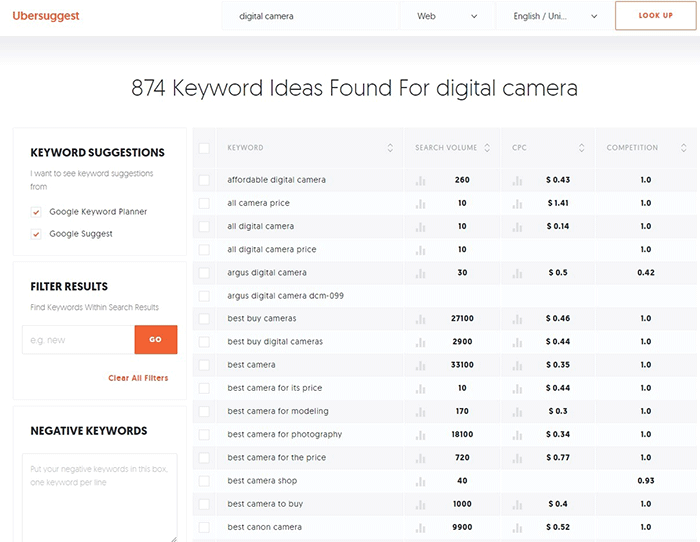
Don’t start optimizing until you do your keyword research. You can use whatever keyword research tool you have at your disposal. We can also recommend Ubersuggest. Just pop in a basic keyword and you can get a list of long-tail keywords that you can optimize for along with some valuable search data. You can even filter the keyword ideas and remove negative keywords. You can also export the keywords into a handy CSV file.

Ubersuggest Keyword Research

Add the Long-Tail Keyword to Your Product Page

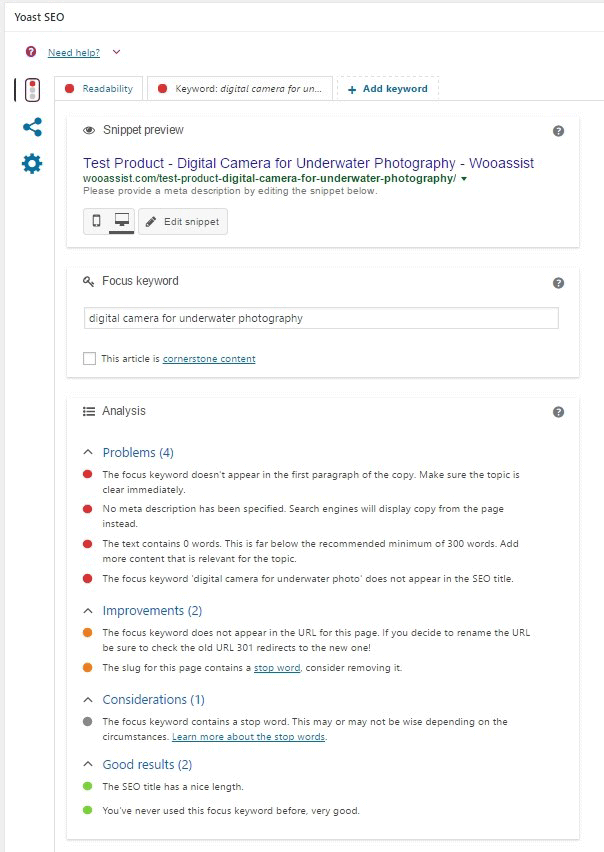
To help with optimizing your WooCommerce Products for SEO, you can use the WordPress SEO plugin by Yoast. The plugin provides detailed information on how you can optimize your products for SEO. It also has a boatload of other features that will help boost your SEO. Just install the plugin and you’ll gain access to the SEO optimizations block on your WooCommerce product editor.

When optimizing products for SEO, input the long-tail keyword that you wish to target on the “Focus Keyword” field. After doing this, you can see the analysis section below will show you recommendations on how you can improve your product’s SEO score.

How to Optimize WooCommerce Products for SEO

Generally, you will need to add your focus keywords to:

  1. The article title
  2. The first paragraph of the article
  3. One of the heading tags
  4. On the body of the article
  5. In one of the image alt tags
  6. In the URL/slug

You don’t need to force yourself to do every little thing that the Yoast SEO section recommends. Just use it a rough guide since it does recommend the currently known best practices.

Improving Content Readability

Google now also considers content readability as an SEO ranking factor. So it is important to ensure that your product descriptions are easy to read. In some cases, you may have to use some technical terms when writing your product descriptions and that’s totally fine. Depending on your products, that may actually be best practice. Still, it’s a good idea to check the readability of your content.

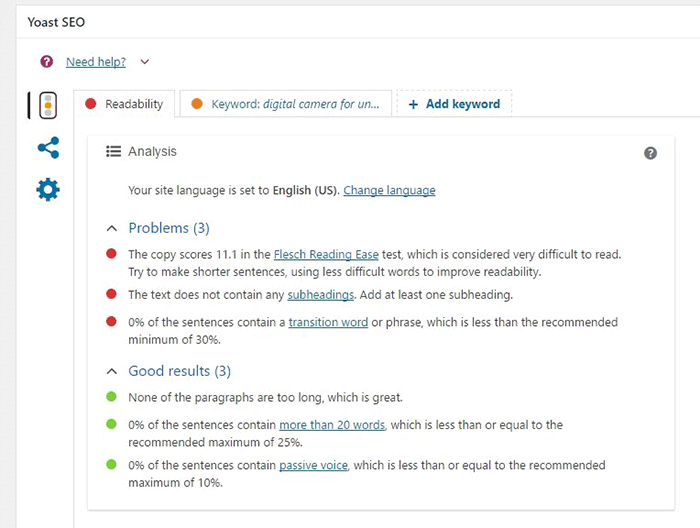
The Yoast SEO section also gives recommendations on Readability. Just click on the readability tab and you’ll see the problems that need to be addressed.

WooCommerce Products Optimize for Readability

When creating your product descriptions, you can also use Hemingwayapp to optimize its readability. You can also use this tool when writing blog posts.

Now that you know how to optimize your content for SEO, people who are interested in your products are now more likely to find your products. If you need help with SEO optimizations, the Wooassist Team can help. We’ll start off by doing an SEO audit of your site so we can determine what needs to be addressed and move forward from there.

Optimizing your WooCommerce store does not end with product optimizations. There are other optimizations that need to be done to ensure you are maximizing your conversion rates.

Filed Under: How-To Articles, SEO For E-Commerce Tagged With: keyword research, optimizations, seo, SEO strategy, SEO tools, WooCommerce, WooCommerce products, woocommerce seo, WordPress SEO, Yoast

  • « Previous Page
  • 1
  • …
  • 6
  • 7
  • 8
  • 9
  • 10
  • …
  • 15
  • Next Page »
Let us support your online store so you can manage your business

Get started today

Get 2 Hours of FREE SUPPORT

We are so confident that you will love our services that we will give you your first 4 hours at a 50% discount

That’s 4 hours for only $75

BUY NOW

Free eBook

5 Things Every Online Store Can Fix On Their Website In The Next Week To Increase Sales

Quick Links

  • How it Works
  • Pricing
  • Blog
  • Contact
  • About Wooassist
  • My Account
  • Checkout
  • Privacy Policy
  • Cookie Policy
  • Terms and Conditions

Wooassist

Australia:
59 Luke St.
Hemmant QLD 4174

Philippines:
San Miguel St.
Poblacion, Iligan City 9200

Connect


Copyright © 2026 · Wooassist

Yours FREE!

5 Things Every Online Store Can Fix On Their Website In The Next Week To Increase Sales