Wooassist

Assistance for Your Woocommerce Store

  • How it Works
  • Pricing
  • Services
    • Site Maintenance
    • AI SEO and Content Marketing
  • Blog
    • How-To Articles
    • Code Snippets
    • SEO For E-Commerce
    • Theme and Plugin Reviews
    • Wooassist News
    • WordPress/WooCommerce News
    • Interviews
  • About Us
  • Contact
You are here: Home / Archives for site speed optimization

13 Routine Maintenance Tasks that You Should Do on WordPress and WooCommerce

April 2, 2018 By John Leave a Comment

Routine Maintenance Tasks for WordPress

Maintaining a WooCommerce store is a lot of work. There are a lot of routine maintenance tasks for WordPress and WooCommerce that need to be done on a regular basis. In this post, we list down the most important tasks that you should do on your WooCommerce store.

1. Create Regular Website Backups

Create Regular Website BackupsCreating regular site backups is critical. It is your first fallback in case something breaks on your site. While you can make backups manually, it is important to make regular automated backups. Check with your hosting provider if they create regular backups of your database as well as a complete backup of your site. You can also install a backup plugin such as Updraft Plus or BackWPup and set it up to make regular automated backups for you. We still recommend creating manual backups before doing major work on your WooCommerce store though.

2. Update WordPress, WooCommerce, Themes and Plugins

Updating all elements of your WooCommerce store should be done on a regular basis. Do this weekly if you have the time. If not, monthly updates are good enough. Updates include updating WordPress Core, themes, WooCommerce and all other installed plugins. Remember to backup up your site before proceeding with updates since updates could cause your website to break. If you have a development site, it would be best to test the updates first on this staging environment. Then, do some user testing to make sure that there are no errors. After that, you can proceed to update your live site. When that’s done, you will need to do another round of testing. Some important elements to test include checkout, add to cart, contact form emails, opt-in forms and other customizations that were done on the site.

3. Update WooCommerce Template Files

After updating WooCommerce, you will sometimes get an error notifying you of outdated WooCommerce template files. This just means that your theme has not updated to include the latest WooCommerce template files. In some cases, this could cause some formatting issues on your store. If there are no errors on your store, you can simply wait for your theme to release an update that includes the most recent template files. Or you can also fix this manually by following the steps in this documentation from WooCommerce.

4. Change User Passwords

It is important to use strong passwords. However, it is just as important to change passwords on a regular basis. There are times when security breaches can go undetected for a long time. Changing your password regularly blocks out these security breaches that you might not realize are there. You should change your password for WordPress admin, FTP, database and cPanel. And a pro-tip, never use “admin” as your username. This is the first username that hackers try out when brute forcing into websites.

5. Optimize Your Product Images

We’ve always emphasized the importance of optimizing images for your WooCommerce store to keep your site running fast. If you have uploaded any product image that is more than 100KB in size, it might be a good idea to replace that image with an optimized product image. To learn more, you can check out our blog post on how to optimize images.

6. Approve and Respond to Product Reviews

Moderate Product ReviewsIf you are not asking your customers for product reviews then you might want to reconsider. Most people who buy online look for product reviews before they decide to purchase something. One study found that 85.57% of users read reviews before they purchase. And if you are asking your customers for product reviews, then you will need to approve reviews on a regular basis. A word of advice, do not remove negative reviews of your products. Instead, make it an avenue where you can show good customer service. Respond to the negative review. Offer a replacement for a defective product or offer a refund. People reading reviews will want to see some negative reviews to get a well-rounded picture of your product. When moderating reviews, you only need to remove the spam reviews.

7. Approve and Respond to Blog Comments

If you have a blog that is made to drive customer engagement, then your blog will most likely attract comments. Same with product reviews; don’t delete the negative comments. Rather, address them positively. Remove any spam comments as this will negatively impact the user experience of your blog. If you are using Akismet: Anti Spam plugin, this will block out most spam comments. However, some spam comments can still get through and you will need to manage them manually.

8. Test Your Contact Forms and Email Opt-in Forms

Every now and then, you will need to make sure that your contact forms and email opt-in forms are working. Just fill in your forms and send. If you receive it in your email, then you’re all good. But if you don’t, there’s something wrong and you need to do something about it. Have your developer look into it.

9. Optimize Your Database

Over time, your database accumulates a lot of gunk and you need to clean it to make sure your website runs fast. Before you go about this task, make sure you create a backup. You can choose to clean your database manually if you are comfortable and familiar with working on your database. Otherwise, you can use a plugin to do the optimizations for you. Notable plugins include WP-DBManager and WP-Optimize. You can check out our guide on how to clean your database.

10. Test Your WooCommerce Store’s Speed

If you have not yet made optimizations to your WooCommerce store’s speed, you should consider doing it now. Site speed has become increasingly important for WooCommerce store owners. Google now considers site speed as a ranking factor for SEO. Also, if you have a slow site, this will negatively impact the customer’s experience on your site. It is easy for your customers to buy instead from your competitors. You can test your site speed on Google’s Page Speed test and Google will provide you with recommendations on how you can improve your site’s speed. Other notable tools that you can use to test your site are Pingdom Website Speed Test and GTmetrix.

11. Scan Your Site for Malware

One way to keep on top of your website’s security is to regularly test your site for any malware. If you are connected to Google Search Console, it will let you know if malware is detected on your site. If your site has been found to have any form of malware, Google Chrome will actually alert your visitors that your site is dangerous. This can have devastating effects on your traffic and conversion rate. No one will want to enter their payment information on a site that has malware. In extreme cases, Google may block your site from appearing in the Google search results page. You want to prevent this from happening. It would be best to invest on your site’s security by installing a security plugin such as Sucuri Security and WordFence. Even if you have those plugins installed, it is still a good idea to a manual scan. You can scan your website at Sucuri’s Website Malware and Security Scanner, or at SiteGuarding. If any manual scans detect anything malicious, you can contact your developer to fix the issue. You should get it fixed before Google applies any penalties. Wooassist also offers a security hardening service to improve the security of your site so you can prevent this from happening.

12. Fix Broken Links

Broken links are bad for user experience so check your site regularly for any broken links. You can use W3C Link Checker or any other similar tool to check for broken links. Once you’ve found the broken links on your site, you can start fixing them. You can either remove the links or points the links to a new relevant URL.

13. Test Your Checkout Process

Last but definitely not the least; you should regularly test your checkout process. If you suddenly experience loss of sales, it’s a good idea to test your checkout. There might be an error that prevents your customers from checking out. Testing also gives you a feel of what your customers go through so you can optimize your checkout. Once you’ve determined that your checkout has problems, you can check out our post on how to fix the most common checkout problems in WooCommerce.

Final Notes

By doing these tasks on a regular basis, you can keep yourself on top of any issues that may occur on your WooCommerce store. If you find yourself overwhelmed by the all these, you can hire someone else to do it. You can also contact us and our team will be glad to assist with any of these tasks.

Are there any other routine maintenance tasks for WordPress and WooCommerce you think should be done on a regular basis? Do you have any suggestions? Let us know in the comments.

Filed Under: How-To Articles Tagged With: blog, contact form, conversion optimization, image optimization, plugins, security, site speed optimization, website maintenance, WooCommerce, WooCommerce products, WordPress, WordPress SEO, WordPress updates

How to Add a Hero Image in Storefront

July 1, 2016 By John 36 Comments

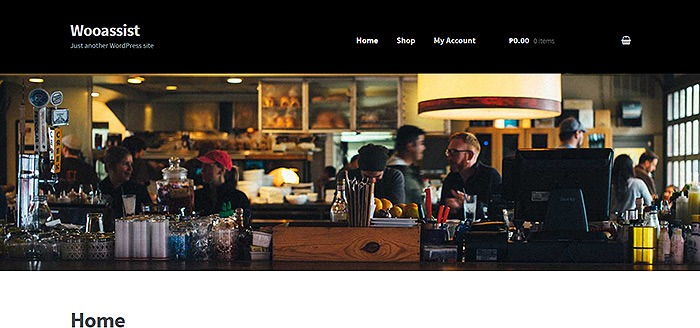
laptop_Hero-Image

The idea of using hero images came about because of issues caused by homepage sliders. Using a homepage slider is discouraged as it will slow down your WooCommerce store and it doesn’t have good conversion rates. If your WooCommerce store running on Storefront has sliders and you are looking for a good alternative, you should consider using a hero image instead.

What is a Hero Image?

To better explain what a hero image is, let’s define what is the “fold” and “above the fold content”. Originally, the fold is a term used in the newspaper industry. Since newspapers are normally folded in half, the upper half of the front page will be the part of the newspaper that is exposed. This is where the most important content is featured, hence the term “above the fold content”. In web design, this is the area of the page that can be seen without scrolling down.

A hero image takes up most of the space above the fold. The trend is to make it large, attractive and relative to the content of the entire site.

It is important that you provide a complete overview of what your company/site is about with just a glance of your hero image. 90% of the time, the hero image has a large text in the center that is related to the branding of the site.

Preparing Your Images

Before you add your image, make sure you have it optimized for web use. You’d want to have the best image quality for the hero image, but you have to take into account the image size as well. As of 2016, the most common screen resolution is 1920x1080px. You should try not to go over this mark. Any excess is just a waste of page size and will just slow down your page load time.

Once you get the right resolution, try to further reduce the image size by down-scaling the image quality. You can actually reduce the image quality without having noticeable pixelation in the image. This is because the human eye can only see limited minute differences in the color changes. Try to strike a balance between having a small image size and having a good looking image. Check out this other post on how to optimize images. Once you are done preparing your image, just upload it to your WordPress site.

Adding a Hero Image in Storefront

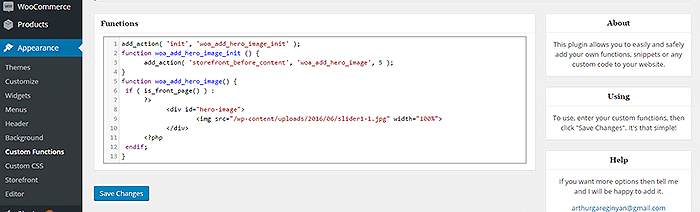
To add a full-width hero image in Storefront, we need to use Storefront’s extensive hooks. We’ll just need to insert a few lines of code.

How-to-add-a-hero-image-in-Storefront-Appearance-Functions

If you are comfortable working with code, you can paste the code below in the functions.php of your child theme. If you are a novice user, we recommend using My Custom Functions plugin to insert the code. Note that one error can cause your entire site to crash.

how to add a hero image in storefront

Copy and paste the code below. Just replace the “/wp-content/uploads/imageurl.jpg” with the URL of the image you uploaded earlier. Width set to 100% makes your image responsive to different screen sizes.

add_action( 'init', 'woa_add_hero_image_init' );
function woa_add_hero_image_init () {
   add_action( 'storefront_before_content', 'woa_add_hero_image', 5 );
}
function woa_add_hero_image() {
   if ( is_front_page() ) :
      ?>
         <div id="hero-image">
             <img src="/wp-content/uploads/imageurl.jpg" width="100%">
         </div>
      <?php
   endif;
}

Your hero image should now appear on your homepage below the main navigation.

If you want to add a link to the shop page or any other url on your image, copy and paste the code below. Just replace the “http://change_me_to_your_url” with the URL you want to link to.

add_action( 'init', 'woa_add_hero_image_init' );
function woa_add_hero_image_init () {
   add_action( 'storefront_before_content', 'woa_add_hero_image', 5 );
}
function woa_add_hero_image() {
   if ( is_front_page() ) :
      ?>
         <div id="hero-image">
             <a href="http://change_me_to_your_url"><img src="/wp-content/uploads/imageurl.jpg" width="100%"></a>
         </div>
      <?php
   endif;
}

Final Notes

Hero images are more effective than sliders in terms of aesthetics. You don’t have to keep using sliders if it’s slowing down your site. Explore more options. Keep your site simple and fast.

If you are still using sliders, you are most likely hurting your site speed. And a slow WooCommerce store will convert less. Your Google rankings could also suffer as a result. It’s time to do away with the slider. Go with a hero image instead.

Was this tutorial helpful? If you have any questions or anything you’d like to add, please let us know in the comments.

Filed Under: Code Snippets, How-To Articles Tagged With: admin, best practices, code snippet, conversion optimization, design tweaks, how-to, image optimization, plugins, site speed optimization, Storefront

Optimize Images on Your WooCommerce Store Before It’s Too Late

October 27, 2017 By John 2 Comments

Optimize Images on Your WooCommerce Store
A lot of WooCommerce store owners complain about their website loading slowly. While a slow website can be optimized to run faster, sometimes optimization can only on do so much if you don’t have the foundations for a fast website. Site speed optimization is not a one-off process. It should be done from the moment the website is created and implemented on a regular basis.

Optimize All Your Images before Uploading

Before you go and use an image on your website, it is important to have these images optimized. Take note where you will use your image and resize it to the actual size of image placeholder. Your image should be no bigger than the size that the image placeholder permits. Anything more than that is just unnecessary load on your server and a few milliseconds of extra page loading time.

It is also important to use an image editing application like Photoshop to remove image metadata and further optimize the image file size. For more information on optimizing images, you can read our guide on how to optimize images for the web. You can also use this online tool to help you optimize your images.

Also, make sure to use descriptive file names. This will help boost your SEO compared to default image files names containing number strings such as IMG20182708 or Image 1.

What If I Did Not Optimize My Images Before Uploading?

If you did not optimize your images before uploading them on your site, it is not too late. There are certain plugins that can help you. The WP-Smush plugin optimizes images as you upload them on your site. It can also optimize your images in bulk. However, the plugin can only do so much if you uploaded very large images.

If the images you uploaded are too large, it might be best to reupload an optimized version of that image. If you’ve had your site for years, this could mean a lot of work. There are no shortcuts but you can start with the images on the most important pages on your site. These include your home page, other landing pages, and best-selling products. Should you need help optimizing your site’s images, you can contact the Wooassist team to help out.

Optimizing Your Product Images

product-zoom-in-optimized-300x350In optimizing your product images, you will need to strike a balance between file size and image quality. Better images will have a bigger file size. The importance of image quality has especially been highlighted since WooCommerce started to implement the zoom functionality when hovering over product images. You now have to test zooming in on your images if they would still look good when zoomed. You don’t want your customers seeing a pixelated image when they try to zoom in on your product. Not all stores are alike so you will need to test what level of quality will work for your store.

Do Away with the Image Sliders

If you have large image sliders on your home page, you might want to consider removing them. Image sliders are resource-intensive and can really slow down a site. Combine that with unoptimized images, and your site will be a top contender for the slowest site on the web.

Sliders do not help your site convert. In addition, it is bad for your site’s user experience. There is an overwhelming amount of data that back this claim. Just check out these articles below.

  • Sliders suck and should be banned from, your website
  • Why Sliders Are Slowly Killing E-commerce Conversion Rates + What To Do About It
  • 6 Reasons Why Image Sliders Are Bad for Conversions
  • Don’t Use Automatic Image Sliders or Carousels
  • Homepage Sliders: Bad For SEO, Bad For Usability

What Should I Use in Place of Sliders?

Image sliders can cause banner blindness especially when your sliders look too much like ads. You can replace your image sliders with a single hero image with a large call-to-action. Compared to a slider which overwhelms your visitors with multiple calls-to-action, a single hero image will contain just one call-to-action. This means it will be easier for you to convince your visitors to take the action that you want them to take. When creating the hero image, make sure it does not look too much like an ad. Otherwise your visitors will just ignore it. The Wooassist team can help you set up a hero image on your store.

You can now start optimizing the images on your WooCommerce store. If you have any questions, you can contact us or let us know in the comments below.

Filed Under: How-To Articles Tagged With: conversion optimization, hero image, image optimization, plugins, site speed optimization

Why You Should Do a Plugin Audit on Your WooCommerce Store?

January 14, 2018 By John Leave a Comment

Have you ever wondered if you can make your WooCommerce store load faster? Have you ever looked at your plugins page and thought about removing some of them? If you answered yes to both of these questions, then you are on the right track. That’s a little something we like to call a “plugin audit” and this can help make your website load faster.

What is a Plugin Audit and Why You Need to Do It?

A plugin audit is an analysis of the plugins currently installed on your WooCommerce store to determine which plugins you can remove.

Why Remove your Plugins?

Improve Site Speed

You might be asking yourself right now why you would want to remove some of your plugins. The simple answer to that is having too many plugins can slow down your site. And a slow website can have negative effects on your conversion rate.

Compatibility Issues

Another issue with having too many plugins is that it makes your site more prone to breaking when you update your plugins. Your plugins will need to be able to work seamlessly with each other. Having too many plugins means that the odds of one plugin not being compatible with another is high. After every update, plugins can also break compatibility with plugins they were originally compatible with.

Security Threats

Having too many plugins also exposes your site to security issues. Poor coding can result in hackers exploiting vulnerabilities in some plugins. If you only have a few plugins, then the odds of your website being hacked through plugin vulnerabilities is also reduced.

But How Many Plugins is Too Many?

There is no definitive number that equates to a “right” number of plugins that you need to have on your WooCommerce store. But a good rule of thumb is to just use the plugins that you really need.


Also, don’t install multiple plugins that do the same thing. Avoid using plugins like Jetpack that bundle numerous plugins into a single plugin. Jetpack is not bad per se. Feel free to use it if you use all of its features but chances are you won’t be using everything that Jetpack has to offer. In which case, Jetpack’s unused features needlessly eat up your WooCommerce store’s resources. It would be better to determine which features of Jetpack you use and find a plugin that does only that.

Which Plugins Should You Remove?

Plugins that do the same thing. If you have two or more plugins that do the same thing, you should remove the other plugins and choose the best one for your needs. The duplicate plugins just hog up your resources so there’s no reason for you not to remove them.

Plugins that can be supplemented with custom code. Sometimes you will need to install some kind of code somewhere on your site to remove a feature you don’t want or to add support to a service that you are using. But since you are not a developer, you find a plugin that will insert the code for you. Over time, these plugins could add up. When doing a plugin audit, you can list down all the plugins that can be supplemented by inserting custom code and then you can hire a developer to insert all these codes for you in one go. To an experienced developer, this should be doable in less than an hour but we recommend spending a bit more time for testing.

Plugins that you don’t use. If you have installed some plugins that you are not using, then there’s no sense in keeping them. You keep telling yourself, you might need them in the future. Uninstall them now and just install them again when you actually need them.  

Plugins that your customers don’t use. Maybe you installed a Wishlists plugin but then you find that none of your customers have actually used it. Because this plugin does not provide any value to your store, you might as well just remove it.

Plugins that have not been updated in a long time. Outdated plugins can break after some time so it is best to find another plugin that does the same thing and has been updated recently. Also, outdated plugins can be a security concern. Even when installing new plugins, you should check if the plugin you will be installing is being updated regularly.

Final Words

After doing a plugin audit, you will have a site that is faster and less prone to breaking during updates. Should you need help in doing a plugin audit for your WooCommerce store, you can contact us and we can help you out.

If you have any questions, comments or suggestions, you can let us know in the comments.

Filed Under: How-To Articles Tagged With: conversion optimization, optimizations, plugins, site speed optimization

Speed Optimization to Help Your Online Store Rank Higher

January 29, 2015 By John Leave a Comment

SnapCrab_2015-07-03_10-57-18_No-0000

Site speed sells – it can help your rankings, and increase conversion. Why is this so? First of all, Google announced that ‘page speed’ is now a ranking factor. Next, ensuring that your pages load quickly can lead to customer satisfaction. When you’re in the ecommerce industry,it is a must to invest in site speed optimization.

Higher Conversion Rates

A website that possesses optimum load speed has higher conversion rates. Any delay in site speed equates to unsatisfied customers. It’s enough reason to make them leave and go to other sites. Remember, your loss is your competition’s gain.

SnapCrab_2015-07-03_10-57-36_No-0000

Google has always rewarded sites that have clean codes and download quickly. They even launched a new web-based tool, which analyzes the performance of web pages. They also provide specific suggestions for making them faster. You can read more of this here.

This means that if your site loads slower, it will rank poorly in the search engines. You need speed optimization to help your online store rank higher.

Optimizing Site Speed

The window of opportunity for websites to engage and catch the interest of users is pretty small. We’re talking around three to five seconds. After that, users may leave.Chances are, they wouldn’t bother to make another visit. That converts to lost revenue, which hurts your bottom-line.

Page loading speed is the first thing site visitors notice. It even takes precedence over the site’s design. For that reason, you might find these tips about optimizing website speed helpful. Even more so for larger sites that have plenty of products.

Building and maintaining an ideal website takes a lot of hard work. There are so many things to consider, and site speed optimization is not the least of those. A fast loading site is essential to ranking well in Google and the other search engines.

Filed Under: How-To Articles Tagged With: e-commerce, how-to, page speed, site speed optimization

  • « Previous Page
  • 1
  • 2
  • 3
  • 4
  • Next Page »
Let us support your online store so you can manage your business

Get started today

Get 2 Hours of FREE SUPPORT

We are so confident that you will love our services that we will give you your first 4 hours at a 50% discount

That’s 4 hours for only $75

BUY NOW

Free eBook

5 Things Every Online Store Can Fix On Their Website In The Next Week To Increase Sales

Quick Links

  • How it Works
  • Pricing
  • Blog
  • Contact
  • About Wooassist
  • My Account
  • Checkout
  • Privacy Policy
  • Cookie Policy
  • Terms and Conditions

Wooassist

Australia:
59 Luke St.
Hemmant QLD 4174

Philippines:
San Miguel St.
Poblacion, Iligan City 9200

Connect


Copyright © 2026 · Wooassist

Yours FREE!

5 Things Every Online Store Can Fix On Their Website In The Next Week To Increase Sales