Did you know that you can increase conversion rates by adding the WooCommerce Side Cart plugin to your website?
Improving the customer journey in your WooCommerce is a great way of boosting your conversion rate and this simple plugin gets the job done by adding an intuitive site-wide cart icon to your WooCommerce store. When you click on the icon, it brings up a view of your cart. When checking the cart contents, your customers don’t need to leave the page they are on which makes for great user experience.
Our Own Experience
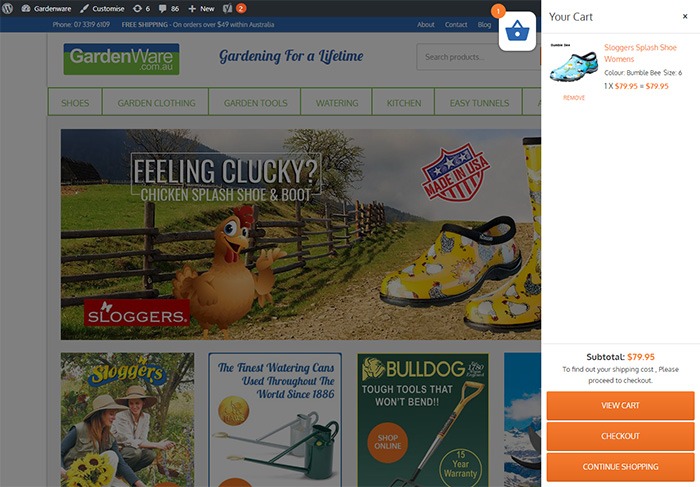
We tested the plugin on GardenWare among others, but here’s how it looks on GardenWare. You can tweak the look to fit your brand with some custom CSS. You can adjust the position of the cart icon depending on your needs. You can also remove items or add quantity without refreshing the page.
Increasing Conversion Rate
After installing the plugin on Gardenware, we took the data after 3 months.
To account for seasonal data, we compared the data with the same months of the previous year, and we get an increase in conversion rate of almost 10%.
It is important to note that improving the customer journey and user experience leads to more conversions. From our user testing, the plugin does help improve user experience by a great deal.
How to Install and Set Up WooCommerce Side Cart
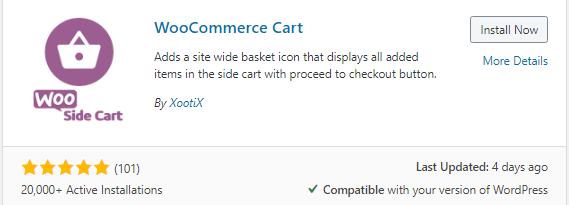
To get more conversions by using the WooCommerce Side Cart, you have to first install the WooCommerce Cart plugin. You can download the plugin here or search for it from the plugin repository.
We recommend testing this first on a development site to make sure the plugin does not conflict with any other plugin you are using. It’s a good idea to extensively test your product purchase process to make sure there are no issues.
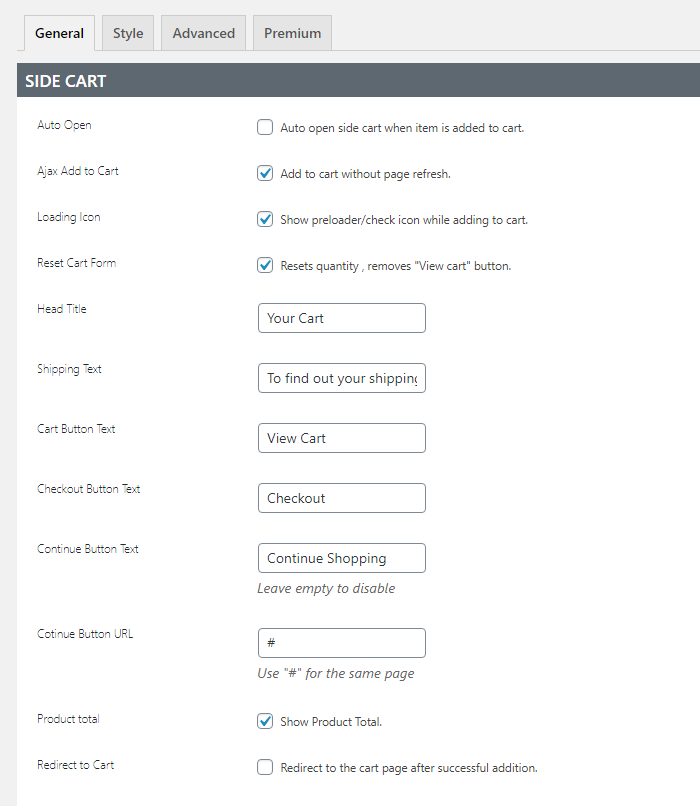
After installing and activating the plugin, click Woo Side Cart from your WordPress Dashboard to see the plugin settings. You can tweak the settings based on your needs.
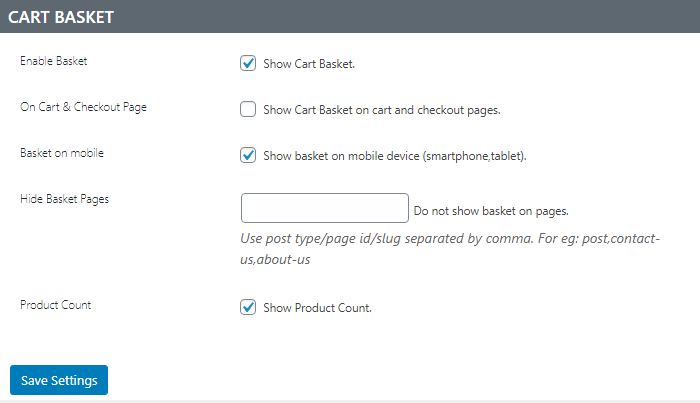
You can also tweak the CSS to make sure the sidebar cart colors and style fit your branding strategy.
Should you need assistance with setting up and customizing the plugin, we can help. Or if you have any questions, you can let us know in the comments.
 Some website owners might think that a good theme just needs to look good. Well, that’s not wrong but it’s also not entirely correct. You need to know how to check if a theme is a good theme for your WooCommerce store. Here’s a checklist to help you decide if a WordPress theme is good for your WooCommerce Store.
 Update frequency is a good sign of a solid WordPress theme. It shows that the developers are continuously making it better by addressing bugs and other security threats. Similarly, check if the developer is active in public forums. This is a good sign that you will get answers if you are ever met a problem.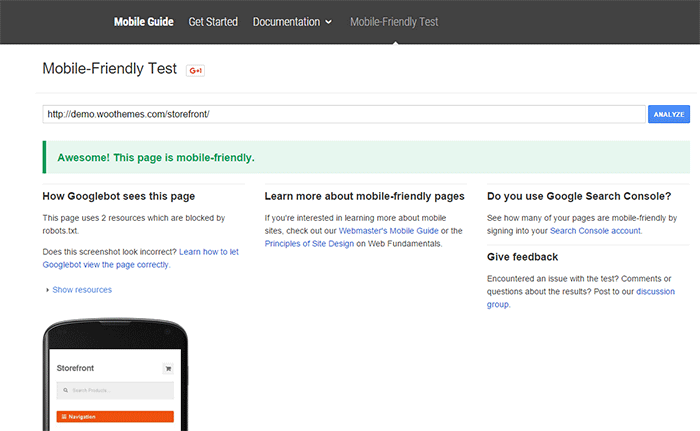

 Simplicity is the epitome of great design. Select a proper theme that matches the nature of your e-commerce store and will appeal to your target market. If you are planning for a content rich website, go for a more formal look with good typography for enhanced readability. If you are selling products for kids, you can be more playful with the design. Spend some time researching for a theme that addresses your needs. Consider the aspects mentioned above and decide if this is the theme for you.
 Storefront
 The
The 


 If you see that your WooCommerce site visitors are leaving your site not long after they get in, you might want to check if your site is loading fast enough. Slow page loading is one of the primary reasons people leave websites. Studies have shown that a 1-second delay in page response can result in a 7% reduction in conversions. Even Google admitted
  It is critical for WooCommerce sites to have optimized images, specifically product images. The sheer number of product images and alternate images can significantly affect a WooCommerce site’s page speed. You might want to aim for a
  Page size is not the only thing that has a direct impact on your page load time. The total number of HTTP requests is a major factor as well. Every image, JavaScript file, CSS file, and jQuery file adds up to more HTTP requests.
 Another culprit in slowing down a site is having externally hosted content. They can look harmless at first but without moderation, your site will get bogged down by these contents. Your site will only be as fast as your external host server. It is not limited to external videos, audio, and images. External content can also be stylesheets and scripts. One common culprit is the overuse of Google Fonts, so as much as possible try to only use at most 2 font families from Google fonts.


