Wooassist

Assistance for Your Woocommerce Store

  • How it Works
  • Pricing
  • Services
    • Site Maintenance
    • AI SEO and Content Marketing
  • Blog
    • How-To Articles
    • Code Snippets
    • SEO For E-Commerce
    • Theme and Plugin Reviews
    • Wooassist News
    • WordPress/WooCommerce News
    • Interviews
  • About Us
  • Contact
You are here: Home / Archives for WooCommerce

How to Choose the Best Domain Name for Your WooCommerce Store

April 5, 2016 By John Leave a Comment

how to choose the best domain name for WooCommerce

Your domain name is part of your company’s identity. It should play an integral part in your branding strategy. In this article, we will identify how to choose the best domain name for your WooCommerce store.

Stay Relevant

You can start with a list of five to ten keywords that communicate what your WooCommerce store is about. You can then narrow it down, choose to add a prefix or a suffix, use them to make compound words, or make a new word.

Brand is not an SEO ranking factor but it has a positive influence on your SEO and reputation. At a glance, your customers should be able to connect your domain name to the nature of your business. Having a relevant domain name will also benefit you in defining your target market.

Stay Unique

Set your e-commerce business apart by having a unique and creative domain name. Avoid having your website domain name close to another brand’s name. A sure recipe for disaster is when users confuse you with another popular site.

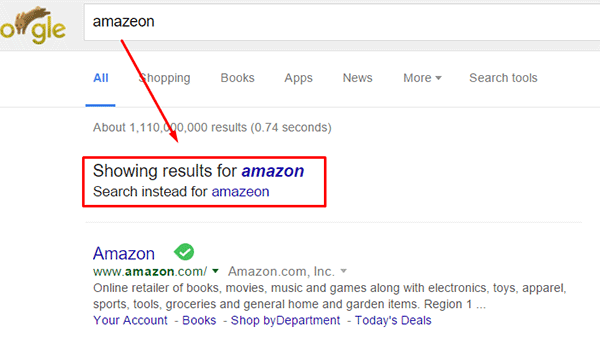
Intentionally going with a domain name similar to a popular brand in an attempt to deceive users can land you in jail. Same goes for intentionally misspelling a popular brand’s name. The practice is known as “typosquatting” and it is illegal. In fact, Facebook recently won $2.8 million and gained control of over 100 domains in a typosquatting case. You could also be charged with fraud or copyright infringement. Also, even if the popular brand does not catch wind of your site, intentionally misspelling a popular brand name can direct your traffic to the popular brand. Just check out the image below. A unique domain name will do wonders to your branding as it sticks into your customers minds.
misspell-popular-brand-name

Keep it Simple, Short and Memorable

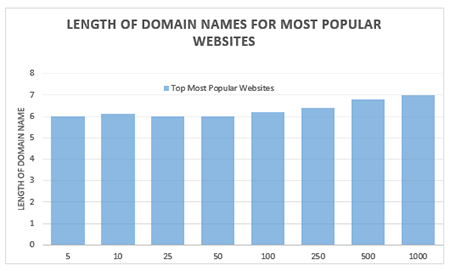
domain name lengthChoose a domain name that is easy to type and easy to remember. Don’t use hyphens, numbers, slang, and odd misspellings. In Alexa.com’s top 500 sites on the web, some of the top most popular websites have domain name lengths of 6-7 characters on average: Google, Youtube, Amazon and Linkedin, to name a few. From this data, it does appear that domain length matters.

Difficult-to-remember and hard-to-pronounce domain names would most likely rank low in search engines. A simple, short and memorable domain name is a great help with word-of-mouth marketing. It also fits well on any online or print form of marketing.

Tools to Help You Choose

There are now many tools online that you can use when you’re stuck or don’t know where to start in searching for a good domain name. Here are tools that can help you jump-start your domain name brainstorming session.

Domain Typer

Domain Typer helps you search for domain names. It displays popular domain name extensions like ‘.com’, ‘.net’, ‘.org’, ‘.co’, ‘.info’, and ‘.mobi’. It also displays prices should you need to compare.

If a domain name is not available, it displays links to its registration information, website and page ranking. It also has a domain hack section where you can select unusual combinations of your keywords.

domain-typer

Lean Domain Search (formerly Domain Pigeon)

Aside from the search option, Lean Domain Search gives you some examples to help you get started. You can sort the results and even add search term filters. It shows ‘.com’ results and it shows you the popularity index of your keyword by domain count.
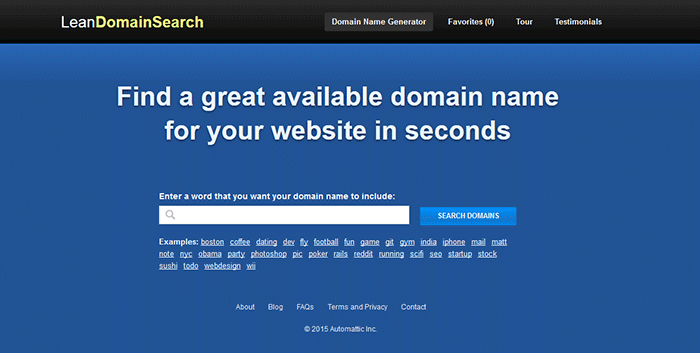
lean-domain-search

Wordoid

Wordoid is a more intelligent tool that sparks your creativity in getting a unique name for your domain. Just remember to not overdo it. Simple names are easier to remember.
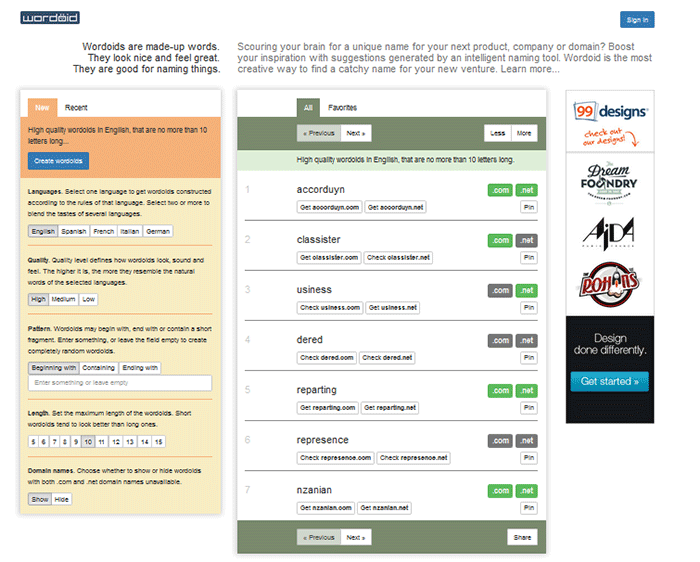
wordroid

What if the Domain I Want is Not Available

You did your brainstorming and you have decided on the perfect domain name for your WooCommerce store. But upon checking, you find out that the domain you want is no longer available. You can try the alternative solutions below.

Just Come Up with a Different Domain Name

Discretion is the better part of valor. You may think you are smart by using the same domain and just using a different domain extension like .net or .co. However, you may just end up sending your hard-earned traffic to the other domain. Put on those thinking caps and think of another domain.

Create an Offer

One option is to find out who the registered owner is and create an offer. This is especially advisable when the domain is registered but not being used. Just visit the actual address or use a tool like theWhois Domain Tools or ICANN lookup tool to get information on the current registered owner. Send them a message and ask if they would consider selling the domain name. Most domain registrars offer services wherein they contact the domain owner in your stead. This is worth a try if you really want that domain.

If you decide to get in touch with the owner yourself, try to make your request sound casual. Don’t act too interested as you could get an overpriced offer.

Monitor the Domain Name

If your lookup shows that the domain registration is expiring soon, waiting it out might be a viable option. When the domain is back in the open market, grab it. However, do note that certain domain registrars give domain owners ample time to renew their registration. The domain may not appear on the market on the actual day that it expires.

Avoiding Overpriced Domains

money-financial-crisisIt is difficult to gauge the exact value of a domain name because it’s all about demand. Some domain names are really just expensive and there’s not much you can do about that. You can just build your not-so-popular domain’s reputation from the ground up. Many domain registrars provide discounts and offers so you can save a few bucks on that. If the domain that you want is being auctioned, you can join the auction and get it very cheap if you are lucky.

Background Check on Domains

Buying a domain, especially used ones, can be a nightmare if you don’t do your research. If you have decided to buy a used domain, don’t buy that domain yet unless you’ve done the following.

Check its Registration History and Reputation

Check the site ownership registration history. Use Whois Domain Tools to look up ownership information, ranking, traffic, SEO and more. The frequency of change in its owner or host speaks about its reputation and stability.

Avoid buying domain names sold numerous times in a short span of time. It might have a negative reputation from search engines that can be a nightmare to solve.

Analyze Link and Content History

You can use Internet Archive to check domain name’s content history. To check a domain’s reputation, google ‘site:yourdomain.com’ (without the quotations). You can also do a regular search to bring up all mentions of the domain name.

Be on the lookout for spammy illegitimate links. Check for Google red flags like bans and penalties. Make sure to also check the domain name’s Google cache date, including the text only version.

Do a thorough examination of its back-links. If you find anything shady, it might be a good idea to back off. While Google now gives website owners the ability to manually remove or disavow links, this isn’t something that you’d want to be doing. Save yourself from a lot of headache and go with a domain with a good rep.

To Sum It Up

A domain name is your online store’s identity. You can be successful with your branding and online business with a good domain name. You just need to carefully choose a domain name that is unique, relevant, short, simple and easy to remember. You also need to do a thorough background research to make sure you are not buying a domain with a bad rep.

Do you have any tips you’d like to share? Or did we miss something? Let us know in the comments.

Filed Under: How-To Articles Tagged With: best practices, e-commerce, how-to, marketing strategy, WooCommerce

WooCommerce Landing Pages to Boost Conversion

January 29, 2015 By John Leave a Comment

woocommerce-landing-pages

You just launched your e-commerce store using WooCommerce. Now, you want to go all out on your marketing campaign to boost conversion rates.If you want to get your campaign off to a great start, there’s one thing to remember – never start without a landing page.

What is a Landing Page?

A landing page is a standalone web page that stands apart from your actual website.  It is designed for a single focused objective, and serves as a guide for achieving conversion goals.It does not have any direct ties to your website. No global navigation exists to link the two together. Here is a good article explaining what it is.

SnapCrab_2015-07-03_10-28-23_No-0000

The landing page may be used either to capture leads or make a potential customer ready for purchase. Access to it is only possible through a link that you’ll provide in the content of your marketing campaign. This post further explains what a landing page is used for.

WooCommerce Landing Pages

Building landing pages for your WooCommerce store will help you generate more leads and conversions. Even if you plan to hand this task over to a professional, it would help if you understand the process.

This resource has tips on how to create effective landing pages.  WooCommerce Conductor. It can also show you how to create focused landing pages of featured WooCommerce products, capture leads, and build future marketing funnels.

SnapCrab_2015-07-03_10-28-41_No-0000

The first step to creating a successful, WooCommerce landing page is setting your business objectives. It’s worth noting that a landing page without a lot of thought behind it, will not be able to achieve its goals.

The potential uses for landing pages are almost limitless, but it can only benefit you if it’s done the right way. How well it is designed,and how skilfully it works,can make or break conversion. It is your ticket to more leads and sale, so having a professional landing page design is important. Let our Wooassist team do the job for you!

Filed Under: How-To Articles Tagged With: conversion optimization, how-to, marketing strategy, outsourcing, Wooassist, WooCommerce

Wooassist Reviews the Best WooCommerce Hosting Services

June 16, 2016 By John Leave a Comment

serverThe right hosting service should be secure. Your hosting service should be able to help you solve hosting-related problems and quick. Your hosting service should be fast because quick page loads are critical in retaining site visitors. So what is the best WooCommerce hosting service?

Here is our review of some of the more popular hosting services around.

GoDaddy

GoDaddy_logo

Our rating: 7/10

GoDaddy has one of the cheapest plans available for website owners. They have a basic plan for those on a tight budget. Their basic plan has limited features and may not be a good choice. Make sure to check if these features will fit your needs as you might end up spending more with add-ons. Choose their higher priced packages if you need better functionalities such as a staging site to aid in development work.

Its performance and speed are acceptable but not that outstanding. As for support, it is not as good as other hosting services. All in all, it’s a decent hosting service. There is not much to worry about if you decide to go with them.

Bluehost

Bluehost

Our rating: 8/10

Bluehost is one of the most popular hosting services. For us, this popularity is reasonable. We haven’t had much trouble with the sites hosted in Bluehost that we’ve handled. Its server response time or speed can range from average to fast. It is still better than other shared hosting providers.

Their basic plan has less storage compared to GoDaddy’s but they offer more features. Features include a Global CDN, domain privacy, and SiteBackup. Your online store can benefit from better speed and security. In a hostbenchmarker study, Bluehost support takes some time to respond compared to other hosting services. We haven’t had much opportunity to work with their support though. To us, this gives them more value in that we or our clients haven’t had much to complain about.

Web Synthesis

Web-Synthesis

Our rating: 7/10

Synthesis is another good hosting service for online stores. It is a managed hosting service so it’s a bit pricier than others. They offer features that optimize site performance and security. Their speed is one of the fastest around. They also have an efficient support team.

The downside is that they don’t provide a staging site feature. This might complicate the development of your site. The usage of a staging/development site is best practice for website development. With a staging site, you’re able test your website updates before applying them to your live site.

Their processing power is also great but they have metered bandwidths. It’s not much to worry about as they provide 2TB-6TB plans. Unless you get huge bursts of traffic from content going viral, you’ll be okay. Overall, it provides a reliable hosting service.

Siteground

Siteground

Our rating: 9/10

We consider Siteground as one of the best hosting services for online stores and websites in general. Other review sites have pegged it as their top hosting service. Our experience with it has also been great.

The prices for its plans are reasonable. It has a metered bandwidth but the speed is top-notch with their super-caching feature. At the time of writing, they have servers in 3 continents and offer free CDN to each account.

All plans provide a decent backup service. Based on our experience, their customer service is good. You won’t find many hosting services giving the same value for money as Siteground.

WP Engine

WPEngine

Our rating: 9/10

WP Engine is a managed WordPress hosting service. This makes it work well for WooCommerce sites. It’s our hosting of choice for Wooassist.com. We chose this as it works great and comes with a host of other features.

In our experience, speed has not been a problem. They use EverCache for speed and massive scalability. They are also CDN-ready and this helps in delivering global content. They also offer good security and backup features to boot.

In addition, they also have the best support service compared to other hosting sites we have worked with. They don’t have the cheapest plans but they have reasonable and flexible value-for-money plans. We consider it the best hosting for low to medium volume online stores.

VPS Hosting Services

VPS-Hosting

Our rating: 5/10

This isn’t a review on a particular hosting but VPS or Virtual Private Server hosting in general. This type of hosting service is well suited for large websites. It is also a type of shared hosting that benefits most advanced users. Its pricing is not as cheap as the hosting services we reviewed in this post, but it’s not as expensive as dedicated servers.

The downside is its standard interface requires a lot of digging. Some services may be inflexible or frustrating because of its steep learning curve. Most VPSs do not come with a myriad of features, unlike the hosting services we reviewed in this post.

Not exclusive to VPS, but bursts of traffic tend to slow down a VPS-hosted site too much. The entire website could also go down because of this. They have failed in speed and reliability. For your WooCommerce store, we’d recommend to stay away from VPS hosting services in general.

Conclusion

Choosing a hosting service is something that you should do after thorough consideration. Read the fine print and the features before you pay for the service. This will keep you from wasting your time and money for hosting that is not a good fit for your WooCommerce store. Please note that even if we are affiliates with Siteground and WP Engine, we chose them based on years of experience. We have dealt with these hosting services for our clients’ and our own sites. We can attest that these two are among the best. If you were to sign up to either of them, we’d be grateful if you did so by clicking either of the links above.

Filed Under: Theme and Plugin Reviews Tagged With: backup, page speed, security, site speed optimization, Siteground, WooCommerce, WPengine

How to Add a Favicon to your WooCommerce Store

February 29, 2016 By John Leave a Comment

What is a Favicon?

Favicons are typically 16×16 square images. Old versions of Internet Explorer refer to the bookmark section as “favorites”. Hence the name “favorites icon” or favicon for short.

What is the Point of Having Favicons?

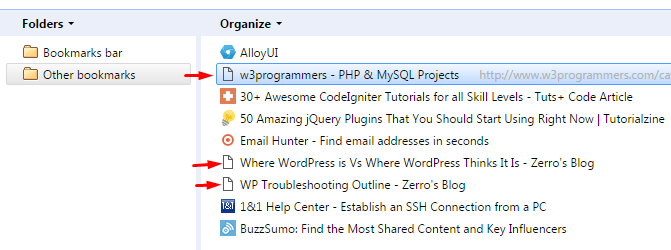
The main purpose of having favicons is to easily distinguish different websites in the bookmarks page. Here is a snapshot of a bookmarks page. Notice that the pages without favicons are hard to distinguish if they belong to the same website or not.

favicons in bookmark manager

Search engines and websites then are not as powerful and strongly connected with links. If you came across a good site, it was usually a good idea to bookmark it. As a result, people often have a long list in their “Favorites page”. The favicon answers the need to tell each website apart in the list at a glance.

Favicons are not limited to bookmarks pages though. It is also used around different parts of the browser like the history page, tabs, and more. Favicons play a huge role in online branding providing easy recognition and association. If you are serious in brand recognition, then you must add a favicon to your site.

Adding a Favicon to Your Woocommerce Store

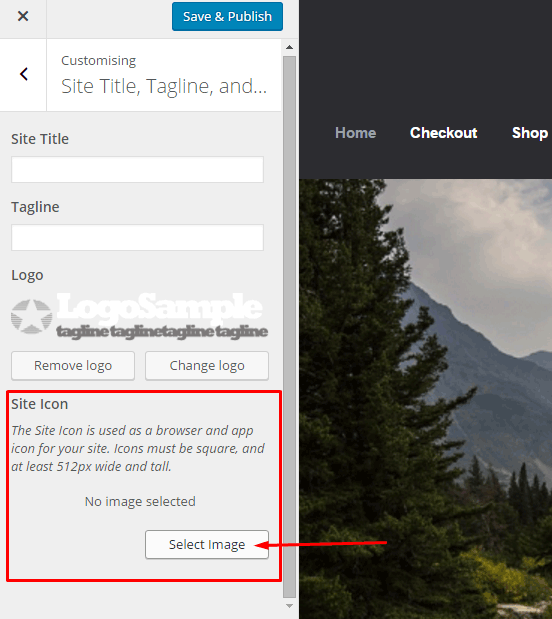
Starting from WordPress 4.3, you can now add your favicon directly using the admin panel. Navigate to Appearance > Customize > Site Title, Tagline, and Logo.

add favicon to your woocommerce - customize wordpress site icon

Simply select a 512×512 image from your media library or you can upload a new one. If you select an image larger than 512×512 or a non-square image, you will receive a prompt to crop your image.

After this, click save and publish. Refresh or restart your browser to see your new favicon.

Note that this is a default feature since WordPress 4.3. If you don’t see this feature in the theme you are using, contact your theme’s support for assistance. Or you can do it the old fashioned way with the steps below.

How to Make a Favicon?

If you have a small logo, that would be good to use for a favicon. Otherwise, you’ll have to create a miniature version of your logo. If you are not comfortable working with graphics, you can contact your graphic designer to help you out.

How to Manually Add a Favicon?

To add a favicon to your WooCommerce store, start by saving the image to one of your site’s folders. You can upload it using FTP or via media library upload. After saving it, take note of the filename and file path. It is best to save your favicon in your website’s root folder or in the images folder of your theme’s folder.

On your Dashboard, navigate to Appearance > Editor. Find your theme’s header.php file. Remember, the best way to edit your theme’s files is via a Child Theme. You can select one from several Storefront child themes to help you customize your WooCommerce store.

Paste the code below in your header.php file just below the other lines starting with “<link rel=”.

<link rel="icon" href="http://www.domain.com/favicon.png" type="image/x-icon" />
<link rel="shortcut icon" href="http://www.domain.com/favicon.ico" type="image/x-icon" />

Replace “http://www.domain.com/favicon.ico” with the file path of your favicon. Save the file and you’re done. You may need to restart your browser to see the new favicon.

I hope we helped you in adding a favicon to your WooCommerce store. If you have any questions and feedback, leave us a comment below. We are always ready to help.

Filed Under: How-To Articles Tagged With: code snippet, design tweaks, e-commerce, how-to, image optimization, photoshop, WooCommerce, WordPress

How to Set Up WordPress SEO by Yoast for WooCommerce

March 26, 2015 By John Leave a Comment

How to Set Up WordPress SEO by Yoast

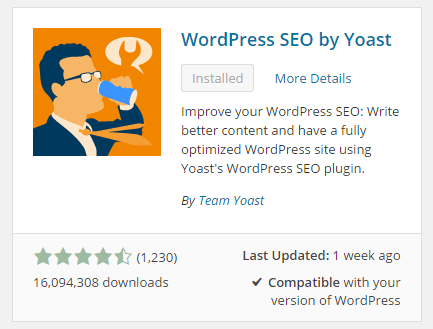
The WordPress SEO plugin by Yoast with over 16 million downloads is easily one of the best plugins that you need to have on your website. Whether it’s a personal blog, an e-commerce store, or a company website, you should have this plugin. In fact, many WordPress developers have WordPress SEO by Yoast in their list of plugins to install each time they create a new website. Many of you may already know a bit (or a lot) about SEO and that’s okay. That just means you’ll make better use of this plugin. And for those that don’t know much about SEO, don’t worry. The plugin is user friendly. I’ll walk you through all the functionalities so you’ll know how to set up WordPress SEO by Yoast for WooCommerce.

Installing WordPress SEO by Yoast for WooCommerce

To install the plugin, head over to the plugin developer’s website. Once there, download the plugin and upload it at the plugin page of your WordPress Dashboard.

You can search for the plugin on the plugin repository by going to your WordPress Dashboard. Click on “Plugins” and then “Add New”. From there just use the search bar to search for the WordPress SEO plugin and click on “Install Now”.

SEO Plugin Especially for WooCommerce

For WooCommercestore owners, getting the premium Yoast WooCommerce SEO plugin is a worthwhile buy. When used with the WordPress SEO plugin, you can better optimize your WooCommerce store. It enhances the existing Open Graph and Twitter Card enhancements in the WordPress SEO plugin. It will also optimize your sitemap for an ecommerce store setup, among other things. For a guide on how to set this up, check out this post.

Optimizing Product Pages for SEO for WooCommerce

The single most important function of the WordPress SEO plugin by Yoast is its ability to help you optimize your blog posts and pages for SEO. That includes WooCommerce products. WooCommerce products work just like posts/pages so it is the same procedure. So when I say page or post, the same applies to WooCommerce products.

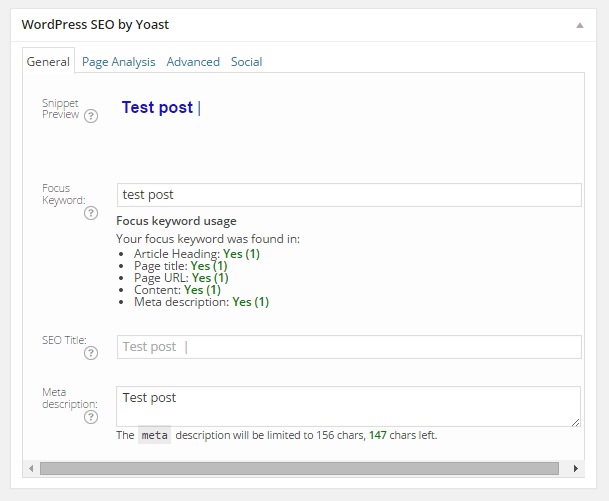
Optimizing posts/pages is easy enough. You can do it right after you finish creating the post/page in WordPress. When you’re on the post or page, just scroll down and there will be a section named “WordPress SEO by Yoast”. On the General tab, you’ll see a Snippet Preview. This is how your post/page will show up on the Google search results page. And the fun part is that you can edit how your post will show up. First off, you set a focus keyword. This should be the keyword that you want your blog post or page to rank for. What you should be aiming for is to have this focus keyword in:

  • the title of your article
  • in the body of the content especially in the first paragraph
  • and the meta description which you can set in the field where it says meta description

If you got that all right, you should be seeing all green below the focus keyword that you set.

post-optimization

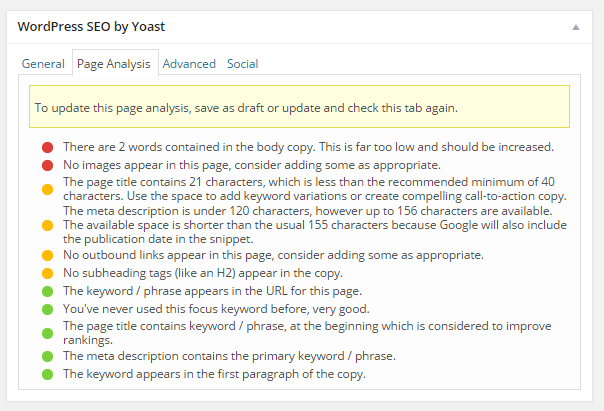
You can also click on the Page Analysis tab to get more information and other suggestions to improve your post/page. You don’t have to follow all the suggestions. But following everything will help increase the quality of your post/page.

page-analysis

You can tweak a bunch of other settings under the Advanced tab so feel free to change them as you see fit. You can even change how your post would appear when it gets shared on social media under the Social tab.

Optimizing WooCommerce Product Categories for SEO

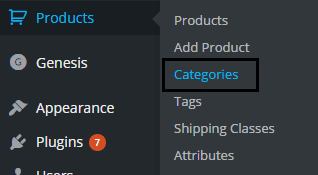
woocommerce-product-categoriesSimilarly, you can also optimize WooCommerce product categories for SEO. Just go to “Products” and click on “Categories” Edit the category that you want to optimize. When you scroll down to the bottom of the “Edit Category” page, you’ll see a section called Yoast SEO Settings. Fill in the SEO Title and SEO Description fields and click on Update.
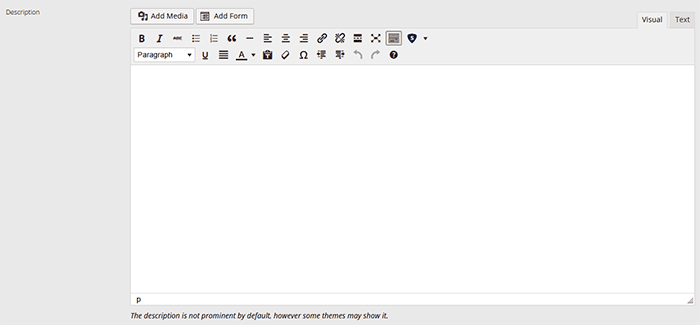
optimizing-product-categories

Unlike when optimizing product pages, you don’t get to set a focus keyword. However, you can still target a keyword by including the keyword in the SEO Title and SEO Description fields. You should also put it in the Category Description field above the Yoast SEO Settings section.

Note that not all themes are able to display product category description on the category page but if your theme supports this function, the text that you put will appear on your product category page.

product-description

Verifying Your Website with Search Console

Verifying your website with different Google Search Console tools is important if you want your site crawled. It will have your website crawled by spiders. I don’t mean actual spiders. I mean search engine spiders that index websites on different search engines. Verifying with different webmaster tools can be a complex process but this is made easy with the WordPress SEO plugin.

Linking with Social Media Profiles

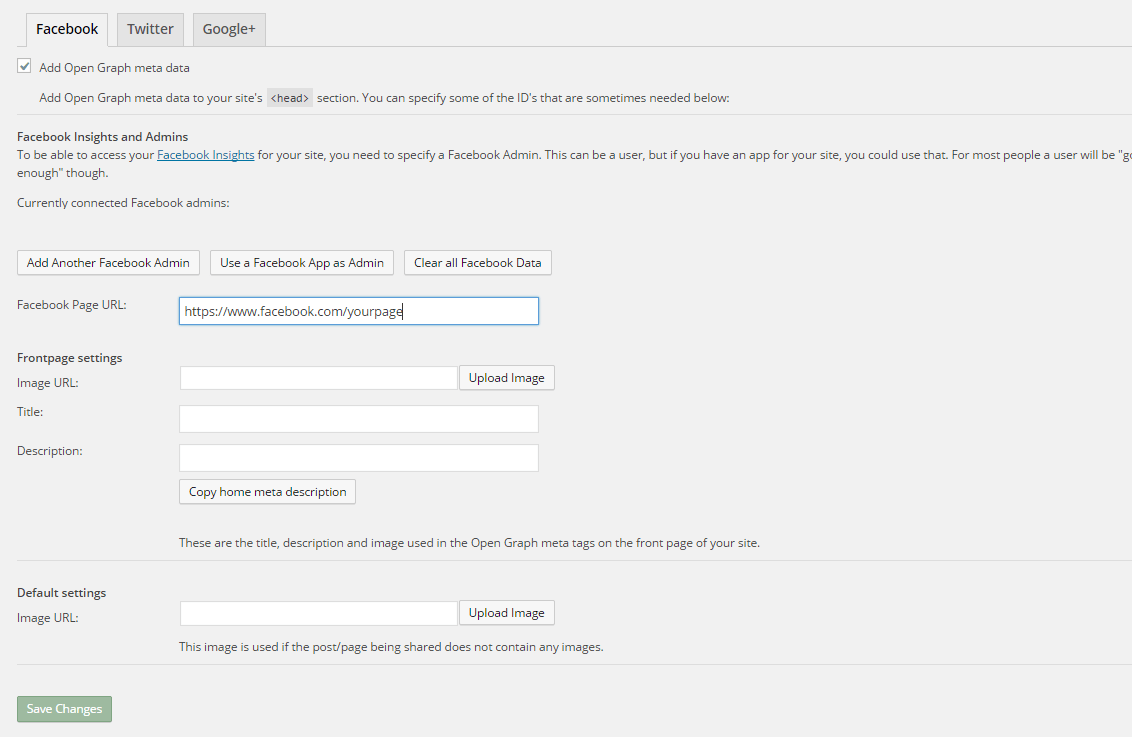
You can connect your website with your social media pages with the WordPress SEO plugin. You can do this by going to “SEO” and then clicking on “Social”. Here there are three tabs: Facebook, Twitter and Google+.

How to Connect Facebook

Linking Facebook to your site allows you access to Facebook Insights. If you already have a Facebook page, you just need to get the URL of your Facebook page. Copy the URL and then paste it where it says “Facebook Page URL”. You can then set the administrators for your page by clicking on Add Facebook Admin. If you are an advanced user, you can tweak a bunch of other settings. When you’re done, just click on “Save Changes”.

facebook

How to Set Up Twitter Cards

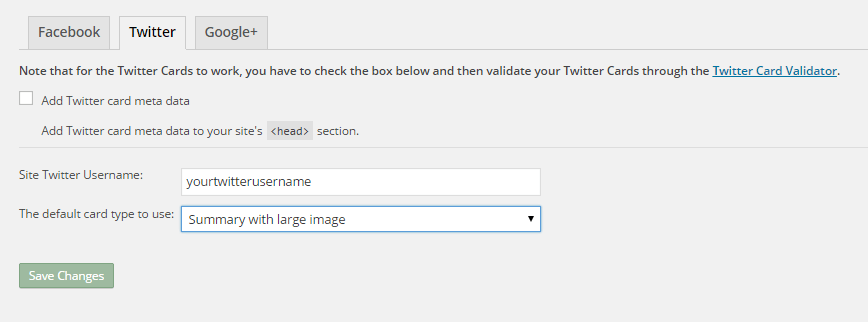
Do you use Twitter? Have you ever seen links in Twitter that show a snippet of the page that it links to? That’s called a Twitter card and you can enable that on your website using WordPress SEO. The usual thing is that enabling Twitter cards would call for you to add some lines of code to your header. But WordPress SEO eliminates the need for that.

twitter

How do you do this? On the Social section of the plugin, click on Twitter. Fill in your Twitter username on the appropriate field. Specify the kind of Twitter card that you want to have then click on “Save Changes”. You’re not done yet. You still need to confirm your Twitter card. Head over to this link. Specify the URL and click on “Preview Card”. After that, click on “Request Approval” and fill out the form. Finally, click on another “Request Approval”.

Soon, you’ll be able to see Twitter cards on your Twitter links.

The premium YoastWooCommerce SEO plugin will further help you optimize your Twitter Cards if you have that.

How to Connect Google+

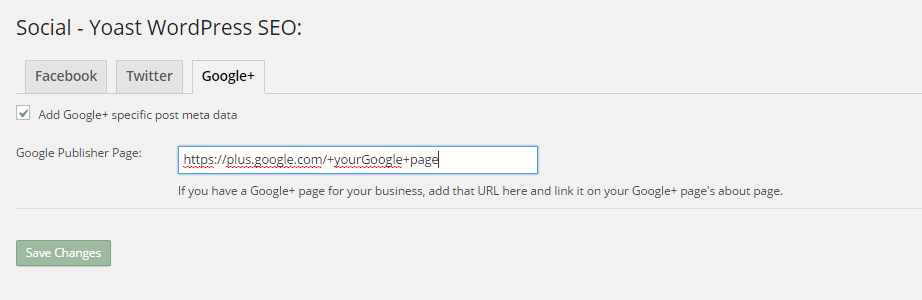
To connect your website with Google+ means setting your Google+ profile as the publisher of your content with the “rel=publisher” markup. “Rel=publisher” is an authorship markup which connects websites to Google+ pages (not personal profiles).

To connect your Google+ company page, head over to the “Social” section of the plugin and click on Google+. Fill out the field with the URL of your company page on Google+ and click on “Save Changes”.

google+

You might have heard of “rel=author” which links the content to the Google+ profile of the author. When implemented in the proper way, “rel=author” should show a snippet of the content with a photo of the author in the SERPs page. If you’re a writer and you’re hyped by that, I’d hate to burst your bubble but “rel=author” is no longer supported by Google. You can read more about it here.

Improving Sharing on Pinterest

Pinterest is another social media platform that’s worth mentioning. It has great potential for e-commerce stores. Why? Because Pinterest is image-based. The YoastWooCommerce SEO plugin makes sharing on Pinterest more worthwhile. After setting Twitter products and Schema Open Graph additions, your pins on Pinterest will start to show in a different way. In most cases, WooCommerce product will show up like posts. But with the plugin configured, your products will show up as “products”. They will show product related information such as price and variations.

Implementing Sitemaps with WordPress SEO

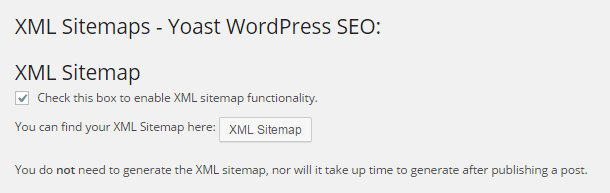
In a nutshell, sitemaps communicate with search engines to let the latter know when there are changes to the website. There are a lot of plugins that lets you create a sitemap. If you are already using the WordPress SEO plugin, just use the built-in sitemap module. Looking for another plugin just add an extra load to your server.

sitemaps

To get your sitemap, go to the plugin’s “XML Sitemaps” tab and then tick on the first box to enable sitemaps and click on “Save Changes”. There are a bunch of settings that you can tweak. You can have a look at them and change them as you please. They are pretty much self-explanatory.

You also might want to get the WooCommerce SEO plugin, which was mentioned above a couple of times. This removes some unnecessary bits from your sitemap in automatic fashion.

Check out our post on how to create a sitemap for your WooCommerce store to learn about sitemaps and other means of creating it.

Permalink Settings

Permalink settings all have to do with your URLs. I would not recommend changing any of the settings here but you are free to check them out and change them as you please.

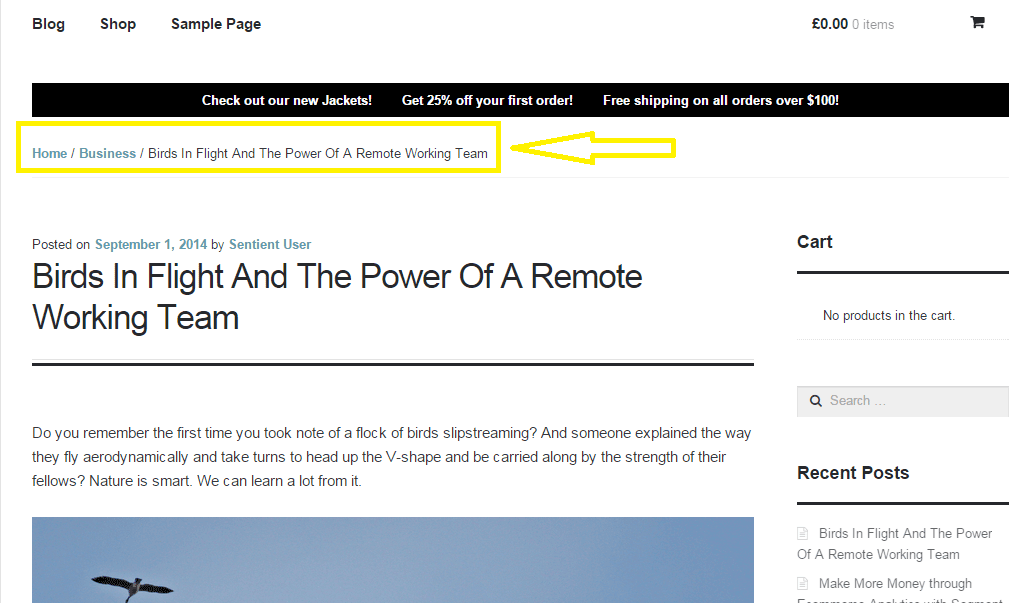
Enabling Breadcrumbs with WordPress SEO

Breadcrumbs, when enabled, helps users identify where they are on your website. It also helps search engines determine your website’s structure. See the image below.  Where the yellow arrow is pointing at, that’s the breadcrumbs.

Enabling breadcrumbs on your website is simpler than snapping your fingers. Just go to SEO and then click on Internal Links. You should see a box that says “Enable Breadcrumbs”. So just tick that box and save. There are a few settings that you can tweak so just change them up as you need.

breadcrumbs

Did we miss anything? Or do you have any questions about the WordPress SEO plugin? Let us know in the comments.

Filed Under: How-To Articles, SEO For E-Commerce Tagged With: blog, breadcrumbs, content marketing, Google Webmaster Tools, Google+, how-to, navigation, optimizations, plugins, SEO tools, social media, Twitter, WooCommerce, WordPress, WordPress SEO, XML sitemap, Yoast

  • « Previous Page
  • 1
  • 2
  • 3
  • 4
  • 5
  • 6
  • …
  • 15
  • Next Page »
Let us support your online store so you can manage your business

Get started today

Get 2 Hours of FREE SUPPORT

We are so confident that you will love our services that we will give you your first 4 hours at a 50% discount

That’s 4 hours for only $75

BUY NOW

Free eBook

5 Things Every Online Store Can Fix On Their Website In The Next Week To Increase Sales

Quick Links

  • How it Works
  • Pricing
  • Blog
  • Contact
  • About Wooassist
  • My Account
  • Checkout
  • Privacy Policy
  • Cookie Policy
  • Terms and Conditions

Wooassist

Australia:
59 Luke St.
Hemmant QLD 4174

Philippines:
San Miguel St.
Poblacion, Iligan City 9200

Connect


Copyright © 2026 · Wooassist

Yours FREE!

5 Things Every Online Store Can Fix On Their Website In The Next Week To Increase Sales