Wooassist

Assistance for Your Woocommerce Store

  • How it Works
  • Pricing
  • Services
    • Site Maintenance
    • AI SEO and Content Marketing
  • Blog
    • How-To Articles
    • Code Snippets
    • SEO For E-Commerce
    • Theme and Plugin Reviews
    • Wooassist News
    • WordPress/WooCommerce News
    • Interviews
  • About Us
  • Contact
You are here: Home / Archives for WooCommerce

Storefront Theme Review

January 1, 2016 By John Leave a Comment

Storefront is the official WooCommerce theme built to the same high standards as WooCommerce itself. Best of all? It’s free!
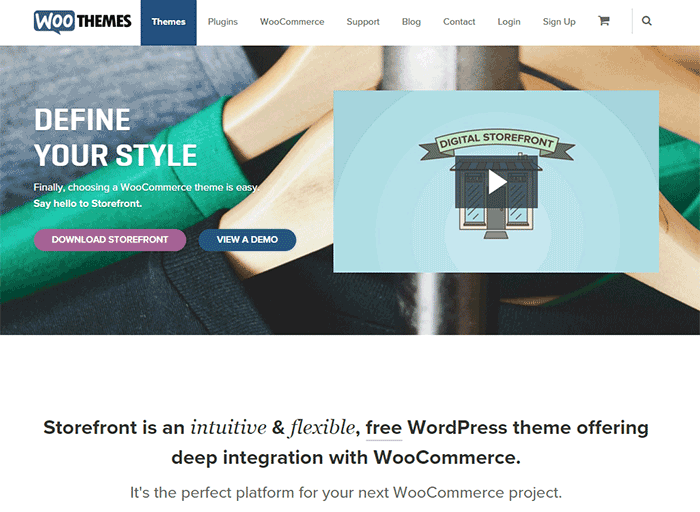
storefront

A Storefront theme review is due. Here’s what’s included in this article:

  • Storefront Theme Overview
  • Storefront Key Features
  • What Makes Storefront Great
  • WooCommerce Integration
  • Storefront Setup
  • Arrival of Storefront 1.5
  • Storefront WooCommerce Styling
  • Popular Storefront Extensions
  • Choosing A Theme

Why WooCommerce?

WooCommerce is still the most popular e-commerce platform.

This open source e-commerce plugin for WordPress was launched in 2011 and is aimed at small-to-medium online merchants already comfortable with a WordPress set up.

There are a lot of free and premium themes to choose from, one of the most popular is – Storefront.

Storefront Theme Overview

Storefront is described as an intuitive, lightweight, and flexible theme offering deep integration with WooCommerce. It has several layout and color options to personalize your shop, multiple widget regions, a responsive design, and much more.

The main goal in developing Storefront is to provide a rock-solid foundation for your WooCommerce store without extra bloat or features.

It comes to no surprise that it reaches up to 3,000 downloads per day:

Integration:

Storefront theme is built and maintained by the same team that developed WooCommerce. This is why the integration between WooCommerce, its extensions, and Storefront is water-tight.

No Conflicts:

For e-commerce sites, uptime is of utmost importance. With the new Storefront, there will be no conflicts between theme and plugin during major WooCommerce updates.
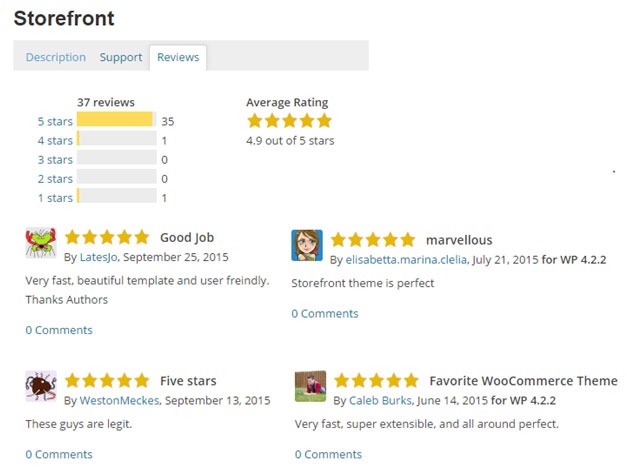
storefront-reviews

Here’s a glimpse of some of its great reviews:

Solid Foundation:

Based on the popular Underscores starter theme, Storefront features a responsive layout, and schema markup for enhanced SEO performance.

Clean and Simple:
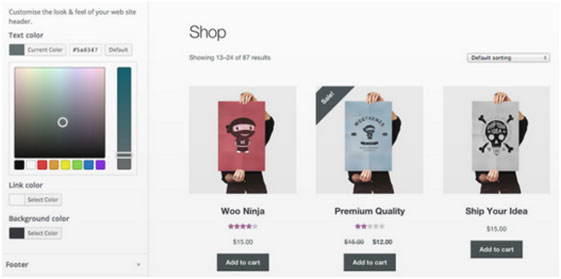
storefront-clean-simple-design

Storefront allows you to customize your store to match your brand by providing a clean and simple design.

Storefront Key Features

Most store owners want their e-commerce theme design to be simple and flexible. Storefront can offer exactly that.

Here are some of the key included features:

WooCommerce Integration
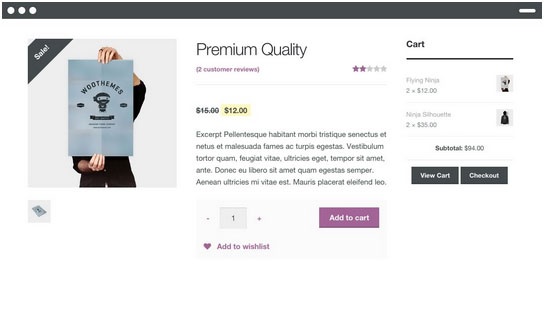
storefront-woocommerce-integration

Storefront features an unrivalled deep integration with WooCommerce. Of course, having been developed by WooCommerce authors, this integration is compliant with the latest WooCommerce developments and standards.

Lightweight and Robust Core
Storefront-Lightweight-and-Robust-Core

Storefront is based on Automattic’s popular underscores starter theme. Its codebase is under constant review ensure it is kept nice and clean to provide as little disruption and conflicts as possible..

Design Customization
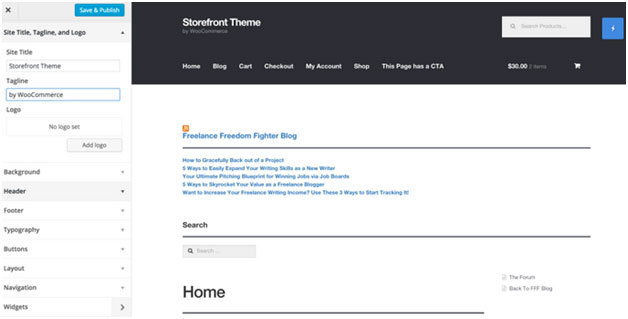
storefront-design-and-customization

Every store owner would want to create a look and feel that matches their business. There are several display settings in Storefront that let you customize the design of your page to meet your requirements. Settings are all accessible in the WordPress Customizer.

What Makes Storefront Great
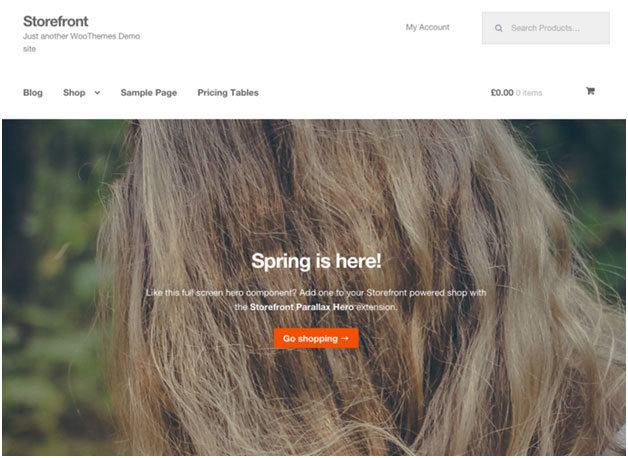
what-makes-store-front-great

The Storefront philosophy is to do one thing well and provide a solid foundation for your online store. Although the theme appears to be plain, it’s meant to be a starting place that includes deep WooCommerce integration.

Keep in mind that simple is usually more profitable. Unless you are spending a few grand on a professional designer then the fancy design you try and add yourself will most likely distract the user and lose sales.

No Shortcodes and Page Builders

Shortcodes in WordPress are little bits of code that allow you to do various things with little effort. You only get what you need with Storefront, which means you won’t encounter any superfluous shortcodes and page builders.

The Storefront team believes that not including these features allows you to add them via whichever plugin you prefer. Even if you switch themes later on, all of those features will remain. According to the release announcement, Storefront was built with data portability in mind. This means that users will be able to switch themes without losing their content.

Appropriate Sliders

Whether you should use slider is a highly debated topic. While other WordPress themes bundle sliders, Storefront lets you choose the appropriate plugin for your slider needs if you decide you do want one. It is also compatible with the WooSlider plugin.

WordPress offers many slider plugins to add them to your home page, landing pages, posts, or anywhere you want.

storefront-slider

Schema Markup

Schema markup is code that you put on your website to help the search engines return more informative results for users. The content on your website gets indexed and returned in search results. Storefront has valid schema markup for improved SEO performance.

Display Options
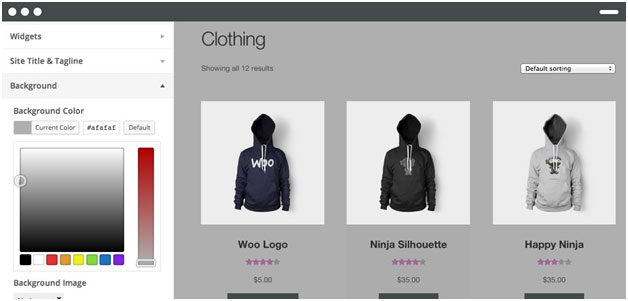
storefront-display-option

In addition to attractive products, the design of your shop is equally crucial. It’s important to make a good first impression with the help of professional design. With Storefront, you can change the look and feel of your store in a few clicks, and see your tweaks in real-time.

Responsive

If your site can’t be viewed effectively on mobile devices, you could be losing almost 50% of your customers.

Storefront on mobile device:
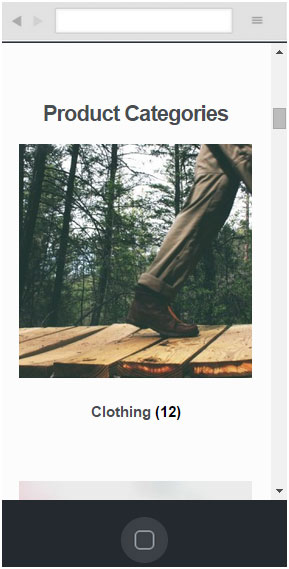
storefront-on-mobile

Storefront on tablet:

storefront-on-tablet

Non-responsive sites are now considered second-class businesses by Google. Storefront will adapt and display beautifully whether you view your store on a laptop, desktop computer, or handheld device.

Localized and Accessible

Storefront is fully localized and ready for your translations. It also adheres to the strict wordpress.org accessibility guidelines. That is why your store will be accessible to the widest audience possible.

Custom Homepage Template

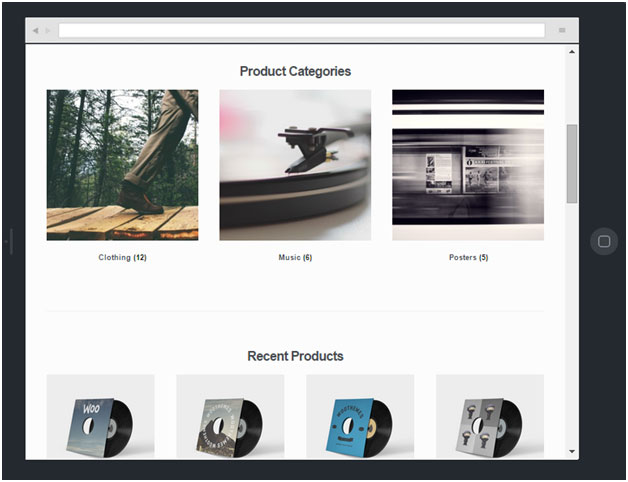
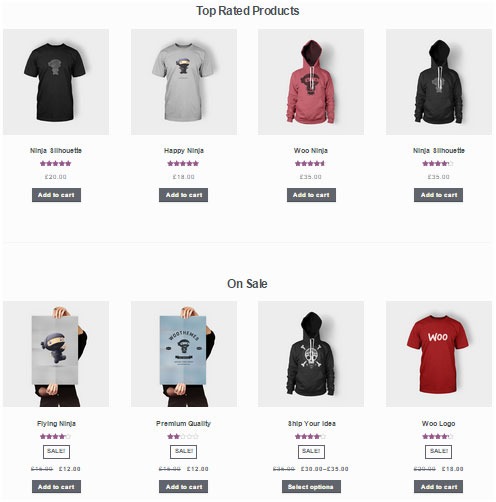
The homepage template in Storefront has been tested for user experience and conversion. It displays product categories, recent, featured, on sale & top-rated products.
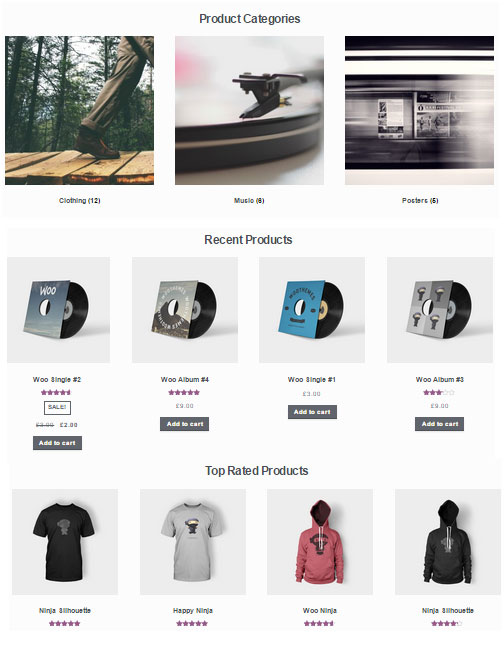
storefront-custom-homepage-template

It’s a great start for most small businesses to immerse the visitor in your products, while providing enough flexibility to promote the products that will make you the most profit.

WooCommerce Integration

It includes deep integration for WooCommerce and it’s most popular extensions. This means everything will look nice straight away and you won’t have to hire a professional developer or designer to make things fit in.

Some of the more popular extensions supported are:

WooCommerce Bookings

storefront-woocommerce-bookings

This extension is perfect for those wanting to offer services, appointments, or rentals. It allows you to sell your time or date based bookings, adding a new product type to your WooCommerce site.

WooCommerce Wishlists
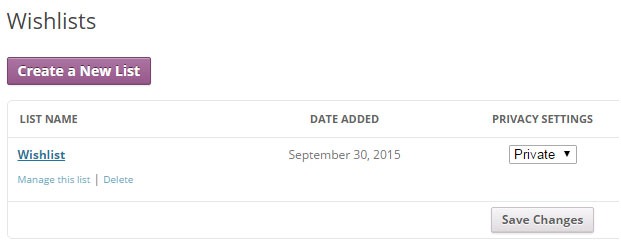
storefront-wishlist

From birthdays to weddings, and everything in between, this extension allows guests and customers to create and add products to an unlimited number of Wishlists.

WooCommerce Brands
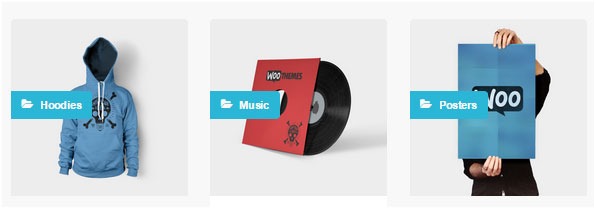
storefront-brands

This extension for WooCommerce allows you to create brands for your shop; each brand can be named, described and assigned an image.

WooCommerce Subscriptions
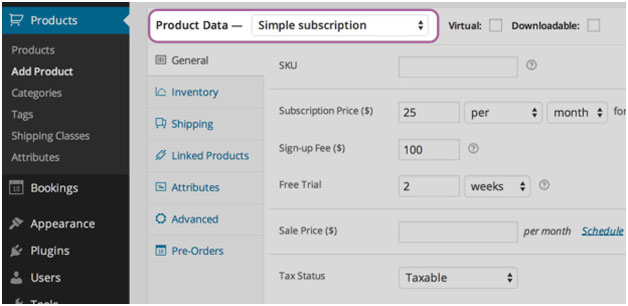
storefront-subscriptions

WooCommerce Subscriptions is an extension that allows you to introduce a variety of subscriptions for physical or virtual products and services. Create product of the month clubs, weekly service subscriptions, or even yearly software billing packages.

WooCommerce Memberships
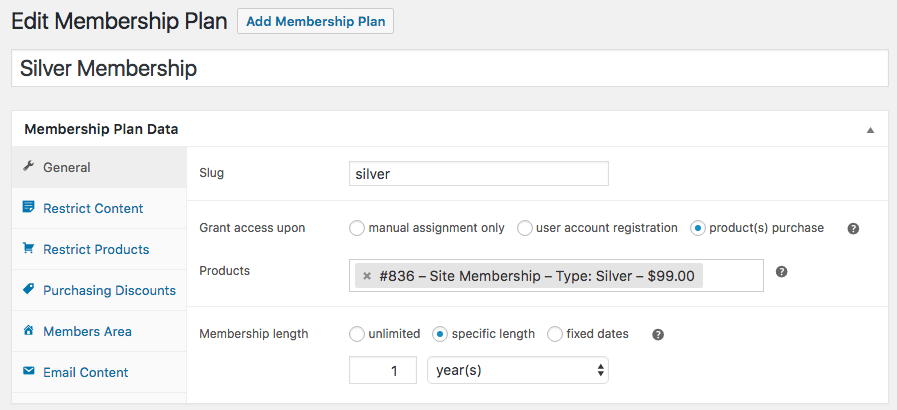
WooCommerce Memberships

WooCommerce Memberships allows you to create a membership system that is tied completely to your WooCommerce Store. It is fully compatible with Storefront theme. You can restrict content to certain memberships classes. You can also turn your store into a membership club by restricting purchases to members. Among other useful features, you can even give members special discounts.

Composite Products

Composite Products allows you to create customizable products for your WooCommerce store. It is now fully compatible with Storefront theme. You can allow your customers to customize certain parts of their order.
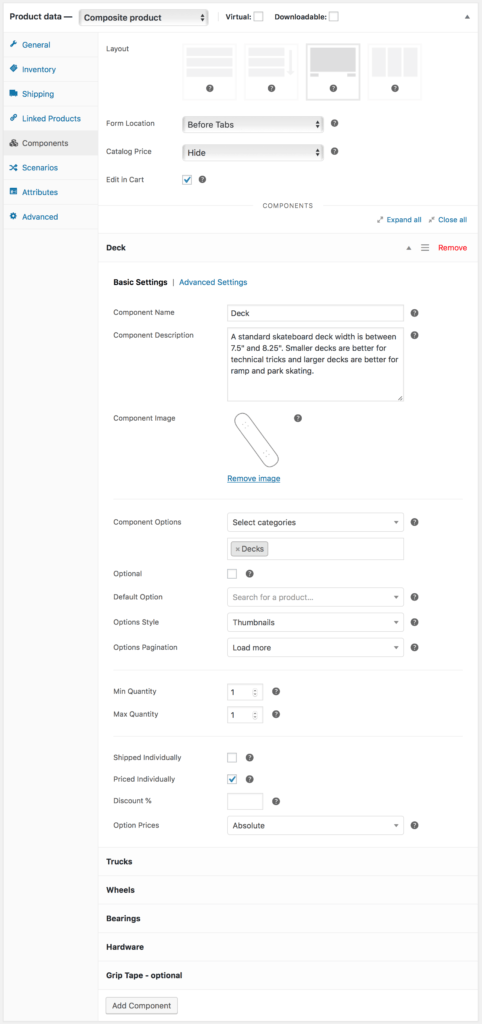
WooCommerce Composite Products

Storefront Setup

Almost all of the Storefront setup can be done via the theme Customizer.
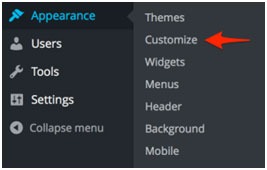
storefront-setup

The easiest way to install Storefront is through the WordPress dashboard.

  1. Navigate to Appearance > Themes > Add New
  2. Hover over the Storefront screenshot and click the ‘Install’ button to install the theme.
  3. Activate Storefront as you would any other WordPress theme.

To install Storefront manually:
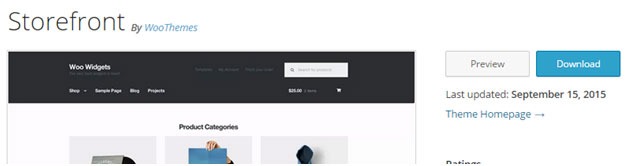
storefront-manual-install
  1. Download the latest version here.
  2. Upload the extracted folder to the /wp-content/themes/ directory on your server via FTP
  3. Activate Storefront from the Appearance > Themes screen in your dashboard

Read more on how to install and use themes here.

Menus

Storefront has two menu locations, Primary and Secondary. If you do not assign a Menu to the primary navigation, it will display each of your pages. On the other hand, the secondary navigation will display nothing.

storefront-menus

After activating Storefront for the first time, you won’t see anything in the secondary navigation. Here’s your guide to creating and assigning menus to theme locations.

Page Templates

Storefront comes with just two page templates.

Full Width
storefront-fullwidth

This is just a standard page template without a sidebar, allowing the content to span the full width of your site.

Homepage
storefront-homepage

The homepage template allows you to display a multitude of products and product categories.

Here’s a Woothemes guide on installing and configuring Storefront.

Arrival of Storefront 1.5

After the success of Storefront comes the newly improved Storefront 1.5, which achieves another coveted tag on wordpress.org. Its primary feature? A support for right-to-left languages in Storefront. The traditional RTL support standard overloads an additional stylesheet on top of the primary one.
storefront-version1-5

With Storefront 1.5, if you install WordPress in a right-to-left language, the theme will automatically recognize it. It will then load a different set of stylesheets tailored to that language. This makes Storefront a stronger global theme solution for WooCommerce.

You can also expect the following improvements:

Integration with More Extensions
storefront-integration-extentsion

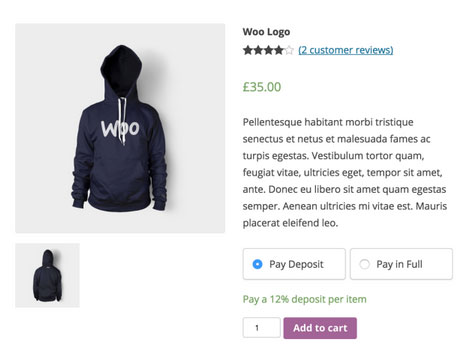
Storefront 1.5 has increased the number of customer-facing extensions it integrates with to 11. It offers added support for WooCommerce Deposits and Product Bundles.

Revamped 404 Page
storefront-revamped-404

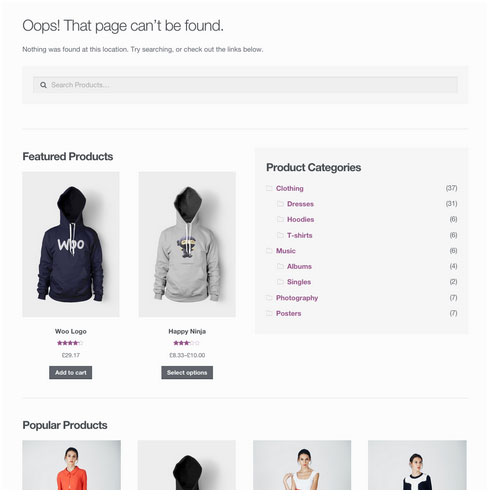
Storefront 1.5 is now made to be more useful to folks browsing a shop. The new 404 page now includes a product search box, links to product categories, featured products and popular products.

Featured Images

The previous version of Storefront didn’t cater to adding featured images to pages. Now, once you add a featured image to a page, it will appear on the frontend directly above the page title.

Scrolling Header Cart
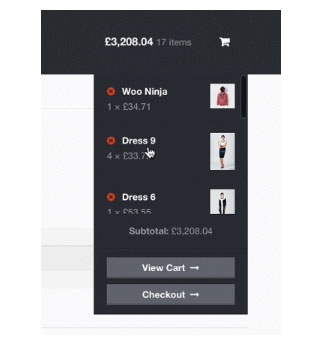
storefront-header-cart

Considered a handy feature, the header cart lets visitors access their cart total, and the number of items it contains. It also reveals the carts contents upon hover. Using Storefront 1.5, the cart dropdown now has a set height that scroll as more items are added.

You can check out their awesome video about Storefront here.

Storefront WooCommerce Styling

A lot of themes we see, from Themeforest especially, do not style WooCommerce according to the best practice standards set by the Woocommerce authors.

The most common problem is overriding templates.  This causes the cost to update WordPress, Woocommerce and the theme itself to sky rocket down the track. You won’t have this problem with Storefront.

Shop Pages
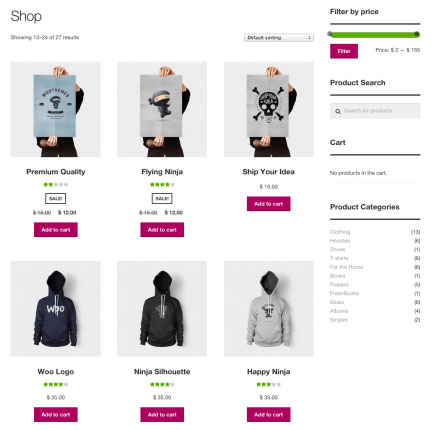
storefront-shop-pages

When it comes to shop pages, you can style for all product details and WooCommerce widgets, such as the price filter. The number of products per page is also automatically adjusted to 12.

Single Product Page
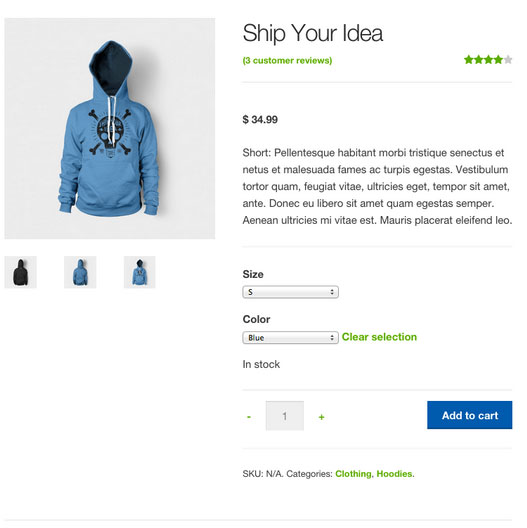
storefront-single-product

Single product pages include appropriate WooCommerce styling as well. The product tabs are presented in a vertical layout, and the number of related products is adjusted to three.

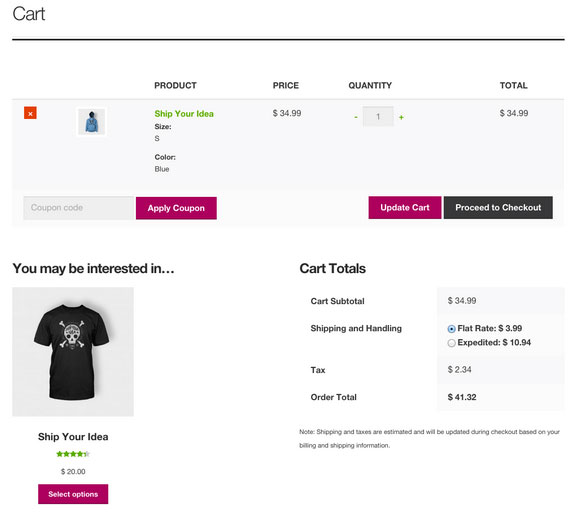
Cart and Checkout Page
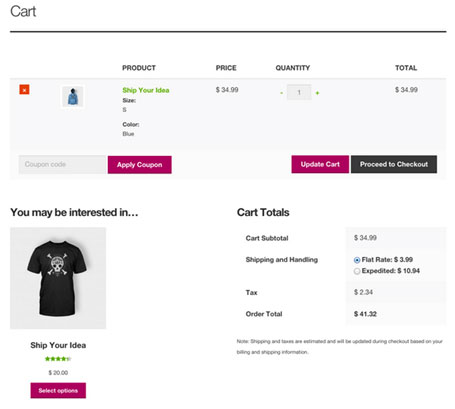
storefront-cart-checkout

The checkout template features a two-column layout, with customer details on the left, and order details on the right. The ‘Place Order’ button is also always in view, making it easy to complete orders for customers.
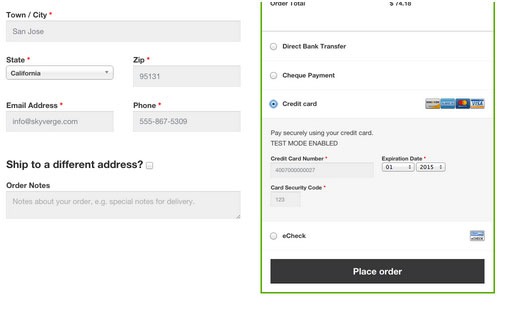
storefront-place-order

And Now, It’s Storefront 2.5

Improved Mobile Design

From Storefront 2.0 and up, the theme now offers an improved mobile design for better mobile experience. The header section has been redesigned so that the content appears further up. This ensures that your visitors see more of the content on your WooCommerce store right away.
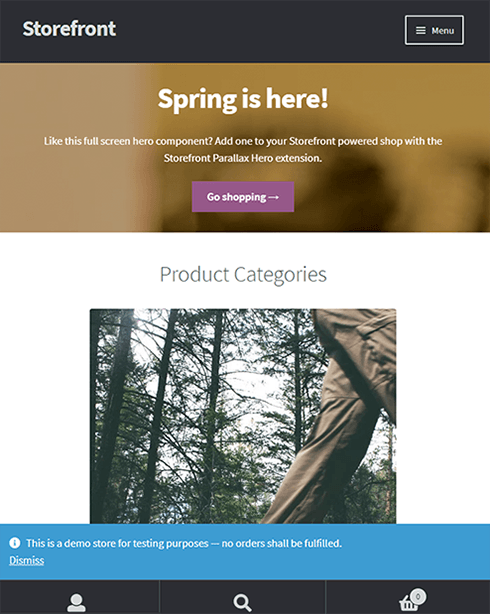
Storefront 2.0 Mobile View

New typography

Storefront 2.0 and up introduces a new font. Default font for WooCommerce has been changed from Helvetica to Source Sans. The font change provides users “greater depth and cohesion”. Some other small changes have been made to the design to fit the new font.

Introducing “Best Selling” Products

The theme also now offers a “best selling” products section on the home page. This is separate from product categories, recent products, featured products, top rated products and on sale products. Also, “Recent Products” has been renamed to “New In” and “Featured Products” have been changed to “We Recommend”.

Improved Appearance for Better Overall User Experience

Some other small changes have been put in place for better user experience. These include changes to styles, tables and embeds. The developers have also integrated with WordPress 4.5’s custom logo functionality. Adding a logo to your WooCommerce store is now made easier. Now there’s no need to install a plugin just to add your logo.

Popular Storefront Extensions

While Storefront provides a lot for free, there are some premium \add-ons that can add functionality or styling options to the theme.

Storefront WooCommerce Customiser
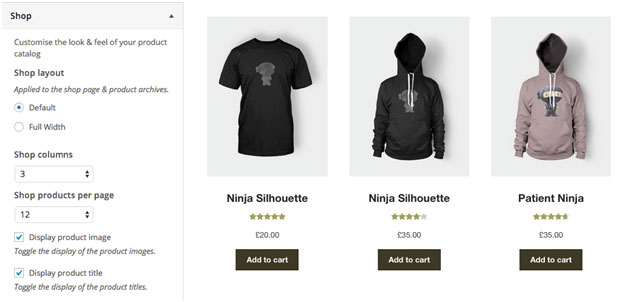
storefront-customizer

Without any custom code you can change or adjust labels and number of products displayed in homepage sections, which product details are shown on shop pages, and more.

It also lets you remove the product search and cart from the header.

Storefront Designer
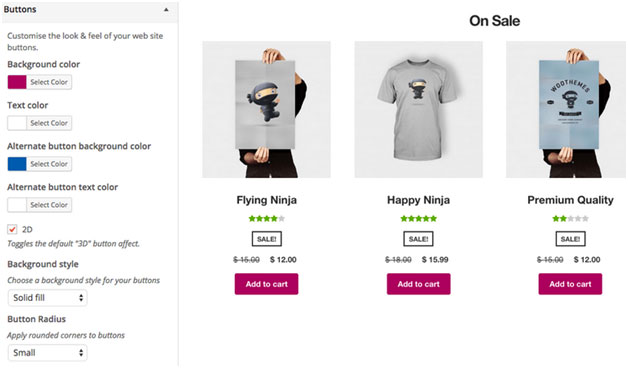
storefront-designer

The Storefront Designer plugin adds the ability to change header layouts and make the header remain at the top of the page on scroll (sticky header). It also allows you to adjust button layouts and styles, and change some typography options.

Storefront Parallax Hero
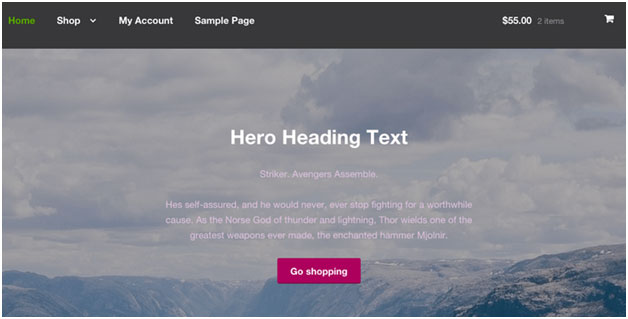
storefront-paralax-hero

This plugin can be used to display a message and call to action over the top of an image on your homepage. It has a parallax effect, which means as the user scrolls the text and button appear to move over the image.

Child Themes

What is a child theme? According to the WordPress Codex:

A child theme is a theme that inherits the functionality and styling of another theme, called the parent theme. Child themes are the recommended way of modifying an existing theme.

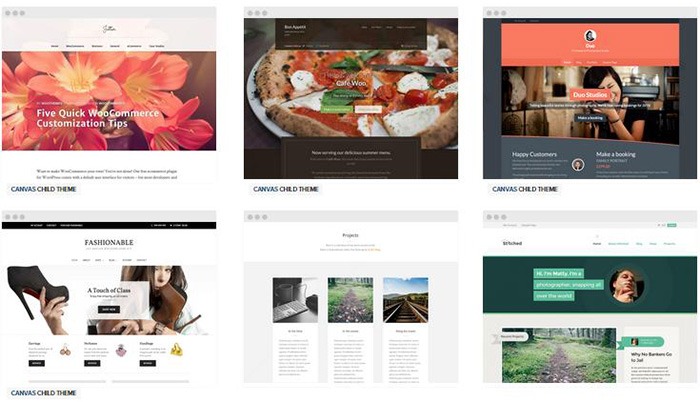
In the case of Storefront, Storefront is the parent theme. You can check out the available child themes here.

Importance of a Child Theme – Easy and Safe Updates

When using a child theme, you will not lose any custom code or any custom styles that you have added to the child theme whenever you update the parent theme. Many website owners have learned the hard way losing custom code they have added to their themes after updating it. If you have a child theme, your custom updates are safe whenever a new version of the parent theme is available. We still recommend creating website backups every time you update your theme though.

Storefront: The Final Analysis

Simple, clear, and customizable, the Storefront theme for WordPress has everything to help you achieve success in e-commerce. For a free theme, the design is simple and no-nonsense and WooCommerce integration is unmatched by any other theme.

It may be too plain for some and if you are one of those, just ask yourself. Is it your personal taste and desire for it to look pretty, or is it a decision based on your user experience and the ultimate profitability of your site? In our experience, often the simpler the site the better is the user experience and the more profitable the website.

However, if you can’t find a Storefront child theme that resonates with you and don’t want the cost of a professional designer you might want to take a look at http://www.studiopress.com. They are the only other theme author we recommend if you don’t want to have troubles down the track when it comes to updates and customizations. It will take a bit more time to integrate with WooCommerce, but they have some lovely designs.


Filed Under: Theme and Plugin Reviews Tagged With: 404 error, checkout form, child theme, e-commerce, mobile friendly, plugins, shopping cart, Storefront, WooCommerce, woothemes

How to Start an Email Marketing Campaign on WooCommerce from Scratch

April 30, 2018 By John Leave a Comment

How to Start an Email Marketing Campaign on WooCommerce from Scratch

Social media marketing is abuzz. But did you know that email marketing is more effective than social media? In comparison, email marketing gets an average click-through rate of 3.57% while you can only get a 0.07% click-through on Facebook. In this post, we’ll teach you how to start an email marketing campaign on WooCommerce.

Why Email Marketing Works?

More than 90% of consumers check their emails daily and 77% prefer email for marketing. Cold calls, text messages and even social media ads are considered intrusive. If you do good email marketing, you’ll have an email list of people that have already shown interest in what you offer.

Also, email is a platform that you own and you don’t need to abide by Facebook, Twitter and Google’s rules which regularly get updated.

Social Media Not Without Merit

While email marketing is more effective, social media marketing is not without merit. Social media will allow you to tap into the entire social media user base while email marketing entails that you build your own mailing list. Also social media can become a gold mine if you have what it takes to go viral.

How to Get Started on Email Marketing on WooCommerce

Have a Clear Goal

Before you go jump on email marketing, it’s important that you don’t jump in blind. You should have a clear goal in mind. What do you want to achieve with the emails that you will be sending out? Drive more traffic to your site? Promote your product? Increase sales? Keep your customers engaged? Send special offers? Whatever your goal is, it should be clear from the start.

Find a Platform to Use

There are plenty of platforms that you can use for email marketing but we’ll focus on MailChimp. MailChimp integrates well with WordPress and WooCommerce. To get started, you’ll need to create an account on MailChimp. Other well-known email marketing platforms are Active Campaign, AWeber, ConvertKit, ConstantContact, Drip and GetResponse.

SubscribeBuild Your Email List

Don’t be Lured into Buying Emails

The success of your email campaign depends a lot on how you build you email list. There are plenty of ways to build your email list. You might be tempted to take a shortcut and buy an email list from a shady company. Don’t do this, you’ll only get a list of emails that has been spammed endlessly and thus has lost any value.

Gathering Emails

Importing Emails You Already Have

If you already have a list of client emails, you can import this list to your MailChimp account. Make sure the people in your list have consented to receive emails from you.

Create an Email Opt-In Form

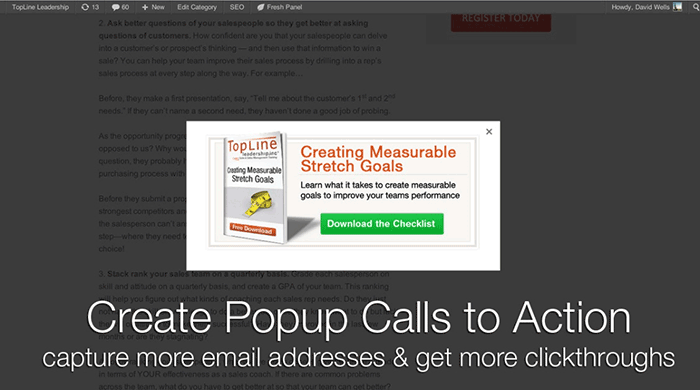
You can create an email opt-in form in a prominent area of your site. It can be your main call-to-action on your home page. You can add it to your side-bar. You can add it on the top-bar. Or you can choose to create a pop-up. Contrary to popular belief, pop-ups do work well when they are implemented properly. In fact, email opt-in pop-ups can drive up to 1,375% more email sign ups. Don’t spam your visitors with pop-ups. You can show them one pop-up every set number of days. You can show a pop-up when a visitor has spent a specific amount of time on your site. You can show a pop-up when your visitor has scrolled down to the end of your landing page. Getting the right timing to show a pop-up is critical.

Add Email Opt-In to Your Contact Form

Another way of building your list is by having your form contacts become a part of your list. Note that you must expressly indicate that you are going to add them to your mailing list. If you are using Contact Form 7, you can use the Contact Form 7 MailChimp Extension to automatically add form submission to your Mailchimp lists.

Add Email Opt-in to Your Checkout

You can also automatically add your new customers to your MailChimp list by adding an opt-in form at checkout. You can do this using the MailChimp for WooCommerce plugin. You can check out our post on how to set up email opt-in on WooCommerce checkout.

Create Your First Newsletter

Create Your First Newsletter

After you’ve determined your goal and gathered enough emails, you can get started on your first campaign. We’re not going to tell you how to create your campaign because that depends on your strategy but there are a few important pointers to keep in mind.

Optimize Your Campaign for Ease of Reading

Your campaign should be easy to read. Avoid big words that are difficult to understand. Simple words work best. Avoid using passive voice and adverbs. If your campaign is a mess and hard to read, people will not read it.

Optimize Your Campaign for Clicks on Your Call-to-Action

Make sure your call-to-action is clearly visible. If your campaign can’t encourage your email list to take action, then it is useless. Also, test that your campaign looks good on a mobile device. Many of your contacts will browse emails over their phone and if your call-to-action is not visible on mobile view, you will be losing out on a lot of clicks.

Make Sure Your Campaign is Relevant to Your Customers

If the campaigns you send out are not relevant to your email list, you’re risking your contacts unsubscribing from your campaign. People unsubscribe from email lists all the time. That’s to be expected. But if your unsubscribe rates are too high, MailChimp may put restrictions on your account. You can prevent this by not subscribing emails that did not agree to receive emails from you and sending them campaigns that are relevant to them.

When everything is set, get ready to send your first newsletter. After you’ve sent your campaign, what’s next?

Check Your Data

After you’ve sent your first newsletter, it’s time to look at your data. Most email marketing platforms will have built in analytics reporting. How many opened your emails and clicked, were converted and unsubscribed?

When you’ve sent your second newsletter, check your analytics data again and compare. Determine how you can improve your conversion rates. You can even split test your campaigns to see which works best and what are the best times for sending out your newsletters.

Got any questions about starting your own email marketing campaign on WooCommerce? Let us know in the comments.

Filed Under: How-To Articles Tagged With: ecommerce, email, email marketing, mailchimp, WooCommerce

How to Integrate WooCommerce into a Non-WooThemes Theme

March 2, 2015 By John Leave a Comment

how to integrate WooCommerce into a non-WooThemes theme

WooCommerce (WC) and themes from WooThemes go hand in hand when building an e-commerce website. But what if you wanted to use a theme not from WooThemes? There may be some compatibility issues but it could still work. To solve these problems, we’ll need to set it up in such a way that your non-WooCommerce or custom theme supports Woocommerce and make the integration flawless.

WooCommerce provides two methods to do this. Either we use hooks or make use of their catch-all woocommerce_content() function. The second method is the easier of the two so we’ll only talk about the second method of the catch-all woocommerce_content() function in this post.

To start, know that it’s divided into 5 simple steps which we’ll outline below:

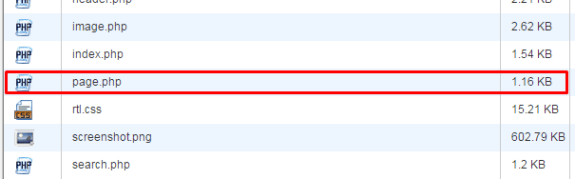
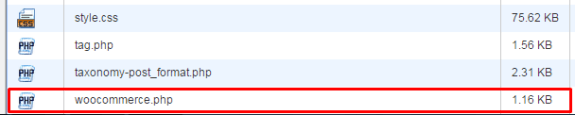
STEP 1: Duplicate your page.php file and rename it as woocommerce.php

For this, you’ll need to access your website files using an FTP program or cPanel file manager. Find your page.php file which is usually located in wp-content/themes/[YOURTHEME]/page.php.

copying page-php
creating woocommerce.php

All themes should have this file so make a copy of yours then rename it to woocommerce.php. Basically, you’re creating a file called woocommerce.php where the content is the same as page.php.

If you’re using a child theme, you’ll need to copy the page.php of the parent theme and place woocommerce.php on the child theme so that you don’t have to worry about it being overwritten when the theme is updated.

STEP 2: Edit woocommerce.php and locate the loop

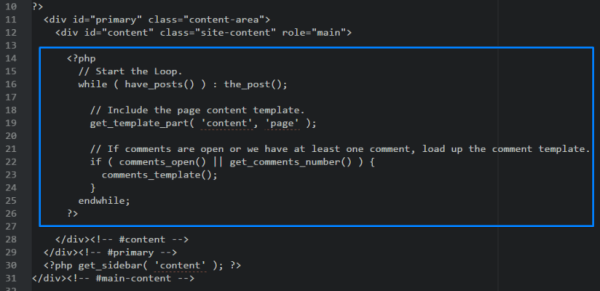
After creating the file woocommerce.php, you then need to edit it with the editor of your choice. When it’s opened, browse through and look for code that looks like the one below:

the loop

It usually starts with

<?php if ( have_posts() ) :

and ends with

<?php endif; ?>

but in our case it ends with

endwhile; ?>

so it’s not always the same. This bit is called the loop and you need to determine where it starts and where it ends.

STEP 3: Replace the loop with <?php woocommerce_content(); ?>

Now, after finding the loop, replace it with:

<?php woocommerce_content(); ?>

That lengthy bit of code will be replaced by just this one line. And that’s entirely the point – nothing to be alarmed of. And when you’ve done that, it should look like the one below:

woocommerce-content

Now, save it.

STEP 4: Declare support for WooCommerce

Next, we’ll do something about the notice message that looks like the one below.

woocommerce does not support notice

To do this, we’ll need to add:

add_theme_support( 'woocommerce' );

to our functions.php. If you’re using a child theme, you’ll need to find the functions.php file that is inside the child theme folder. Once you’ve found the correct functions.php, place the code exactly at the end. Now, save. And that’s it. That notice should be gone now.

STEP 5: Bask in your success

And that’s how to integrate WooCommerce with a non-Woothemes Theme. For the unavoidable instances that you need to make use of a non-WooCommerce or custom theme, you need to follow the steps above.

Do you have any other suggestions? Feel free to comment below.

Filed Under: How-To Articles Tagged With: code snippet, design tweaks, e-commerce, how-to, WooCommerce, woothemes

Preparing Product Images for WooCommerce

March 12, 2018 By John Leave a Comment

Preparing product images for WooCommerce can be a tedious task. You can easily snap a picture of your products and just add it to your site. Unfortunately, snap and upload is not the way to go.

A digital image from a camera is usually very large. It can easily reach upwards of 2MB in size. When you put a 2MB image on your product page, your customers would have to wait at least a couple of seconds before they can see the image.

If you have more than one image, it’s going to take even longer. Eventually, someone would just get tired of waiting and head over to a competitor’s website. Not convinced? Check out this post on how loading time affects your bottom line.

How to Prepare Your Images for Web

product

Preparing product images to upload into your WooCommerce store requires an image editing tool, such as Adobe Photoshop. Check out this post from our blog to learn how to use Photoshop to prepare your images for uploading on your website.

If you don’t have Photoshop, there are some alternatives in the form of web tools. You can check out this post on Mashable, which lists down a couple of tools that can help you optimize your images.

Understanding Image File Types

When working with images, understanding image file types is necessary. Certain types of images are best suited to a certain file type. You need to know what that file type is, so your images will look good even if they are scaled down.

Here’s a good article that details the most common image file types including when you should use each file type.

An important note: Using an image editing tool like Photoshop is still the better option since it gives you better control on how you want to optimize your images.

Using Descriptive Files Names

One more thing you need to do before uploading your image to your WooCommerce store is to name them properly. Ideally, you’d want to use a file name that describes your image like “red sling bag”. This would make managing your media library easier. Searching for specific images on your media library would be very difficult if you use default image file names such as IMG0001.jpg.

When you’ve finally uploaded your image file, you should also add an alt tag that will tell search engines what your image is. Using alt tags is best practice for SEO but that doesn’t mean you cram keywords on your alt tags. Your alt tags should describe what your image is.

Now that you have a better idea on how to prepare your images for your e-commerce store, you can improve its page load speed. Eventually, you’ll start to see its effect on your conversion rates.

If you don’t have time to spend on editing product images, the Wooassist team is here to help you out. With our experience, you’ll have your images optimized and look professional in no time.

Filed Under: How-To Articles Tagged With: best practices, how-to, image optimization, photoshop, product management, site speed optimization, WooCommerce

Choosing a Theme for WooCommerce – What to Consider?

October 23, 2015 By John Leave a Comment

There are thousands of free and premium WordPress themes. You might need some help in choosing a theme for WooCommerce. But how exactly do you pick one that’s right for your Woocommerce store?

This article explains what to look for to fit the design requirements of your store and also the functionality requirements and to make sure your new theme will play nicely with Woocommerce.

Different themes have different layout styles. Knowing what you want or need will make looking for a theme easier. Right sidebar, left sidebar, full-width, or maybe parallax? Are you going to be using image sliders? Also, it is important that the theme that you choose supports WooCommerce integration.

Once you know what you need, it might be a good idea to talk it over with your web developer. He might already know of a theme that will suit your purpose.

woocommerce-themes

Here are some criteria for choosing your theme:

Aesthetic Needs

Of course, you shouldn’t focus on the look alone. But, you also need to make sure that the theme matches the look and feel you want. You may be able to customize colors, but major changes on the design are best left to pros. As you choose a theme, it should meet at least 80% of your layout, visual, and content needs.

Stay away from poorly coded themes as this could spell problems for your website down the track when updates are needed.

Many themes also offer a lot of other functionalities that allow users to easily edit the look of their site. However, such themes could add unnecessary bloat to your website. This unnecessary bloat could put strain on your page load times and cost you sales.

Be cautious of Themeforest themes as they are notorious for this. Instead of using a theme with many customizable options, you’ll be better off editing the CSS of the child theme to get your desired look.

We recommend Genesis themes and Storefront.

WordPress Updates

Most themes should support the latest version of WordPress. Still, you should verify before making your purchase. Some older themes that are no longer being updated may not support the most recent updates to WordPress. It’s important to keep up with WordPress updates for functionality and security purposes.

WooCommerce Compatibility

Your theme should be able to integrate with WooCommerce.

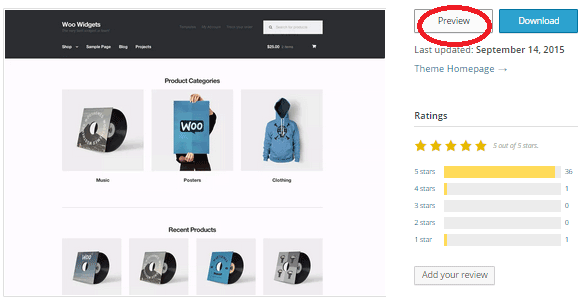
WooThemes recommends doing a quick check. Take a look at the theme’s demo and view the source code. You can do this by right-clicking on the page and clicking on “View Page Source”. Look for the WooCommerce version meta tag. Search for the words: WooCommerce Version

The closer it is to the current release of WooCommerce, the better. If it is nowhere near, look elsewhere for a better theme.

Also, go with a theme that has less custom WooCommerce templates. This is because having a lot of WooCommerce templates customized will be a pain to update.

The theme should not have a lot of unnecessary customizations which can be done through a plugin.

Multiple Layouts

Review the theme description and demo to ensure that the theme supports the layout you want to create.  Look for the theme’s documentation and review it to know if the theme can accomplish what you need.

storefront

Don’t just assume that the theme you chose will accommodate one or two sidebars, full width pages, or columns within content.

Theme Navigation

How many menus do you plan on having? Some site owners need secondary menu for categories. Check if the navigation bar can accommodate all your primary menu options. If you hired a web developer, discuss your content sitemap and navigation requirements first before buying your new theme.

Call-to-Actions

As an e-commerce website, you want your visitors to do something and eventually buy your product.

call-to-actions

Make sure your theme can support your list of visitor to-do items. A cohesive design, with built-in options for call-to-actions is recommended.

SEO Friendly

WordPress is SEO friendly by default, but not all its themes are. To achieve an ideal SEO ranking, it’s important for search engines to digest your content. In this case, quality code and solid design architecture are required. Here’s a do’s and don’ts guide from Yoast to make your theme SEO friendly.

Level of support

Theme support is usually available by phone, email, video tutorial, instruction manuals, forums, etc.

support

However, some developers don’t have much time to provide support or answer forum questions that often. For beginners, make sure your theme offers lots of support features.

Reviews and Feedback

If there are available reviews, read through them thoroughly to point out any theme pros and cons.

reviews

Take note of trends, plugin conflicts, and complaints. It may not have a 100% satisfaction rating but a strong rating may be present. Look at both positive and negative feedbacks. Take negative feedbacks with a grain of salt.

Fixed vs Responsive

Most WordPress themes are now designed to be responsive. This means that your website adapts to fit the screen size of the device where it’s viewed. If a potential client is browsing your site, he’ll find it easy to navigate. Not all themes are responsive and since Google has started penalizing non-mobile responsive sites, a responsive design is the only way to go. There is no reason you should be creating a non-responsive site. Check out our post on Google’s Mobile-Friendly Update.

Do you have any more tips when choosing a theme for a WooCommerce site? Let us know in the comments.

Filed Under: How-To Articles, Theme and Plugin Reviews Tagged With: child theme, colors, Genesis, how-to, mobile friendly, responsive design, Storefront, WooCommerce, woothemes, WordPress, WordPress updates

  • « Previous Page
  • 1
  • 2
  • 3
  • 4
  • …
  • 15
  • Next Page »
Let us support your online store so you can manage your business

Get started today

Get 2 Hours of FREE SUPPORT

We are so confident that you will love our services that we will give you your first 4 hours at a 50% discount

That’s 4 hours for only $75

BUY NOW

Free eBook

5 Things Every Online Store Can Fix On Their Website In The Next Week To Increase Sales

Quick Links

  • How it Works
  • Pricing
  • Blog
  • Contact
  • About Wooassist
  • My Account
  • Checkout
  • Privacy Policy
  • Cookie Policy
  • Terms and Conditions

Wooassist

Australia:
59 Luke St.
Hemmant QLD 4174

Philippines:
San Miguel St.
Poblacion, Iligan City 9200

Connect


Copyright © 2026 · Wooassist

Yours FREE!

5 Things Every Online Store Can Fix On Their Website In The Next Week To Increase Sales