Wooassist

Assistance for Your Woocommerce Store

  • How it Works
  • Pricing
  • Services
    • Site Maintenance
    • AI SEO and Content Marketing
  • Blog
    • How-To Articles
    • Code Snippets
    • SEO For E-Commerce
    • Theme and Plugin Reviews
    • Wooassist News
    • WordPress/WooCommerce News
    • Interviews
  • About Us
  • Contact
You are here: Home / Archives for John

Wooassist Customer Personas: Meet Bob and Danny

January 24, 2016 By John Leave a Comment

wordpressIf you are a store owner, it is important to know who you are trying to reach. Not everyone is your customer and knowing your target market will help you save thousands of dollars on marketing campaigns. We wrote a pretty epic blog post about customer personas for ecommerce, but to give you an example of how Wooassist does it, here are our two main customer personas. Meet Bob and Danny.

Say Hello to Bob

bobBob is a freelance website developer who builds e-commerce site with WordPress and WooCommerce. Bob is super busy building a lot of websites and he receives more jobs from new clients on a monthly basis. He also hangs out online on different forums to communicate with other developers to seek help and assist others as well.

Some of the forums he has visited over the past few months are:

  • https://wordpress.org/support/theme/storefront
  • https://wordpress.org/support/plugin/woocommerce
  • https://support.woothemes.com/hc/communities/public/topics/200102403-05-WooCommerce

He is updated with the latest trends of WooCommerce development and has also heard the new Storefront theme that WooThemes have developed.

He uses a macbook pro for developing websites and uses the following tools with his development:

  • Codekit https://incident57.com/codekit/
  • Chrome Developer Tools
  • Sublime Text IDE – where all the coding happens
  • Git for versioning
  • SASS + Sussy (for styling – in replacement of plain CSS)

A lot of Bob’s clients come back to him after 6-12 months and want help with WooCommerce and the other plugin updates. Other times old clients were installing new plugins which broke their site and they needed “urgent” help.

macbookBob doesn’t like this sort of maintenance work. He wants to help his previous clients but he is busy creating websites for new clients. If he tries to do both he ends up losing a lot of free time for himself and his family.

He tried to outsource his customer support tasks to Elance. Some worked ok, but the ones that didn’t took him more time to fix than if he had done it himself.

Bob needed a company he was comfortable referring his clients to for the support he didn’t want to do, so he could just focus on his passion of building new websites. He had suggested www.wpcurve.com and www.wpsitecare.com but his clients didn’t want to pay for monthly subscriptions and he would prefer to recommend specialists in Woocommerce not just WordPress.

Then he found out about Wooassist. Wooassist was being helpful on a lot of posts on the support forum for both WooCommerce and Storefront. They have also built theme and plugin extensions that had benefited Bob in some of his projects.

He checked out what Wooassist offers, and was a bit skeptical at first, but liked the testimonials about the company. He also learned that his clients could get the first 2 hours free of charge, so he thought he would try them out.

Bob gave Wooassist a few tricky tasks to test them and was pleased with how they performed. He especially loved their process and the concise reporting. He then then felt comfortable to refer Wooassist to his clients to do support for them, and the rest was history.

Get to Know Danny

dannyDanny is the owner of an e-commerce store. He has 4 full-time employees and his wife works part-time in accounts. He will employ contractors regularly during busy periods.

Danny had a local agency design his website and it cost him $3000. Over the next 12 months he required a number of customisations and these totalled to about $3000 also. He was happy with the agency, but didn’t like the $100/hr fees so decided to skill-up and spent a considerable amount of time training himself in WordPress and WooCommerce. He now knows enough to make a lot of changes himself.

Because of this knowledge he also now feels more confident to outsources some of these tasks. He has tried Elance and Odesk with limited success and has gone back to either doing it himself, or what is too hard for him, asking the agency that built the site to do it for him.

When faced with problems that require a more technical solution he first searches for free plugins in the WordPress repository and reads the forums and reviews. If he can’t find what he needs he asks questions in the forums hoping that maybe he can get advice and perhaps a few snippets of code that can solve his problem.

He knows that a single line of wrong code can bring down the entire website down so he is very wary of adding code by himself. The solutions work most of the time, thankfully, but it’s not the best use of his time.

ecommerceDanny wants to spend more time attending to marketing and building his business. He has a long list of marketing initiatives he wants to get up and running with the website that he is sure will bring in more sales, but he is just too swamped with the ongoing tasks currently on his plate.

He also wants to spend more time with his family.

He feels he has failed with Elance and Odesk and doesn’t want to go down that route again. He has considered employing a full-time developer, but can’t justify the expense and really needs an all-rounder rather than a full on developer.

Danny, like most business owners, is under a lot of stress. He feels the weight of the world on his shoulders to keep his business afloat, his family comfortable and his employees employed. He loves e-commerce, but gets frustrated sometimes by the technology that he doesn’t completely understand.

marketing

He would love to be able to afford a full-time developer to take care of this and worry about it for him, but his business is just not to that scale yet. His main issue with Elance contractors was them not communicating with him in a way that would allow him to know they had his back and were working on his problems. He wants to be able to go to bed at night and know that his store is in good hands and exactly what will be done while he sleeps.

That’s when he stumbles upon Wooassist probably from a forum post somewhere or through Google search. He is now able to hire a WordPress and WooCommerce expert for the fraction of the cost of a full-time developer. And the rest is history.

How about you? Do you know who your customers are? If not, you might want to spend some time creating a persona. Is this post helpful? Let us know what you think in the comments.


Filed Under: Wooassist News Tagged With: customer persona, e-commerce, marketing strategy, Wooassist

How to Counter Brute Force Attacks on WordPress

January 15, 2016 By John Leave a Comment

Counter Brute Force

WordPress is one of the most popular Content Management System (CMS) available. Its popularity is the reason why it is highly targeted by attackers. A secure website is a must if you’re operating an online business so you can protect your business and your customers.

In this article, you will learn:

  • What is a brute force attack?
  • How to know if someone is brute forcing into your site
  • How to counter brute force attacks on WordPress
  • What to do when someone succeeds at brute forcing into your website

WordPress does not currently have any built-in feature to stop brute force attacks so you are responsible in preventing them on your own website.

What is a Brute Force Attack?

Brute Force Fist

Brute force attack or brute forcing is one of the leading causes of website compromises and is similar to a trial and error method. The objective of the attacker is to gain access to the server level of your site by using various username and password combinations repeatedly until it succeeds. Not only that, it can also be utilized to find hidden pages and content in a web application.

Brute Force Attack is, simply put, an attack to the weakest link in a website’s security. Sucuri, a security company focusing on spotting and repairing compromised websites, reports at least 770,000 brute force attacks every hour. Your website is vulnerable to this type of hacking if you require user authentication or login access.

There are endless catastrophic possible events that could happen once an attacker gains access to your site. The access will be exploited and accounts can be locked out, malware or viruses can be injected, important financial transactions can be compromised or blocked, or data can be changed or stolen. All the hard work you have invested in your business could go down the drain in an instant and hurt your virtual presence.

Brute Force Attack Methods

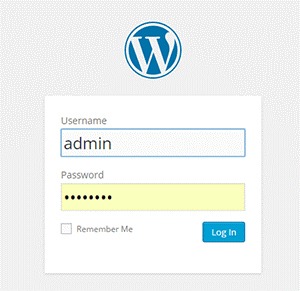
WordPress LoginBrute forcing can be done in different systematic ways. It can be done manually or with automated tools. This can be done in a matter of minutes or years depending on the complexity of your authentication data and process. In most cases, it is done by automated tools that use bots to crawl the web and look for weak preset conditions and weak targets. For WordPress, the common targets are the /wp-admin extensions, /wp-login.php and the XML-RPC.

Brute Force Attacks can be used positively if the goal is to test a website’s security but unfortunately, most of the time, it is used by hackers to crack encrypted data for their own advantage. There is a growing number and improving array of automated tools that can be used for brute force attacks. They are simple to use that even a teenager can use them. These tools determine the length of usernames or passwords and try different possible combinations to gain access. The following are commonly used methods:

Dictionary Attack

The common targets here are administrator accounts. In this method, the attacker will use a database or ‘dictionary’ containing millions of words that are commonly used as a login password. Each one will be tried for authentication. The attacker will succeed once the password is accepted as correct.

These attacks can lock out one account or more and gather more information from the site depending on the error responses. This is actually resource- and time- consuming but this can be done quickly with better computing power. It does not decrypt information. It only cycles through a list of words until it becomes successful.

Hybrid Brute Force Attack

This is similar to the dictionary attack but the attacker may use permutations of words from a password dictionary, your real or site user name, website and company name. It uses a smarter set of rules, such as adding numbers and doubling up some characters or words, to intelligently guess passwords. An attack can occur and succeed quicker if more information is available to the attacker.

Reverse Brute Force Attack

This is less common but your website is vulnerable to this if your site users use weak passwords. In this method, the attacker will try to use one password and try to match it against many user names.

How Do You Know if Someone is Brute Forcing into Your Site?

brute-force-maskThe tough reality is Brute Force attacks can be the same as DDoS (Distributed Denial of Service) or DoS (Denial of Service) attacks. You can differentiate them by the intent. DDoS/DoS is after disruption of service while Brute Forcing is after gaining access. DDoS/DoS however can be a byproduct of Brute Forcing as the access attempts can overload your servers. Some attacks are easy to detect but some are harder to detect because they use different open proxy servers.

Careful observation and monitoring is necessary to detect Brute Force Attacks. Be on the lookout for irregularities and malicious activities in your site. To help you out, these are the most common ones experienced by victims of brute forcing:

  • Numerous failed logins coming from the same IP address
  • Multiple usernames used to login from the same IP address
  • Continuous login for one username from various IP addresses
  • Logins with suspicious usernames and passwords
  • Overloaded server memory that results from excessive bandwidth consumption from a single use
  • Performance problems
  • Weird links
  • Notice from the webserver of attacks and an unusually large amount of data being used in a short period of time
  • Website redirects to a different page or website
  • Unwanted popups and ads are all over their site
  • Malware or virus
  • Spam emails or comments
  • Help desk flooded by complaints of locked out accounts.

How to Avoid Brute Force Attacks

A Brute Force Attack can be minimized, if not avoided, as long as you follow these steps.

Keep Everything Updated

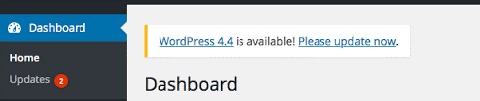
WordPress themes and other plugins update their version to keep them safe from vulnerabilities and to fix bugs. Updating can be tedious but this will help protect your site from known exploits. Just make sure that you keep a backup before doing updates. Be on the lookout for updates in your WordPress Dashboard for the following:

  • WordPress Version
  • WordPress Theme
  • WordPress Plugins

dashboard-update-message

Use Strong Passwords and Change Them Regularly

The best way to protect your site is to use strong passwords and avoid keeping the same password for a long time. If your site allows numerous login accounts, it is best to make sure that all your users follow these basic rules in making strong passwords:

  • Keep your passwords long. Use a minimum of 8 characters.
  • Keep it complex. Do not use dictionary words.
  • Keep it mixed. Use a combination of numbers, upper- and lower-case alphabets and non-alphanumeric characters.
  • Check if your password is a common password.

Avoid Common Usernames

sucuri-common-usernames-1
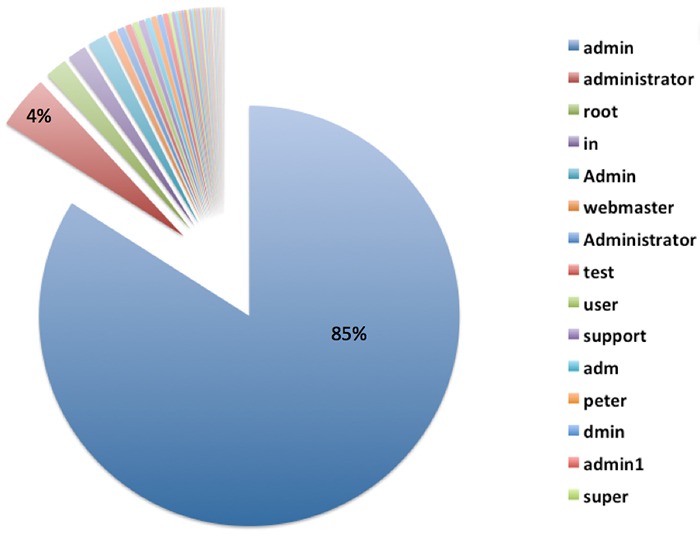
“admin” is the most used username for Brute Force attacks. Image Source: https://blog.sucuri.net/2014/03/understanding-denial-of-service-and-brute-force-attacks-wordpress-joomla-drupal-vbulletin.html

This is very important especially for administrator accounts. Do not use the default username ‘admin’ or any similar usernames containing the same word. Doing so will significantly increase the likelihood of your site being attacked by malicious users.

Use Two-Way Authentication for Administrator Accounts

For extra security, you can activate two-way authentication in your Cpanel or use a plugin such as miniOrange’s Two-Factor Authentication (Google Authenticator). The con to this, however, is you would need to have your phone with you all the time and your log-in process would take more effort and time from you.

Set Administrator Logins to Certain IP Addresses

If you have the privilege of getting a static IP address, this is a great added security option. You can actually block all sign in attempts from all other IP addresses by editing your .htaccess file. However, this can be a problem if your network uses dynamic IP addresses that can change over time.

Design Your Site to Not Use Predictable and Data Exposing Behavior for Failed Login Attempts.

If you are tech savvy, this is one option that you can do by changing the error messages that your website shows. For example, an error message that shows ‘bad username or password’ will make the attacker try the next information in their list. Adding progressive delays every failed attempt can also help improve your website’s security. You can also prompt your users to answer a captcha or a secret question after failed attempts. Be wary of using captcha though as it can negatively affect your websites user experience.

Secure Your Site with Tools and Plugins

There are many available tools and plugins that you can use. Some are free and some come with a price. Here are some tools, plugins and features that you should consider to significantly improve your website’s security. They can help you counter brute force attacks on your WordPress site. Before adding a plugin, you need to check if it’s compatible with your theme, other plugins, and WordPress version first. Some of the tools mentioned below may overlap with other ones in the list.

Security Scanner

There are so many security scanner plugins available for WordPress and most of them also include various tools that improve your website’s security. Top plugins that you can check out are:

  • Wordfence Security
  • VaultPress
  • iThemes Security
  • All In One WP Security & Firewall
  • Sucuri Security
  • Theme Authenticity Checker

Login attempt limit, blocks, and delay

There are plugins that can limit the rate of login attempts and block IP addresses temporarily to protect your site from brute force attacks such as WP Limit Login Attempts. You can also be on the lookout by tracking IP, usernames, passwords and adding idle timeout in your login with Login Security Solution.

Hide Login Page and Data

Attackers would normally target your /wp-login.php or /wp-admin. To hide your login page, you can use WPS Hide Login plugin.

Strong Passwords

brute-force-login

WordPress already generates a strong password for new users but if you are not a new user, you might want to create a very strong password by using a mix of upper case and lower case letters, numbers and symbols.

One way of creating a strong password that is easy to remember is to think of a sentence. For example: “The quick brown fox jumped over the lazy dog.” Take the first letter of every word and you will get “TQBFJOTLD”. Convert some letters to numbers or symbols and you can get “7Q3FJ0T1D” and then vary the remaining letters to upper case and lower case. Your strong password could be “7q3Fj0T1d”. Whenever you want to type your password, just recall the sentence that you used to generate your password.

Cloud/Proxy Services

You can use the aid of cloud or proxy services to help mitigate attacks all over the web as these block the IPs before they even reach your server. Cloudflare and Sucuri CloudProxy are notable services to check out.

What if Someone Already Got into My Site?

Brute Force Unlocked

Don’t Do Anything Rash

The worst mistake you can do is to delete things without backing up data first or cause further problems by troubleshooting. If your site has been compromised, the best option is to seek professional help.

Keep Calm and Regain Control of Your Site

Keep Calm and Chill

Take a step back and calm yourself down. You can still recover from this miserable event. Try to regain admin access of your site. If your password was changed, you can simply get access again by using the ‘forgot password’ option. If this has failed, get in touch with your hosting provider.

Change All Your Backend Passwords

This is an important step that you should do when you regain access to your hacked website. Make sure that you use a strong password so you can avoid further damage being done to your website.

Identify the Damage Done

Once you’ve gotten access to your site, scan your website with online malware scanners like Sucuri’s or with Google’s Safe Browsing. You can do the latter by typing this in your url: google.com/safebrowsing/diagnostic?site=yoursiteaddresshere.com

Check with Your Hosting Company

Some hosting services provide technical support for issues like this. Getting professional help is still recommended.

Restore from Backup

If you keep regular backups, you can restore your most recent backup just make sure the backup that you chose was from before your site was compromised.

Check and Change User Permissions

Checking user permissions, especially if there are many accounts that can access administrator settings, should be done to further prevent other users’ access while you’re cleaning up.

Close Hacker Backdoors

Secure your wp-config.php file and close all the backdoors that the hacker may have left. You will need professional help for this.

Change Your Passwords Again

Yes, again. The hacker may have gotten wind of your new password through a malware so change your password again when you are done cleaning up.

Have Your Site and IP Address Whitelisted

Once you have finished cleaning your site up, find out where you have been blacklisted. You may still be marked as spam by some online services like Unmask Parasites.

Summary

Your e-commerce website being compromised is one of the worst experiences an entrepreneur can go through. So planning ahead and hardening your websites security should never be taken lightly. The adage “An ounce of prevention is better than a pound of cure” rings true. If you did the hardening methods we have shown in this article, give yourself a pat on the back. If you are here because your website was compromised, get professional help as soon as possible.

Filed Under: How-To Articles Tagged With: brute force, CloudFlare, how-to, redirection, security, sucuri, website maintenance, WordPress

How to Set up Redirects for WordPress Sites

January 5, 2016 By John Leave a Comment

dead-end-404
Error messages discourage site visitors from coming back to your website. It is frustrating for users to receive 404 Not Found Errors and this is bad user experience. Often, the visitor would just exit after reaching a 404 error.

Now you wouldn’t want that would you? In this post, we will teach you:

  • What is a 404 error?
  • Why you should fix 404 errors?
  • What is a redirect?
  • How to fix 404 errors.
  • How to set up redirects for WordPress
  • How to create custom 404 error pages

404-errorWhat is a 404 Error?

A 404 Error (or HTTP Errror 404 – Not Found) appears when a website or page that want to access on the server could not be found. It is a standard response showing an error on the client’s side or browser and may appear in different ways because this can be customized. This is typically caused by a broken link for moved, renamed or deleted pages. You also get a 404 error mistyped or misspelled URLs.

Why You Should Fix 404 Errors?

This type of Error message might appear simple and unimportant but this can do a lot of harm to your business. It affects your web presence and your reputation as a business as it is reflective of how well you manage your website.

Experts say that attention span of the average user decreased greatly due to the huge amount of data available online. A site visitor would normally just spend a few seconds to and sometimes a few minutes when visiting a website. Getting 404 Errors can be annoying to site visitors and it usually results in a bounce.

Your site will be remembered as “that site with the 404 error” which could discourage them from visiting your site again. In a survey of online shoppers in Spain, 14% of the participants indicated ’page errors’ as the reason why they did not return to a website.

In the technical aspect, numerous dead links can negatively impact your SEO so it is best to create redirects for any changed URLs or deleted pages especially if you have backlinks pointing to that URL. Redirects help with your SEO as it salvages any backlinks that 404 error page might have.

What is a Redirect?

redirection person on arrowsA redirect is a means of pointing a URL to another URL. There are many types of redirects but you only need to know two of them. A 301 redirect is a permanent redirect whereas as a 302 redirect is a temporary redirect. A 302 redirect is generally not recommended unless you are an SEO expert and you know what you are doing because different search engines process 302 redirects differently. To know more about the different types of redirects, you can check this blog post.
How to Fix a 404 Error using Redirect Plugin

Redirection is not yet a standard feature in WordPress so you would need a plugin to help you with this. The first thing you have to do is install the Redirection Plugin for WordPress and activate it after installation.

This plugin by far is the most popular and actively used among many other similar plugins. You can use CSV files to easily manage a huge list of redirects. Just head over to the “Import” section and upload your CSV file. This is a pretty useful when migrating a website and you need to edit hundreds of URLs.

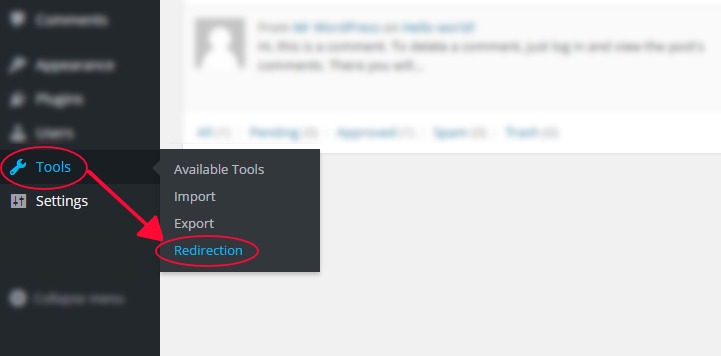
Once you have the plugin installed and activated, go to Tools and then click on Redirection. This plugin allows you to set your redirects complete with logs for all the URLs that you redirect, the plugin also helps you find 404 errors within your website.

tools-redirection-plugin

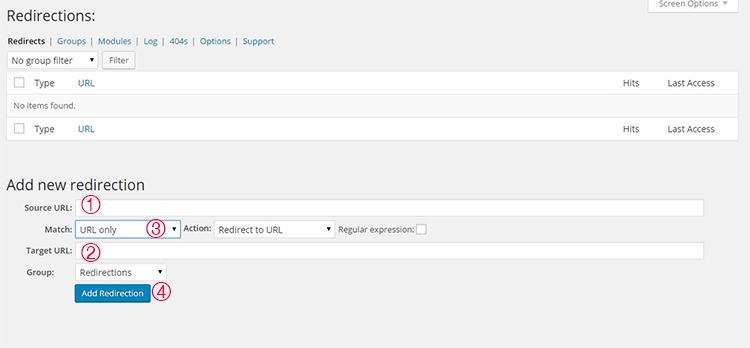
Once you have accessed the tool you will see that you will be presented with a list of redirects that you have set. Below that, you can see the “Add New Redirection” section and this where you add new redirects.
To add a redirect, just follow these 4 simple steps.

  1. Enter the URL of the link that you want to redirect in the ‘Source URL’ field. You don’t need to input the entire URL, just the slug will do. For example, instead of typing ‘http://www.mywebsite.com/page’, you can just input ‘/page’.
  2. Input your destination URL inside the ‘Target URL’ box. If needed, you can actually point the destination URL to an external URL. And just same, you can just type the slug.
  3. Make sure that ‘Match’ is set to ‘URL only’ and ‘Action’ is set to ‘Redirect to URL’. You can choose different settings based on your needs but if you want a standard redirect, the above will do.
  4. Submit by clicking on ‘Add Redirection’.

redirection-plugin

If you want to organize your redirects, you can create groups by clicking on the ‘Groups’ tab. You can just add future redirects in the groups you have created to keep them categorized. For more information on the plugin, you can visit the plugin developer’s documentation.

Other Plugins for Managing Redirects

There are many plugins for WordPress that could help you manage your redirects. Here are some top plugins that you could also check out.

Quick Page/Post Redirect Plugin

quick-page-post-redirect-plugin

True to its name, this plugin is easy to install and setup. It makes restructuring your website easier. You can choose two types of redirect functions — ‘Individual Redirects’ and ‘Quick Redirects’. Their ‘Individual Redirects’ are for redirecting existing pages and posts while the ‘Quick Redirects’ can be set up for pages that do not exist which is great for fixing typo errors and pointing an old URL to a new one.
All 404 Redirect to Homepage

As the name of the plugin suggests, this is a pretty straightforward tool that you can use. This is recommended for people who want to manage their 404 Errors by using the 301 redirection method. All your 404 will simply be redirected to your homepage. The plugin is simple uses minimal resources.
SEO Redirection Plugin

seo-redirection-plugin

This plugin, from the same developer of the previous plugin, helps you set redirections with ease. It allows for setting up various types of redirects. It also helps you monitor your website for 404 error pages. It has a Free and Pro version. The free version is good as is but if you want more options like redirecting folders and all its content and redirect all 404 Error Pages with ease, you can upgrade to the Pro version.

404 to Start

404-to-start-plugin

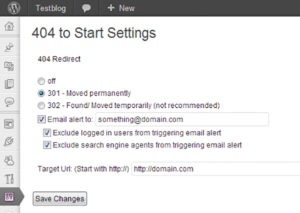
This has an optional email alert and a simple interface that will help you set redirects. You can set a 301 redirect or a 302 redirect which is generally not recommended.

404 Redirection

This plugin has surprisingly a very good rating. It is upfront, simple, and does the job well. It permanently points all your 404 Errors to your main blog URL so you can use the ranking from those missing pages and not let them go to waste.

404 to 301

404-to-301-plugin

Similar to the other plugins mentioned above, 404 to 301 does its job of redirecting 404 errors. But as a plus, it has a sweet email notification for any 404 errors so you can fix them quickly.

Creating Custom 404 error pages

Another way of effectively dealing with 404 pages is by creating a custom 404 error page. Having a custom 404 error page is a good thing to have for those 404 errors that are beyond your control such as when a user mistypes a URL. A custom 404 error page should show the visitor why they are receiving a 404 error and what they can do to fix it. It should also suggest some links on your website that they were probably looking for. You can check out our other post on creating custom 404 error pages for a detailed guide on how you can do this for your own site.

Conclusion

Having errors on your website is not good user experience. 404 errors in particular can harm your conversion rates. Setting up redirects to fix 404 errors is easy with the help of a plugin. Checking for 404 Errors and setting up redirects should be a part of your monthly or weekly website maintenance. And while a 404 error will not harm your SEO, a little extra time fixing them can save you from bigger problems in the long run. How do you fix 404 errors on your website? Let us know in the comments.

Filed Under: How-To Articles Tagged With: 404 error, best practices, how-to, plugins, redirection, WordPress

Storefront Theme Review

January 1, 2016 By John Leave a Comment

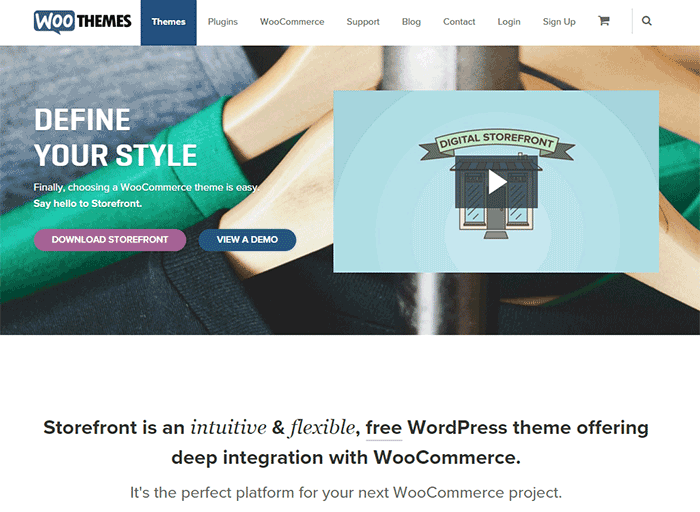
Storefront is the official WooCommerce theme built to the same high standards as WooCommerce itself. Best of all? It’s free!

storefront

A Storefront theme review is due. Here’s what’s included in this article:

  • Storefront Theme Overview
  • Storefront Key Features
  • What Makes Storefront Great
  • WooCommerce Integration
  • Storefront Setup
  • Arrival of Storefront 1.5
  • Storefront WooCommerce Styling
  • Popular Storefront Extensions
  • Choosing A Theme

Why WooCommerce?

WooCommerce is still the most popular e-commerce platform.

This open source e-commerce plugin for WordPress was launched in 2011 and is aimed at small-to-medium online merchants already comfortable with a WordPress set up.

There are a lot of free and premium themes to choose from, one of the most popular is – Storefront.

Storefront Theme Overview

Storefront is described as an intuitive, lightweight, and flexible theme offering deep integration with WooCommerce. It has several layout and color options to personalize your shop, multiple widget regions, a responsive design, and much more.

The main goal in developing Storefront is to provide a rock-solid foundation for your WooCommerce store without extra bloat or features.

It comes to no surprise that it reaches up to 3,000 downloads per day:

Integration:

Storefront theme is built and maintained by the same team that developed WooCommerce. This is why the integration between WooCommerce, its extensions, and Storefront is water-tight.

No Conflicts:

For e-commerce sites, uptime is of utmost importance. With the new Storefront, there will be no conflicts between theme and plugin during major WooCommerce updates.

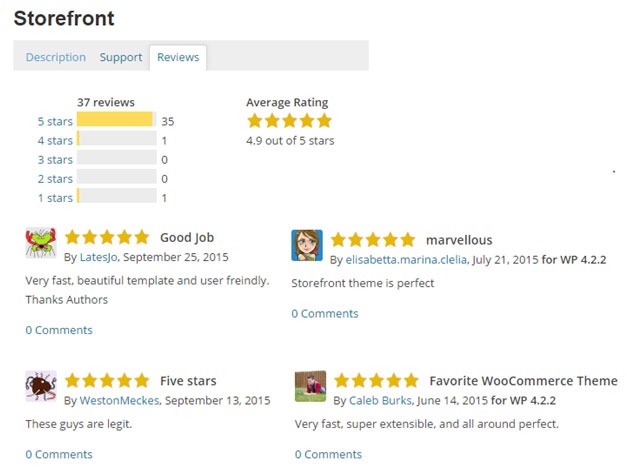
storefront-reviews

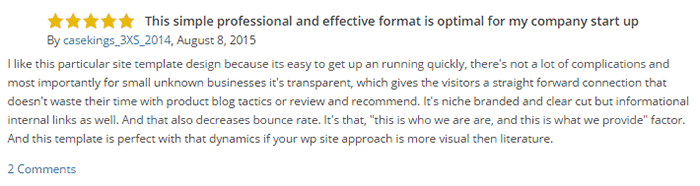
Here’s a glimpse of some of its great reviews:

Solid Foundation:

Based on the popular Underscores starter theme, Storefront features a responsive layout, and schema markup for enhanced SEO performance.

Clean and Simple:

storefront-clean-simple-design

Storefront allows you to customize your store to match your brand by providing a clean and simple design.

Storefront Key Features

Most store owners want their e-commerce theme design to be simple and flexible. Storefront can offer exactly that.

Here are some of the key included features:

WooCommerce Integration

storefront-woocommerce-integration

Storefront features an unrivalled deep integration with WooCommerce. Of course, having been developed by WooCommerce authors, this integration is compliant with the latest WooCommerce developments and standards.

Lightweight and Robust Core

Storefront-Lightweight-and-Robust-Core

Storefront is based on Automattic’s popular underscores starter theme. Its codebase is under constant review ensure it is kept nice and clean to provide as little disruption and conflicts as possible..

Design Customization

storefront-design-and-customization

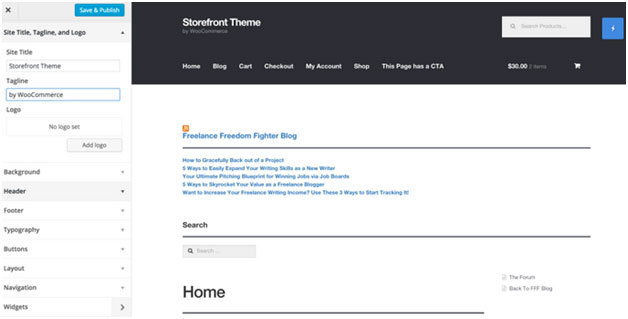
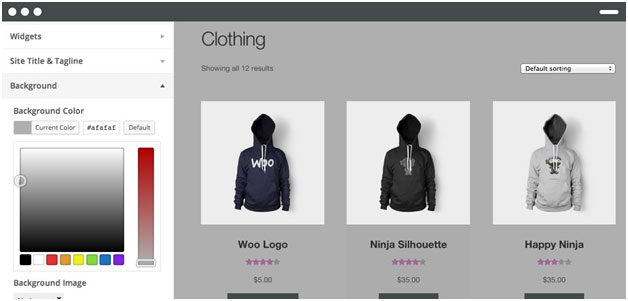
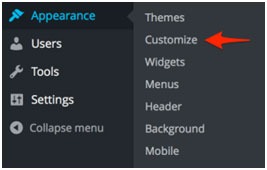
Every store owner would want to create a look and feel that matches their business. There are several display settings in Storefront that let you customize the design of your page to meet your requirements. Settings are all accessible in the WordPress Customizer.

What Makes Storefront Great

what-makes-store-front-great

The Storefront philosophy is to do one thing well and provide a solid foundation for your online store. Although the theme appears to be plain, it’s meant to be a starting place that includes deep WooCommerce integration.

Keep in mind that simple is usually more profitable. Unless you are spending a few grand on a professional designer then the fancy design you try and add yourself will most likely distract the user and lose sales.

No Shortcodes and Page Builders

Shortcodes in WordPress are little bits of code that allow you to do various things with little effort. You only get what you need with Storefront, which means you won’t encounter any superfluous shortcodes and page builders.

The Storefront team believes that not including these features allows you to add them via whichever plugin you prefer. Even if you switch themes later on, all of those features will remain. According to the release announcement, Storefront was built with data portability in mind. This means that users will be able to switch themes without losing their content.

Appropriate Sliders

Whether you should use slider is a highly debated topic. While other WordPress themes bundle sliders, Storefront lets you choose the appropriate plugin for your slider needs if you decide you do want one. It is also compatible with the WooSlider plugin.

WordPress offers many slider plugins to add them to your home page, landing pages, posts, or anywhere you want.

storefront-slider

Schema Markup

Schema markup is code that you put on your website to help the search engines return more informative results for users. The content on your website gets indexed and returned in search results. Storefront has valid schema markup for improved SEO performance.

Display Options

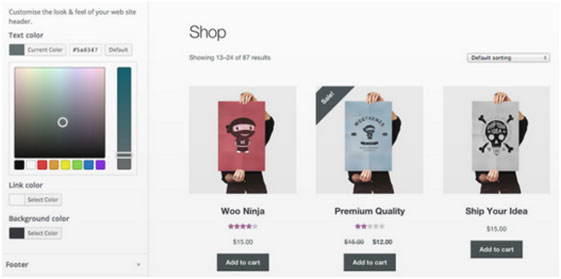
storefront-display-option

In addition to attractive products, the design of your shop is equally crucial. It’s important to make a good first impression with the help of professional design. With Storefront, you can change the look and feel of your store in a few clicks, and see your tweaks in real-time.

Responsive

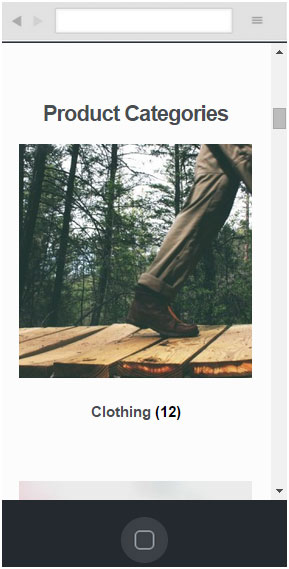
If your site can’t be viewed effectively on mobile devices, you could be losing almost 50% of your customers.

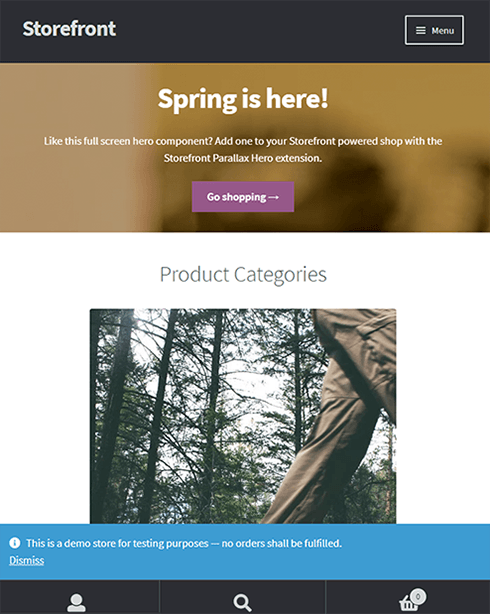
Storefront on mobile device:

storefront-on-mobile

Storefront on tablet:

storefront-on-tablet

Non-responsive sites are now considered second-class businesses by Google. Storefront will adapt and display beautifully whether you view your store on a laptop, desktop computer, or handheld device.

Localized and Accessible

Storefront is fully localized and ready for your translations. It also adheres to the strict wordpress.org accessibility guidelines. That is why your store will be accessible to the widest audience possible.

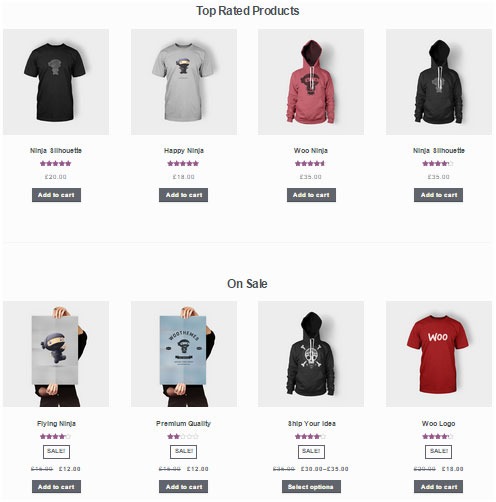
Custom Homepage Template

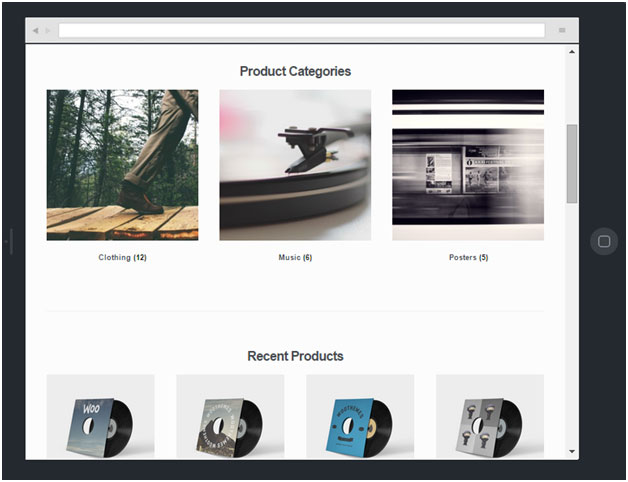
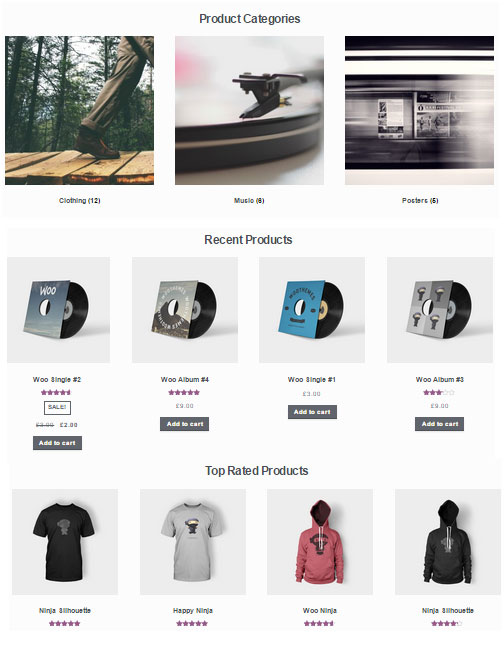
The homepage template in Storefront has been tested for user experience and conversion. It displays product categories, recent, featured, on sale & top-rated products.

storefront-custom-homepage-template

It’s a great start for most small businesses to immerse the visitor in your products, while providing enough flexibility to promote the products that will make you the most profit.

WooCommerce Integration

It includes deep integration for WooCommerce and it’s most popular extensions. This means everything will look nice straight away and you won’t have to hire a professional developer or designer to make things fit in.

Some of the more popular extensions supported are:

WooCommerce Bookings

storefront-woocommerce-bookings

This extension is perfect for those wanting to offer services, appointments, or rentals. It allows you to sell your time or date based bookings, adding a new product type to your WooCommerce site.

WooCommerce Wishlists

storefront-wishlist

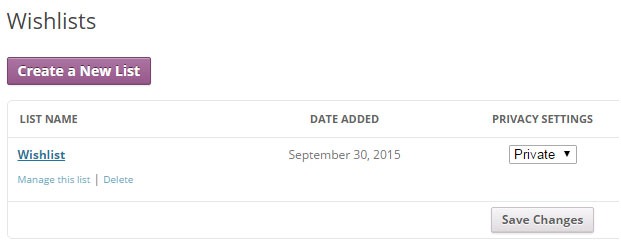
From birthdays to weddings, and everything in between, this extension allows guests and customers to create and add products to an unlimited number of Wishlists.

WooCommerce Brands

storefront-brands

This extension for WooCommerce allows you to create brands for your shop; each brand can be named, described and assigned an image.

WooCommerce Subscriptions

storefront-subscriptions

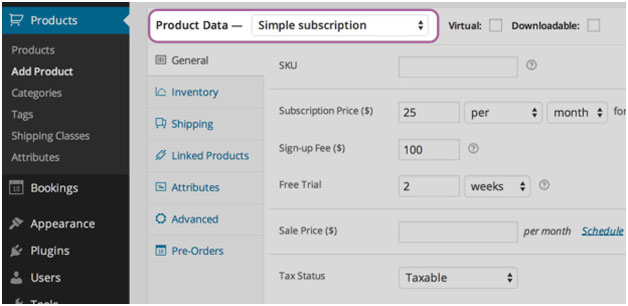
WooCommerce Subscriptions is an extension that allows you to introduce a variety of subscriptions for physical or virtual products and services. Create product of the month clubs, weekly service subscriptions, or even yearly software billing packages.

WooCommerce Memberships

WooCommerce Memberships

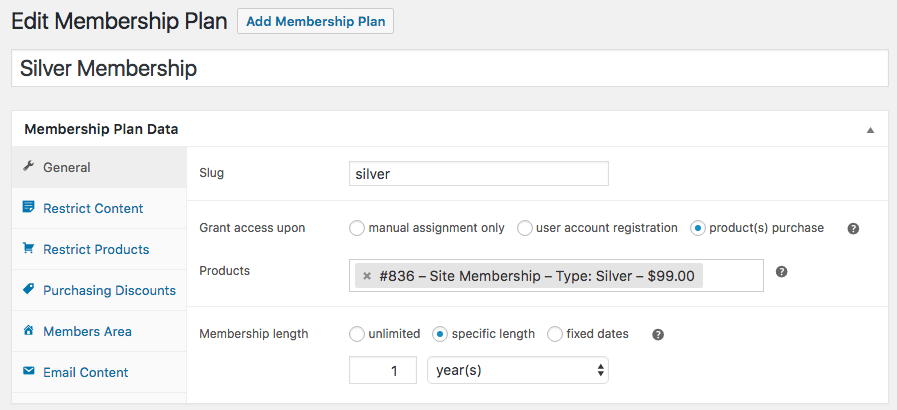
WooCommerce Memberships allows you to create a membership system that is tied completely to your WooCommerce Store. It is fully compatible with Storefront theme. You can restrict content to certain memberships classes. You can also turn your store into a membership club by restricting purchases to members. Among other useful features, you can even give members special discounts.

Composite Products

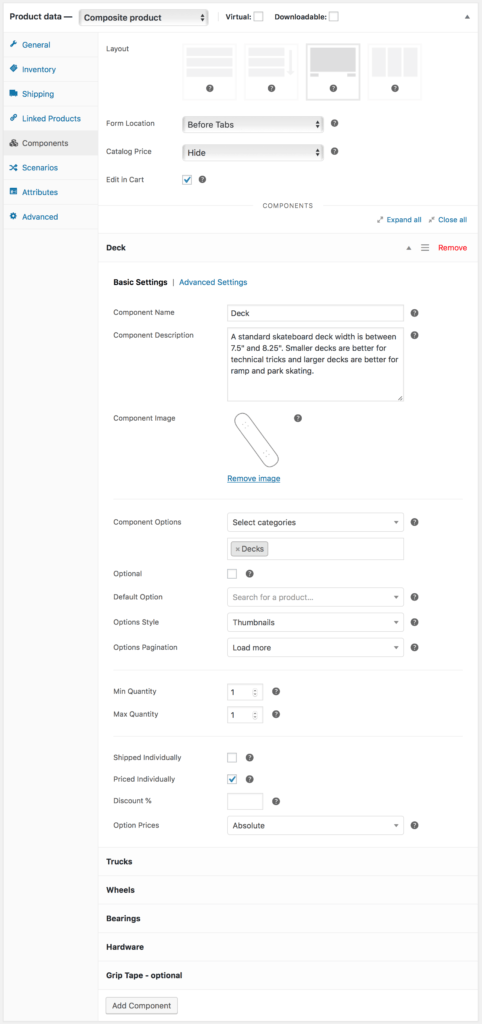
Composite Products allows you to create customizable products for your WooCommerce store. It is now fully compatible with Storefront theme. You can allow your customers to customize certain parts of their order.

WooCommerce Composite Products

Storefront Setup

Almost all of the Storefront setup can be done via the theme Customizer.

storefront-setup

The easiest way to install Storefront is through the WordPress dashboard.

  1. Navigate to Appearance > Themes > Add New
  2. Hover over the Storefront screenshot and click the ‘Install’ button to install the theme.
  3. Activate Storefront as you would any other WordPress theme.

To install Storefront manually:

storefront-manual-install
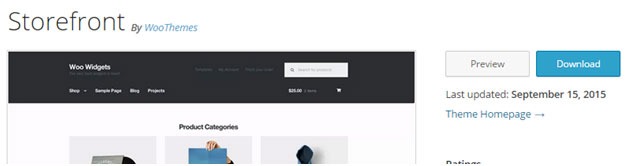
  1. Download the latest version here.
  2. Upload the extracted folder to the /wp-content/themes/ directory on your server via FTP
  3. Activate Storefront from the Appearance > Themes screen in your dashboard

Read more on how to install and use themes here.

Menus

Storefront has two menu locations, Primary and Secondary. If you do not assign a Menu to the primary navigation, it will display each of your pages. On the other hand, the secondary navigation will display nothing.

storefront-menus

After activating Storefront for the first time, you won’t see anything in the secondary navigation. Here’s your guide to creating and assigning menus to theme locations.

Page Templates

Storefront comes with just two page templates.

Full Width

storefront-fullwidth

This is just a standard page template without a sidebar, allowing the content to span the full width of your site.

Homepage

storefront-homepage

The homepage template allows you to display a multitude of products and product categories.

Here’s a Woothemes guide on installing and configuring Storefront.

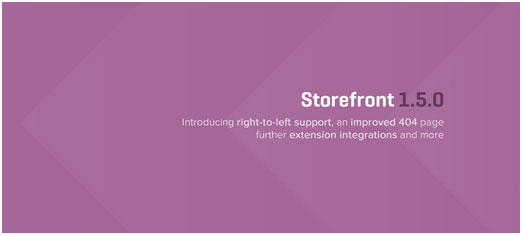
Arrival of Storefront 1.5

After the success of Storefront comes the newly improved Storefront 1.5, which achieves another coveted tag on wordpress.org. Its primary feature? A support for right-to-left languages in Storefront. The traditional RTL support standard overloads an additional stylesheet on top of the primary one.

storefront-version1-5

With Storefront 1.5, if you install WordPress in a right-to-left language, the theme will automatically recognize it. It will then load a different set of stylesheets tailored to that language. This makes Storefront a stronger global theme solution for WooCommerce.

You can also expect the following improvements:

Integration with More Extensions

storefront-integration-extentsion

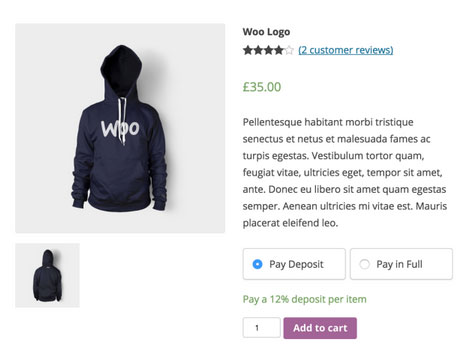
Storefront 1.5 has increased the number of customer-facing extensions it integrates with to 11. It offers added support for WooCommerce Deposits and Product Bundles.

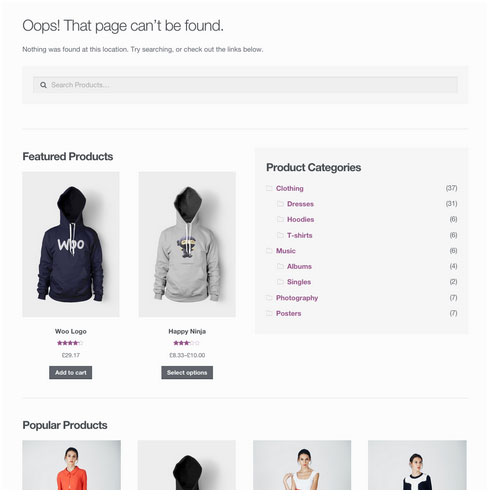
Revamped 404 Page

storefront-revamped-404

Storefront 1.5 is now made to be more useful to folks browsing a shop. The new 404 page now includes a product search box, links to product categories, featured products and popular products.

Featured Images

The previous version of Storefront didn’t cater to adding featured images to pages. Now, once you add a featured image to a page, it will appear on the frontend directly above the page title.

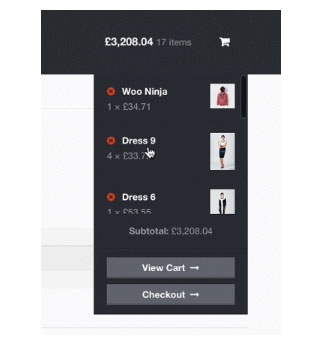
Scrolling Header Cart

storefront-header-cart

Considered a handy feature, the header cart lets visitors access their cart total, and the number of items it contains. It also reveals the carts contents upon hover. Using Storefront 1.5, the cart dropdown now has a set height that scroll as more items are added.

You can check out their awesome video about Storefront here.

Storefront WooCommerce Styling

A lot of themes we see, from Themeforest especially, do not style WooCommerce according to the best practice standards set by the Woocommerce authors.

The most common problem is overriding templates.  This causes the cost to update WordPress, Woocommerce and the theme itself to sky rocket down the track. You won’t have this problem with Storefront.

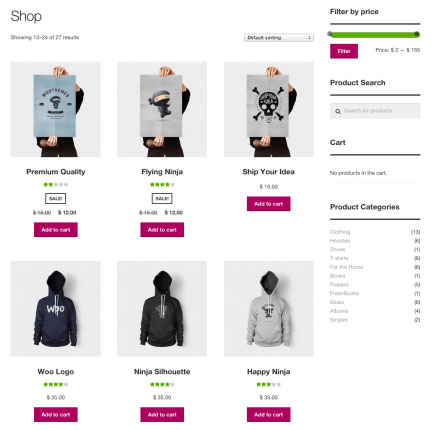
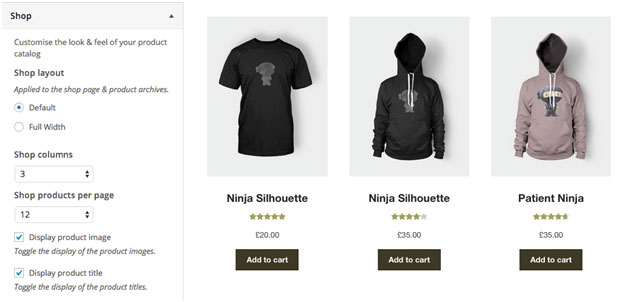
Shop Pages

storefront-shop-pages

When it comes to shop pages, you can style for all product details and WooCommerce widgets, such as the price filter. The number of products per page is also automatically adjusted to 12.

Single Product Page

storefront-single-product

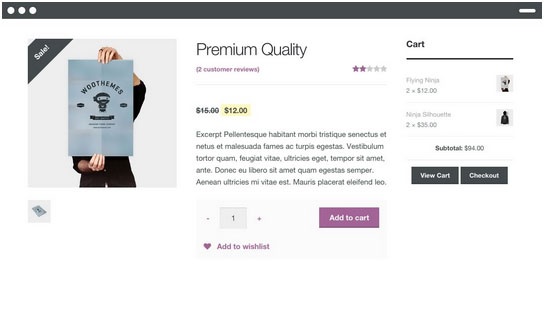
Single product pages include appropriate WooCommerce styling as well. The product tabs are presented in a vertical layout, and the number of related products is adjusted to three.

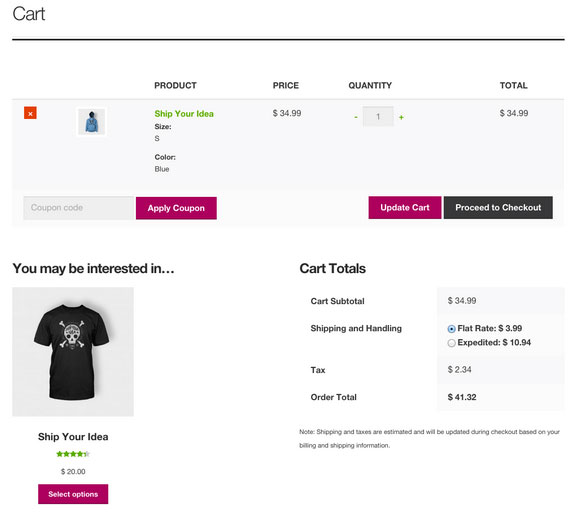
Cart and Checkout Page

storefront-cart-checkout

The checkout template features a two-column layout, with customer details on the left, and order details on the right. The ‘Place Order’ button is also always in view, making it easy to complete orders for customers.

storefront-place-order

And Now, It’s Storefront 2.5

Improved Mobile Design

From Storefront 2.0 and up, the theme now offers an improved mobile design for better mobile experience. The header section has been redesigned so that the content appears further up. This ensures that your visitors see more of the content on your WooCommerce store right away.

Storefront 2.0 Mobile View

New typography

Storefront 2.0 and up introduces a new font. Default font for WooCommerce has been changed from Helvetica to Source Sans. The font change provides users “greater depth and cohesion”. Some other small changes have been made to the design to fit the new font.

Introducing “Best Selling” Products

The theme also now offers a “best selling” products section on the home page. This is separate from product categories, recent products, featured products, top rated products and on sale products. Also, “Recent Products” has been renamed to “New In” and “Featured Products” have been changed to “We Recommend”.

Improved Appearance for Better Overall User Experience

Some other small changes have been put in place for better user experience. These include changes to styles, tables and embeds. The developers have also integrated with WordPress 4.5’s custom logo functionality. Adding a logo to your WooCommerce store is now made easier. Now there’s no need to install a plugin just to add your logo.

Popular Storefront Extensions

While Storefront provides a lot for free, there are some premium \add-ons that can add functionality or styling options to the theme.

Storefront WooCommerce Customiser

storefront-customizer

Without any custom code you can change or adjust labels and number of products displayed in homepage sections, which product details are shown on shop pages, and more.

It also lets you remove the product search and cart from the header.

Storefront Designer

storefront-designer

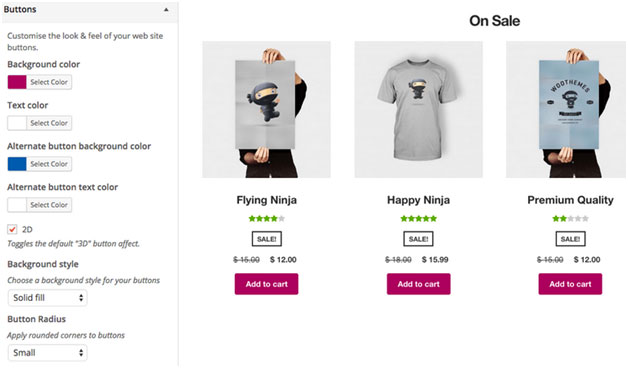
The Storefront Designer plugin adds the ability to change header layouts and make the header remain at the top of the page on scroll (sticky header). It also allows you to adjust button layouts and styles, and change some typography options.

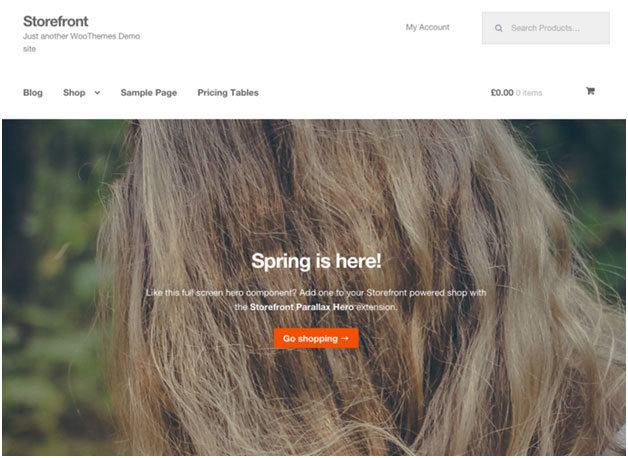
Storefront Parallax Hero

storefront-paralax-hero

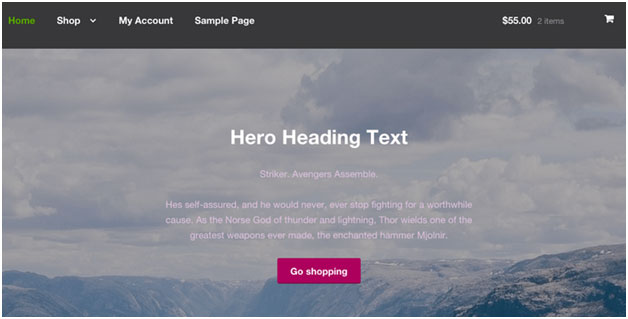
This plugin can be used to display a message and call to action over the top of an image on your homepage. It has a parallax effect, which means as the user scrolls the text and button appear to move over the image.

Child Themes

What is a child theme? According to the WordPress Codex:

A child theme is a theme that inherits the functionality and styling of another theme, called the parent theme. Child themes are the recommended way of modifying an existing theme.

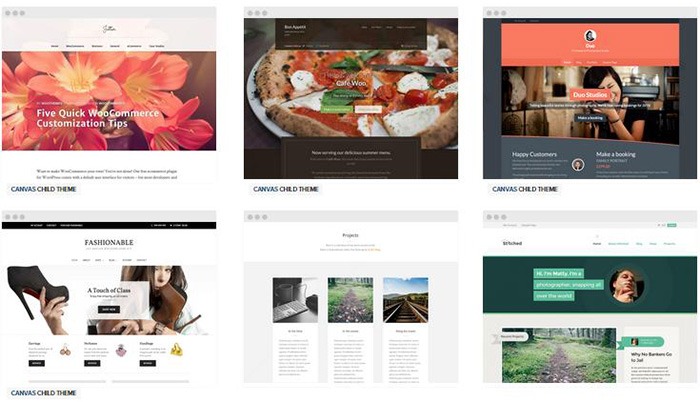
In the case of Storefront, Storefront is the parent theme. You can check out the available child themes here.

Importance of a Child Theme – Easy and Safe Updates

When using a child theme, you will not lose any custom code or any custom styles that you have added to the child theme whenever you update the parent theme. Many website owners have learned the hard way losing custom code they have added to their themes after updating it. If you have a child theme, your custom updates are safe whenever a new version of the parent theme is available. We still recommend creating website backups every time you update your theme though.

Storefront: The Final Analysis

Simple, clear, and customizable, the Storefront theme for WordPress has everything to help you achieve success in e-commerce. For a free theme, the design is simple and no-nonsense and WooCommerce integration is unmatched by any other theme.

It may be too plain for some and if you are one of those, just ask yourself. Is it your personal taste and desire for it to look pretty, or is it a decision based on your user experience and the ultimate profitability of your site? In our experience, often the simpler the site the better is the user experience and the more profitable the website.

However, if you can’t find a Storefront child theme that resonates with you and don’t want the cost of a professional designer you might want to take a look at http://www.studiopress.com. They are the only other theme author we recommend if you don’t want to have troubles down the track when it comes to updates and customizations. It will take a bit more time to integrate with WooCommerce, but they have some lovely designs.

Filed Under: Theme and Plugin Reviews Tagged With: 404 error, checkout form, child theme, e-commerce, mobile friendly, plugins, shopping cart, Storefront, WooCommerce, woothemes

Choosing a Theme for WooCommerce – What to Consider?

October 23, 2015 By John Leave a Comment

There are thousands of free and premium WordPress themes. You might need some help in choosing a theme for WooCommerce. But how exactly do you pick one that’s right for your Woocommerce store?

This article explains what to look for to fit the design requirements of your store and also the functionality requirements and to make sure your new theme will play nicely with Woocommerce.

Different themes have different layout styles. Knowing what you want or need will make looking for a theme easier. Right sidebar, left sidebar, full-width, or maybe parallax? Are you going to be using image sliders? Also, it is important that the theme that you choose supports WooCommerce integration.

Once you know what you need, it might be a good idea to talk it over with your web developer. He might already know of a theme that will suit your purpose.

woocommerce-themes

Here are some criteria for choosing your theme:

Aesthetic Needs

Of course, you shouldn’t focus on the look alone. But, you also need to make sure that the theme matches the look and feel you want. You may be able to customize colors, but major changes on the design are best left to pros. As you choose a theme, it should meet at least 80% of your layout, visual, and content needs.

Stay away from poorly coded themes as this could spell problems for your website down the track when updates are needed.

Many themes also offer a lot of other functionalities that allow users to easily edit the look of their site. However, such themes could add unnecessary bloat to your website. This unnecessary bloat could put strain on your page load times and cost you sales.

Be cautious of Themeforest themes as they are notorious for this. Instead of using a theme with many customizable options, you’ll be better off editing the CSS of the child theme to get your desired look.

We recommend Genesis themes and Storefront.

WordPress Updates

Most themes should support the latest version of WordPress. Still, you should verify before making your purchase. Some older themes that are no longer being updated may not support the most recent updates to WordPress. It’s important to keep up with WordPress updates for functionality and security purposes.

WooCommerce Compatibility

Your theme should be able to integrate with WooCommerce.

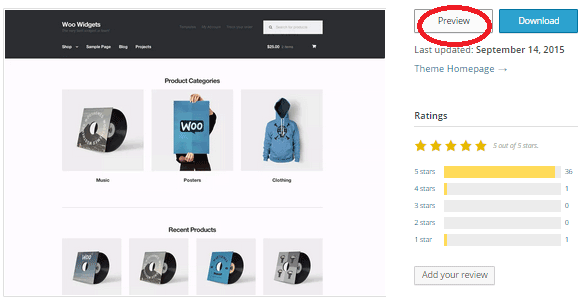
WooThemes recommends doing a quick check. Take a look at the theme’s demo and view the source code. You can do this by right-clicking on the page and clicking on “View Page Source”. Look for the WooCommerce version meta tag. Search for the words: WooCommerce Version

The closer it is to the current release of WooCommerce, the better. If it is nowhere near, look elsewhere for a better theme.

Also, go with a theme that has less custom WooCommerce templates. This is because having a lot of WooCommerce templates customized will be a pain to update.

The theme should not have a lot of unnecessary customizations which can be done through a plugin.

Multiple Layouts

Review the theme description and demo to ensure that the theme supports the layout you want to create.  Look for the theme’s documentation and review it to know if the theme can accomplish what you need.

storefront

Don’t just assume that the theme you chose will accommodate one or two sidebars, full width pages, or columns within content.

Theme Navigation

How many menus do you plan on having? Some site owners need secondary menu for categories. Check if the navigation bar can accommodate all your primary menu options. If you hired a web developer, discuss your content sitemap and navigation requirements first before buying your new theme.

Call-to-Actions

As an e-commerce website, you want your visitors to do something and eventually buy your product.

call-to-actions

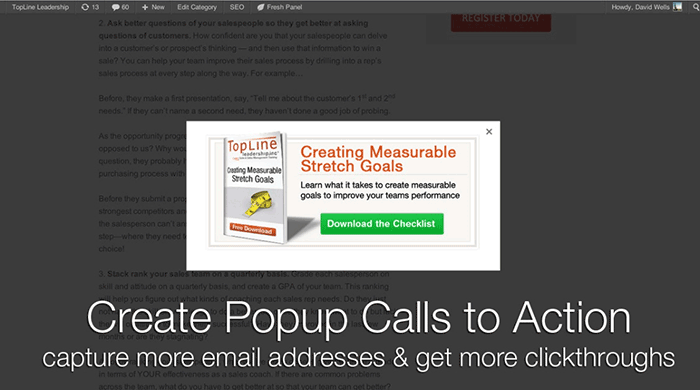
Make sure your theme can support your list of visitor to-do items. A cohesive design, with built-in options for call-to-actions is recommended.

SEO Friendly

WordPress is SEO friendly by default, but not all its themes are. To achieve an ideal SEO ranking, it’s important for search engines to digest your content. In this case, quality code and solid design architecture are required. Here’s a do’s and don’ts guide from Yoast to make your theme SEO friendly.

Level of support

Theme support is usually available by phone, email, video tutorial, instruction manuals, forums, etc.

support

However, some developers don’t have much time to provide support or answer forum questions that often. For beginners, make sure your theme offers lots of support features.

Reviews and Feedback

If there are available reviews, read through them thoroughly to point out any theme pros and cons.

reviews

Take note of trends, plugin conflicts, and complaints. It may not have a 100% satisfaction rating but a strong rating may be present. Look at both positive and negative feedbacks. Take negative feedbacks with a grain of salt.

Fixed vs Responsive

Most WordPress themes are now designed to be responsive. This means that your website adapts to fit the screen size of the device where it’s viewed. If a potential client is browsing your site, he’ll find it easy to navigate. Not all themes are responsive and since Google has started penalizing non-mobile responsive sites, a responsive design is the only way to go. There is no reason you should be creating a non-responsive site. Check out our post on Google’s Mobile-Friendly Update.

Do you have any more tips when choosing a theme for a WooCommerce site? Let us know in the comments.

Filed Under: How-To Articles, Theme and Plugin Reviews Tagged With: child theme, colors, Genesis, how-to, mobile friendly, responsive design, Storefront, WooCommerce, woothemes, WordPress, WordPress updates

  • « Previous Page
  • 1
  • …
  • 29
  • 30
  • 31
  • 32
  • 33
  • …
  • 41
  • Next Page »
Let us support your online store so you can manage your business

Get started today

Get 2 Hours of FREE SUPPORT

We are so confident that you will love our services that we will give you your first 4 hours at a 50% discount

That’s 4 hours for only $75

BUY NOW

Free eBook

5 Things Every Online Store Can Fix On Their Website In The Next Week To Increase Sales

Quick Links

  • How it Works
  • Pricing
  • Blog
  • Contact
  • About Wooassist
  • My Account
  • Checkout
  • Privacy Policy
  • Cookie Policy
  • Terms and Conditions

Wooassist

Australia:
59 Luke St.
Hemmant QLD 4174

Philippines:
San Miguel St.
Poblacion, Iligan City 9200

Connect


Copyright © 2026 · Wooassist

Yours FREE!

5 Things Every Online Store Can Fix On Their Website In The Next Week To Increase Sales