Wooassist

Assistance for Your Woocommerce Store

  • How it Works
  • Pricing
  • Services
    • Site Maintenance
    • AI SEO and Content Marketing
  • Blog
    • How-To Articles
    • Code Snippets
    • SEO For E-Commerce
    • Theme and Plugin Reviews
    • Wooassist News
    • WordPress/WooCommerce News
    • Interviews
  • About Us
  • Contact
You are here: Home / Archives for How-To Articles

13 Routine Maintenance Tasks that You Should Do on WordPress and WooCommerce

April 2, 2018 By John Leave a Comment

Routine Maintenance Tasks for WordPress

Maintaining a WooCommerce store is a lot of work. There are a lot of routine maintenance tasks for WordPress and WooCommerce that need to be done on a regular basis. In this post, we list down the most important tasks that you should do on your WooCommerce store.

1. Create Regular Website Backups

Create Regular Website BackupsCreating regular site backups is critical. It is your first fallback in case something breaks on your site. While you can make backups manually, it is important to make regular automated backups. Check with your hosting provider if they create regular backups of your database as well as a complete backup of your site. You can also install a backup plugin such as Updraft Plus or BackWPup and set it up to make regular automated backups for you. We still recommend creating manual backups before doing major work on your WooCommerce store though.

2. Update WordPress, WooCommerce, Themes and Plugins

Updating all elements of your WooCommerce store should be done on a regular basis. Do this weekly if you have the time. If not, monthly updates are good enough. Updates include updating WordPress Core, themes, WooCommerce and all other installed plugins. Remember to backup up your site before proceeding with updates since updates could cause your website to break. If you have a development site, it would be best to test the updates first on this staging environment. Then, do some user testing to make sure that there are no errors. After that, you can proceed to update your live site. When that’s done, you will need to do another round of testing. Some important elements to test include checkout, add to cart, contact form emails, opt-in forms and other customizations that were done on the site.

3. Update WooCommerce Template Files

After updating WooCommerce, you will sometimes get an error notifying you of outdated WooCommerce template files. This just means that your theme has not updated to include the latest WooCommerce template files. In some cases, this could cause some formatting issues on your store. If there are no errors on your store, you can simply wait for your theme to release an update that includes the most recent template files. Or you can also fix this manually by following the steps in this documentation from WooCommerce.

4. Change User Passwords

It is important to use strong passwords. However, it is just as important to change passwords on a regular basis. There are times when security breaches can go undetected for a long time. Changing your password regularly blocks out these security breaches that you might not realize are there. You should change your password for WordPress admin, FTP, database and cPanel. And a pro-tip, never use “admin” as your username. This is the first username that hackers try out when brute forcing into websites.

5. Optimize Your Product Images

We’ve always emphasized the importance of optimizing images for your WooCommerce store to keep your site running fast. If you have uploaded any product image that is more than 100KB in size, it might be a good idea to replace that image with an optimized product image. To learn more, you can check out our blog post on how to optimize images.

6. Approve and Respond to Product Reviews

Moderate Product ReviewsIf you are not asking your customers for product reviews then you might want to reconsider. Most people who buy online look for product reviews before they decide to purchase something. One study found that 85.57% of users read reviews before they purchase. And if you are asking your customers for product reviews, then you will need to approve reviews on a regular basis. A word of advice, do not remove negative reviews of your products. Instead, make it an avenue where you can show good customer service. Respond to the negative review. Offer a replacement for a defective product or offer a refund. People reading reviews will want to see some negative reviews to get a well-rounded picture of your product. When moderating reviews, you only need to remove the spam reviews.

7. Approve and Respond to Blog Comments

If you have a blog that is made to drive customer engagement, then your blog will most likely attract comments. Same with product reviews; don’t delete the negative comments. Rather, address them positively. Remove any spam comments as this will negatively impact the user experience of your blog. If you are using Akismet: Anti Spam plugin, this will block out most spam comments. However, some spam comments can still get through and you will need to manage them manually.

8. Test Your Contact Forms and Email Opt-in Forms

Every now and then, you will need to make sure that your contact forms and email opt-in forms are working. Just fill in your forms and send. If you receive it in your email, then you’re all good. But if you don’t, there’s something wrong and you need to do something about it. Have your developer look into it.

9. Optimize Your Database

Over time, your database accumulates a lot of gunk and you need to clean it to make sure your website runs fast. Before you go about this task, make sure you create a backup. You can choose to clean your database manually if you are comfortable and familiar with working on your database. Otherwise, you can use a plugin to do the optimizations for you. Notable plugins include WP-DBManager and WP-Optimize. You can check out our guide on how to clean your database.

10. Test Your WooCommerce Store’s Speed

If you have not yet made optimizations to your WooCommerce store’s speed, you should consider doing it now. Site speed has become increasingly important for WooCommerce store owners. Google now considers site speed as a ranking factor for SEO. Also, if you have a slow site, this will negatively impact the customer’s experience on your site. It is easy for your customers to buy instead from your competitors. You can test your site speed on Google’s Page Speed test and Google will provide you with recommendations on how you can improve your site’s speed. Other notable tools that you can use to test your site are Pingdom Website Speed Test and GTmetrix.

11. Scan Your Site for Malware

One way to keep on top of your website’s security is to regularly test your site for any malware. If you are connected to Google Search Console, it will let you know if malware is detected on your site. If your site has been found to have any form of malware, Google Chrome will actually alert your visitors that your site is dangerous. This can have devastating effects on your traffic and conversion rate. No one will want to enter their payment information on a site that has malware. In extreme cases, Google may block your site from appearing in the Google search results page. You want to prevent this from happening. It would be best to invest on your site’s security by installing a security plugin such as Sucuri Security and WordFence. Even if you have those plugins installed, it is still a good idea to a manual scan. You can scan your website at Sucuri’s Website Malware and Security Scanner, or at SiteGuarding. If any manual scans detect anything malicious, you can contact your developer to fix the issue. You should get it fixed before Google applies any penalties. Wooassist also offers a security hardening service to improve the security of your site so you can prevent this from happening.

12. Fix Broken Links

Broken links are bad for user experience so check your site regularly for any broken links. You can use W3C Link Checker or any other similar tool to check for broken links. Once you’ve found the broken links on your site, you can start fixing them. You can either remove the links or points the links to a new relevant URL.

13. Test Your Checkout Process

Last but definitely not the least; you should regularly test your checkout process. If you suddenly experience loss of sales, it’s a good idea to test your checkout. There might be an error that prevents your customers from checking out. Testing also gives you a feel of what your customers go through so you can optimize your checkout. Once you’ve determined that your checkout has problems, you can check out our post on how to fix the most common checkout problems in WooCommerce.

Final Notes

By doing these tasks on a regular basis, you can keep yourself on top of any issues that may occur on your WooCommerce store. If you find yourself overwhelmed by the all these, you can hire someone else to do it. You can also contact us and our team will be glad to assist with any of these tasks.

Are there any other routine maintenance tasks for WordPress and WooCommerce you think should be done on a regular basis? Do you have any suggestions? Let us know in the comments.

Filed Under: How-To Articles Tagged With: blog, contact form, conversion optimization, image optimization, plugins, security, site speed optimization, website maintenance, WooCommerce, WooCommerce products, WordPress, WordPress SEO, WordPress updates

How to Recover Abandoned Carts in WooCommerce?

November 30, 2019 By John Leave a Comment

How to Recover Abandoned Carts in WooCommerce

It’s not uncommon for ecommerce shoppers to abandon carts. You may not know it, but your store might also be suffering from carts being abandoned. This problem can be addressed however. To start, you must determine why your customers abandon their carts.

Why online shoppers abandon carts and what you can do about it?

There are various reasons why online shoppers abandon their carts. We lay out the most common ones and what you can do to address them.

Checkout is Too Complicated

Your customers will nitpick and that is to be expected. When you make your customers jump hoops during checkout, you’re not doing them a favor. Your checkout should be quick and straightforward. If you must add some other stuff that will complicate checkout, consider if you can add it on the thank you page instead. The thank you page is the page where the customer is redirected to after making a successful purchase. If you need help tweaking your thank you page, the Wooassist team can help.

Users Need to Create an Account to Check Out

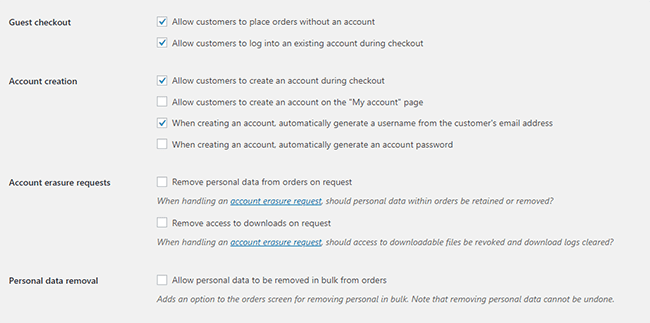
Internet users are already burned out having to create an account for each internet service that they use. Don’t add to that burden. Don’t force your customers to create an account if it’s not necessary. To enable guest checkouts on WooCommerce, go to your WordPress Dashboard, click on WooCommerce > Settings. Under the Account and Privacy tab, enable “Allow customers to place orders without an account”. You can tweak other account related settings here to your liking.

Too Many Checkout Form Fields

The default WooCommerce checkout page is good enough as it is. There is no need to add more fields unless necessary. If you’ve edited your checkout page before to add some unnecessary fields, look into it and consider removing it.

Unexpected Charges

Customers will abandon your checkout when they see the shipping fee. No one will force you to offer free shipping if it will make your business unsustainable. There are however some things that you can do to reduce abandoned carts as a result of shipping and other fees. People now are more accepting of shipping fees. For other fees, be transparent from the get-go. If you charge taxes, handling fees, and other fees, make it clear starting from the product page that you charge these fees. If they are suddenly greeted by these fees on checkout, it will look like unscrupulous practice.

Too Many Clicks to Checkout

Reducing cart abandonment is all about simplifying your product purchase process. Ideally, it should not take more than three clicks for a customer to check out. If it takes four clicks to check out, that is one click too many. Get rid of unnecessary barriers to completing checkout.

Don’t Make it Hard to Contact You

Some of your prospective customers will look for your contact details before they make a purchase. If they added a product to their cart but could not find your contact information or even a contact us page, there is a high likelihood that that user will abandon that cart. To prevent this from happening, make sure you have a contact us page. Even better, if you can add your email or phone number on your WooCommerce store’s header.

Payment Issues

Another common reason for abandoning shopping carts is payment issue. When the customer tries to pay for his/her order and it fails, you can bet that cart will be abandoned. The solution here is simple. Offer more than one mode of payment. Some common payment channels you can use are Paypal, Stripe, Authorize.net, Apple Pay, Amazon Pay, and Square.

Other Things You Can Do to Reduce Cart Abandonment

Show Security Certificates

To be able to sell your products or services online, you’ll need to be able to establish that you are trustworthy. You can show security certificates and security seals on your checkout page to improve your trust rating. Some security seals that you can add to your site as Norton, McAfee and TRUSTe.

Offer Free Shipping

Free shipping can significantly reduce your cart abandonment rates. However, not every business can make a profit when offering free shipping. As an alternative, you can offer free shipping when your customers meets a required minimum order value or quantity. This strategy can also help improve your average order value.

Offer a Money-Back Guarantee

Most consumer laws dictate that you should have a return policy anyway. So there’s no reason not to do it. Making your money-back guarantee known shows your prospective customers that you have faith in the quality of your product or service. Don’t worry about the people that might abuse your money-back guarantee. It hardly ever happens. And if it happens a lot, the problem might be your product.

Improve Your Page Load Speeds

If your site is slow, some of your prospective customers might get frustrated and abandon their carts. Make sure your site is fast.

How to Recover Abandoned Carts

There are many ways to recover abandoned carts. Some of the more common methods are remarketing and abandoned cart emails.

Using Remarketing to Recover Abandoned Carts

There are many platforms that you can use for remarketing. Essentially, remarketing works by saving a cookie on the user’s browser so you can show them your tailored ads. Neil Patel details how you can use remarking on Adwords to recover abandoned carts. Facebook is another platform that you can use for remarketing. SproutSocial details how to use remarketing on Facebook.

Using Abandoned Cart Emails to Recover Abandoned Carts

Abandoned cart emails send your customers a reminder email if they did not complete their purchase. For guest checkouts, this requires that the user must at least have entered his/her email address. This won’t be an issue if you require your customers to register before making a purchase. Do note however that requiring customers to create an account may hurt your conversion rates. There are a lot of abandoned cart email plugins that work for WooCommerce, you just have to find the plugin that works for your needs.

Recover abandoned carts and improve your sales by implementing these strategies. If you have any questions, you can post a comment below. If you need help setting up abandoned cart emails or anything else, you can send us email.

Filed Under: How-To Articles Tagged With: abandoned carts, checkout, checkout form, conversion optimization, email marketing, optimizations, remarketing, security, trust rating, WooCommerce, woocommerce checkout

How to Save Time and Money When Outsourcing a WooCommerce Developer

June 21, 2019 By John Leave a Comment

How much is your time worth? Do you usually spend a couple of hours trying to fix an issue on your WooCommerce store? You should be spending more time working on making your business more profitable. Don’t waste your time dealing with bugs and plugin updates. Leave that to a developer that can do the task more efficiently.

If you’ve never outsourced a WooCommerce developer before, you’ll find that it’s not that difficult. We’ve outlined some things that you can do so you can save time and money when hiring a WooCommerce developer.

Why Outsource?

If you are asking yourself why you should even outsource, outsourcing will help you free up your time. More free time means you can focus on the more important aspects of your business. Also, outsourced work is cheaper. Don’t waste time going through forums and various support channels for help. Sure, you might be able to fix your problem but at what cost?  That is time spent that you’ll never get back. You can outsource a WooCommerce developer that will do complex tasks in a fraction of the time.

What Tasks Can You Outsource?

You can outsource just about any tasks you don’t want to do. Outsourcing routine maintenance tasks is always a good idea.

Site Updates and Maintenance

There are plenty of tasks that you can outsource on WooCommerce and one of the most important one is your site updates. If you do not update your WooCommerce store on a regular basis, you are not getting important security updates. This exposes your and your customers’ data to cyber criminals.

Hackers typically look for outdated sites as they are easy targets for hacking. If you do not have time to do regular updates, you can have an outsourced WooCommerce developer do it for you.

On your end, you must ensure that your developer creates a back up of your site and tests updates on a staging site. Some WooCommerce store owners might be wary of updating their site because they experienced problems due to site updates in the past. This is the reason why you should test updates on a development site first. You should not wait for your production site to break because you haven’t been updating it in months. While your site can break when you update it, you can do this in a controlled environment. This is a lot better compared to being forced to take down your site while you troubleshoot. If this happens, your site could be down for hours or even days. You can do your site updates regularly to prevent this from happening.

Fixing Bugs and Other Issues

Things will break on your site every now and then. That’s an issue all ecommerce store owners will have to deal with. Instead of worrying about it, you can outsource a WooCommerce developer fix these issues for you.

Site Speed Optimization

Some elements on your site could be dampening your site speed. An experienced WooCommerce developer can help you optimize your site so it runs the fastest that it can.

Design Tweaks

If you need a quick design tweak, what would take you an hour or two to do might just be a 15-minute job to an experienced WooCommerce developer.

Adding New Features/Custom Development

WooCommerce is customizable if you know how to code. With a trusted WooCommerce developer, you can customize your site however you want to.

How Can You Save Time and Money When Ourtsourcing a WooCommerce Developer?

save time and money outsourcing

Find a Skilled Developer

Wooassist developers have spent years working on various WooCommerce sites. They have dedicated themselves to knowing everything about WooCommerce. If you are looking for WooCommerce expert, you can contact us. You can also try your luck hiring a freelancer at websites like Upwork. Try to find someone who has a lot of experience working with WooCommerce websites.

Wear the Project Manager Hat

If you’re going to outsource a WooCommerce developer, you’ll need to manage your projects. If you don’t have staff to do that for you, you’ll have to manage your projects yourself. Or you can hire Wooassist and you’ll be assigned your own project manager.

Use a Project Management Tool

There are several project management tools that you can use. You just need to determine which one would work for you. Some project management tools we can recommend include Asana, Kanbanflow and Trello.

Define Project Goals

A project is clearer if you have realistic and achievable goals. When talking to your developer about a project, always let them know what the goal is.

Make an Effort to Write a Detailed Project/Task Brief

Don’t downplay the importance of writing a project or task brief. Spending more time writing a detailed project brief actually saves you time. If you don’t write a good task brief, you will spend more time making corrections and asking for revisions. Define the objective and include all the necessary details in your task brief.

Prepare All Necessary Files

When you send a task to your developer, always send them all the necessary files needed to accomplish the task. Use appropriate file names to avoid confusion. Also, use common file formats.  If you are using the cloud to share your files, make sure you grant the necessary access permissions. In the task brief that you prepare, it helps to include a note on what the files are for.

Prepare and Double Check Login Information

Provide all the necessary login information to the developer working on your tasks. We recommend testing the login information to ensure they are correct. For a developer, nothing wastes more time than finding out you cannot log in to a site you are working on. More time is wasted if they can’t get the correct login information right away due to time zone differences.

If you have not tried outsourcing a developer before, don’t be afraid to take the first step. You can free yourself from your WooCommerce woes if you work with a trusted developer. Let us know in the comments if you might have any questions about outsourcing.

Filed Under: How-To Articles Tagged With: outsourcing, website development, website maintenance, WooCommerce

How to Add “Last Updated” Date on Your WooCommerce Store’s Blog

May 1, 2019 By John Leave a Comment

Having a blog is important for ecommerce stores. A blog can help you increase your inbound links, sales, and leads. A blog also lets you show your expertise if you want to be an influencer in your field. If you’ve been utilizing blogs to give your WooCommerce store a boost, you should know that blog posts may go stale. It may lose its SEO value. However, you can update your blog posts so that it stays fresh in Google’s eyes.

By default, even after you update your blog post, WordPress will not show that you updated your post. It will still only show the date that the post was published. You can edit the publication date but that won’t help your SEO because Google has already indexed your post and knows that it is not new content. What you can do is to show the date that your blog post was last updated and you can do this using a plugin.

Benefits of Showing Last Updated Date

Showing the last updated date on your blog tells search engines that you updated your content. Fresh content will rank better on search engines. On your end, you have to make sure that you make meaningful updates.

For visitors to your blog, showing the last updated date tells them that your content is relevant and not outdated. Fresh content makes your post more reliable.

How to Add Last Modified Information on Your WooCommerce Blog Posts

How to Add “Last Updated” Date on Your WooCommerce Store’s Blog
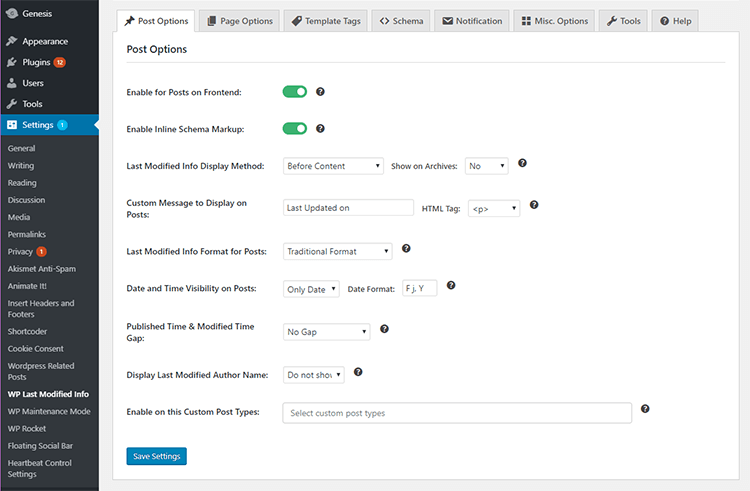
  1. To show “last updated” date on your blog, go to your plugins page. Search for WP Last Modified Info plugin. Install and activate.
  2. After activating, go to Settings and Click on WP Last Modified Info.
  3. Under the Post Options tab, click on Enable for Posts on Front End to show last modified information on your blog posts.
  4. We also recommend enabling Inline Schema Markup. Enabling schema markup adds codes that helps search engines provide more informative results for users. In this case, the schema markup will allow search engines to show last update date on the search engine results page.
  5. Tweak the other settings to your liking and click save when you are done.
  6. You can also show last modified date on page when you click on the “Page Options” tab.

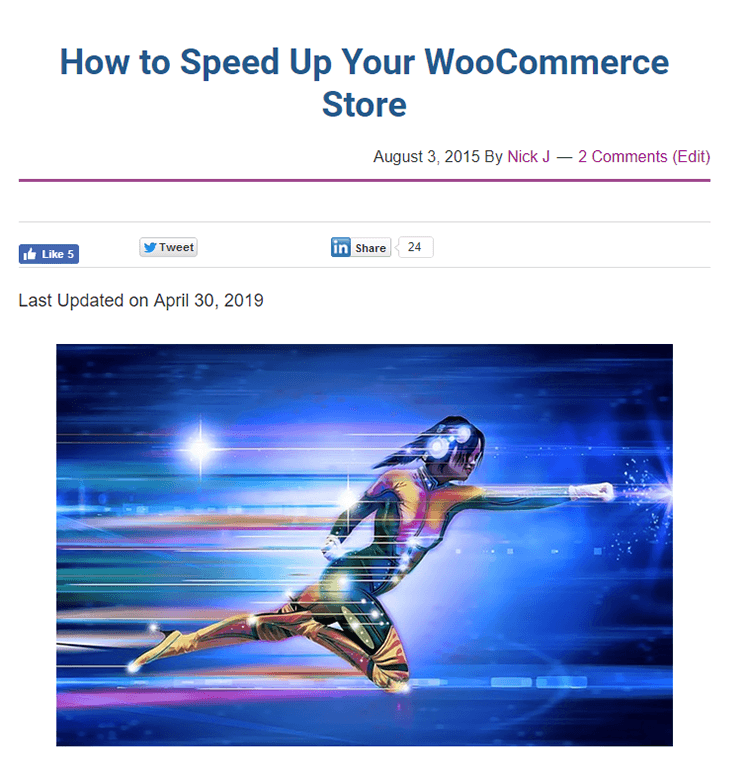
Here’s how it would look like on the blog page. You can see we have a post published in 2015 and was updated on April 2019.

Last Updated Date on WordPress Blog

After you’ve done all that, updating your blog posts should automatically add the last updated date. If that work, you can try basic troubleshooting tips.

If you have any questions, leave us a comment below or send us an email.

Filed Under: How-To Articles

Update Your WooCommerce Store Regularly to Prevent Your Site from Breaking

March 19, 2019 By John Leave a Comment

Update Your WooCommerce Store

Many times, when WooCommerce store owners come to us seeking for help, we usually find that the cause of the problem is an outdated site. In some cases, we find that the site’s plugins and themes have not been updated in years. And when a WooCommerce store site has not been updated in years, suddenly updating can sometimes break more things. Our recommendation is to update regularly.

Why Should You Update?

If you update your site regularly, you’ll be dealing with a lot less problems on your WooCommerce store. While it’s true that site updates may cause issues, these issues are usually less severe than issues that come up when you don’t update. In addition, you can troubleshoot these issues on a staging site which will have no effects on your live site. If your site breaks because it is outdated, your live site can go down for an indefinite period. That means no sales until you fix the issue. If this happens during a critical time for your business, it can have negative effects on your sales. Imagine running TV ads and then your site breaks due to being outdated. That’s advertising dollars down the drain.

How Often Should You Update Your WooCommerce Store?

The best schedule we’ve found for site updates is doing them at least monthly. You can update more often especially when severe security issues are patched.

What Happens When You Don’t Update?

When you don’t update your site, one or a few of these things could happen:

  • Your site may go down and become inaccessible
  • Your site layout may break
  • Images and icons may not load
  • Your payment processor may stop working
  • Your shipping plugins may stop working
  • Your product page may break
  • You may have various problems on your cart and checkout
  • Your sign-up forms and contact form may stop working
  • Your site may be hacked and infected with malware
  • Your SEO rating may drop
update woocommerce to increase security

What Do You Need to Do Before Updating Your Site?

Test Updates on a Development Site

It is important to test updates on a development site. If you do not have a development site, also called a staging site, you can check with your hosting company if they offer a staging service. Some hosting companies like WPEngine provide an easy-to-set-up staging service. You can also set up a staging site yourself. You can check this blog post to learn how to create a staging site for WordPress.

Before you update your live site, test updates on your development site first. Then do some user testing to find out if there are any issues with the updates. Some things you need to test are:

  • Your Site Layout
  • Opt-in Forms
  • Contact Forms
  • Shopping Cart
  • Checkout
  • Any custom development you’ve done on the site

If you find any issues on your staging site, it’s time to get fixing. If you do not know how to go about fixing the issue, you can check out our guide on troubleshooting for WooCommerce. You can also drop us an email so we can help you out.

Create a Backup

If there are no issues on your staging site, it’s time to update your live site. But first, don’t forget to create a backup. For backups, we can recommend UpdraftPlus or BackWPup. Once backup is successful, you can proceed to update then test your live site again. If more issues come up, proceed to troubleshoot.

backup your woocommerce store before updating

I updated my WooCommerce Store but my Site is Still Broken

Renew Your Plugin Subscriptions

Sometimes, issues may persist because automatic update are not available for your plugins. This is usually because your plugin subscription has expired. If this happens, you will need to renew your subscription. It is now easier to manage WooCommerce plugin subscriptions. You just need to connect your WooCommerce account to your WooCommerce store. For third-party premium plugins, you may need to check manually.

Do a Plugin Audit and Remove Abandoned Plugins

Another common reason why some websites break after updates is that it has a plugin that has been abandoned by the plugin developer. If a plugin is abandoned by the developer, it will not receive any updates and will eventually stop working. And it can break your site. Worse, it can even become a backdoor for hackers to get into your site. It is not easy to detect if your plugins are no longer being updated by the plugin developer so you will have to do it manually. View the details of each plugin on your plugin list and check when it was last updated. If the plugin has not been updated in a year or more, then remove that plugin right away. If a plugin has not been updated in over 6 months, use your better judgment if the plugin can be removed.

Find Incompatible Plugins

In some cases, plugins may break compatibility with each other. This is one reason why it is best to keep plugins to a minimum. Having more plugins can cause more problems. When plugins break compatibility, various errors can pop up on your site.

To troubleshoot incompatible plugins, deactivate all plugins on your site except WooCommerce. Then enable them one by and one while testing for the error. With some trial and error, you’ll be able to shortlist the incompatible plugins. When you find the incompatible plugins, you can replace one plugin with a compatible one. You can also report the issue to the plugin developers so they can address it.

WooCommerce Templates are Outdated

Sometimes you’ll find an error on your WordPress Dashboard alerting you of outdated WooCommerce templates. Most theme developers update their WooCommerce templates so check if your theme is updated. If your using a premium theme and have an expired license, you will receive automatic updates. If this is the case, update your subscription to get the updated templates. You can also fix this issue by following this guide from WooCommerce.

Final Notes

Add updating your WooCommerce store to your monthly to-do list to ensure your site is secure and won’t break in an uncontrolled environment. Renew your plugin subscriptions and do a plugin audit. If you find that you do not have time to do the monthly WooCommerce store updates yourself, the Wooassist team can help.

Filed Under: How-To Articles Tagged With: backup, plugins, security, shopping cart, WooCommerce, WooCommerce updates

  • « Previous Page
  • 1
  • …
  • 11
  • 12
  • 13
  • 14
  • 15
  • …
  • 24
  • Next Page »
Let us support your online store so you can manage your business

Get started today

Get 2 Hours of FREE SUPPORT

We are so confident that you will love our services that we will give you your first 4 hours at a 50% discount

That’s 4 hours for only $75

BUY NOW

Free eBook

5 Things Every Online Store Can Fix On Their Website In The Next Week To Increase Sales

Quick Links

  • How it Works
  • Pricing
  • Blog
  • Contact
  • About Wooassist
  • My Account
  • Checkout
  • Privacy Policy
  • Cookie Policy
  • Terms and Conditions

Wooassist

Australia:
59 Luke St.
Hemmant QLD 4174

Philippines:
San Miguel St.
Poblacion, Iligan City 9200

Connect


Copyright © 2026 · Wooassist

Yours FREE!

5 Things Every Online Store Can Fix On Their Website In The Next Week To Increase Sales