Wooassist

Assistance for Your Woocommerce Store

  • How it Works
  • Pricing
  • Services
    • Site Maintenance
    • AI SEO and Content Marketing
  • Blog
    • How-To Articles
    • Code Snippets
    • SEO For E-Commerce
    • Theme and Plugin Reviews
    • Wooassist News
    • WordPress/WooCommerce News
    • Interviews
  • About Us
  • Contact
You are here: Home / Archives for How-To Articles

Do This Right Now to Protect Your WooCommerce Website from Credit Card Attacks (And Save Yourself From Enormous Fees)

September 17, 2021 By John Leave a Comment

Website security is often one of the most overlooked aspects of owning a WooCommerce website, at least until the attacks succeed. One of the most worrying security risks over the last few months is the increase in the frequency of credit card fraud. The increase specifically comprises of card testing and bin attacks. In this article, you will learn how you can protect your WooCommerce website from credit card attacks.

Protect Your WooCommerce Website from Credit Card Attacks

What are Card Testing and Bin Attacks?

Card testing and bin attacks involve an attacker attempting a transaction on your website and testing thousands of credit card number combinations on your checkout page. They will keep doing this until they get a combination that works.

If an attack is successful, they will be able to commit fraud. But even if the attackers don’t succeed, it still doesn’t bode well for the website owners. You will get slapped with a hefty fee worth thousands of dollars by the credit card processor company themselves.

If this hasn’t happened to you yet, consider yourself lucky as it already has to many other store owners. You can improve the security of your site so you don’t fall victim to card testing and bin attacks.

Standard Website Security

woocommerce security

If you own a WooCommerce website, you should have already taken the standard security measures for your website. This includes keeping your plugins and themes updated, installing an SSL certificate, installing a security plugin, and other best practices. If you haven’t yet, you can check out these posts.

  • Secure Your WooCommerce Site
  • Increase the Security of Your WooCommerce Store

The Most Important Steps to Take Against Card Testing and Bin Attacks

Credit card processors will usually push the blame of the card testing and bin attacks to the business owner. However, they also have a responsibility to keep their own systems secure. Being financial organizations, credit card processors need to have the most secure systems.

Most merchant account owners would not be aware that card processors have additional security features. These can be configured to prevent card testing and bin attacks. This extra line of security is your best protection against credit card fraud.

  • 3DSecure

  • While some of these features may bring some additional fees, enabling them is recommended. For example, one of these technologies is 3DSecure. This requires customers to complete an additional verification step for each credit card transaction. In theory, this should fully prevent any automated attacks. And even if an attack does get through, the credit card processor should no longer hold you liable for it.

  • Fraud Filters/Rules

  • Some credit cards processors would have other extra security features that don’t require any additional payment. One example is being able to configure simple rules to filter out suspicious card activity. For instance, you could filter out all transaction attempts outside of the countries you are servicing. That would already block most attackers.

    You can also filter out transactions that have had a number of failed attempts within a short amount of time. This is called the velocity filter or rate-limiting. For example, you can filter out transactions with 5 failed attempts within 5 minutes. This results in the card processor rejecting further attempts. This won’t stop the attack entirely. However, it can reduce the number of attempts because the rejected combinations are now worthless to the attacker.

  • Know What Security Tools are Available to You as a Merchant

  • The most important thing is to know your credit card processor and the security features they have available. Contact them if necessary. If they don’t have any of these, then we strongly recommend switching to another company that offers better security.

    Steps to Take on the Website Side to Prevent Card Testing and Bin Attacks

    Once the credit card processor side of things has been sorted, next will be the website side. Proper defense against credit card fraud consists of measures taken on both the card processor and website site. To this end, we recommend a system with 3 lines of defense.

    1. Install a Website Firewall

    A website firewall such as Sucuri is designed to monitor activity on the website. It can block brute force attacks, filter user sessions with suspicious behavior, and patch vulnerabilities. For preventing card testing and bin attacks, we want the ability to filter out sessions that display suspicious behavior. Since credit card attacks usually involve bots, a firewall is a good first line of defense.

    1. Add a Captcha

    A captcha is a verification system designed to filter out bots from legitimate human users. It helps prevent bots from doing any malicious activity on your sites like submitting contacts forms, sign-up forms and even checkout forms.

    captcha for woocommerce checkout

    Preventing bots from completing the checkout form is what we need against card attacks. While Captchas have a slight impact on user experience, they’ve continued to improve over the years. Google’s ReCaptcha v2 and v3 are among the best examples. Learn how to set up Recaptcha for WooCommerce here. And with that, your second line of defense is set.

    1. Set Checkout Attempt Limit

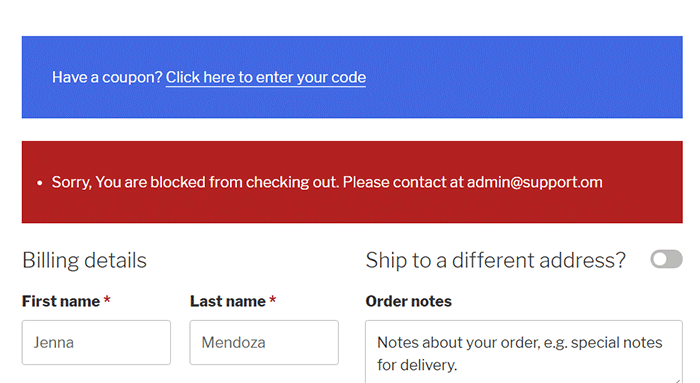
    In the unlikely chance that attackers bypass both the firewall and captcha, this next line of defense is designed to address the main problem. The main issue with card testing and bin attacks is the surge of transaction attempts sent over to the card processor. Similar to the velocity filter on the card processor side, you can set up a similar filter on the website side using the Woo Manage Fraud Orders plugin. You can set it up to automatically block the users that execute consecutive failed attempts at placing an order on your site. The plugin allows you to set a limit to the number of fraud attempts. For example, you can set this at 5 attempts. This way, 5 will be the maximum number of transaction attempts sent to the card processor and the attacker is permanently blocked from the website.
    Conclusion

    Credit card testing and bin attacks are on the rise. You can prevent it from happening to your site.

    Make use of fraud prevention features on your credit card processor and implement our recommended security measures on the website side. Find out what anti-fraud measures are available to you as a merchant. These security tools will save you from being fined thousand’s of dollars. Contact your credit card processors to know what tools you can set up. Implement them. Then proceed to implement the security measures on the website next

    If you need any assistance on the technical side, we can help. And if you have questions, don’t hesitate to contact our support team.

    Disclaimer: Article contains affiliate links. When you buy through links from this article, we may earn an affiliate commission.

    Filed Under: How-To Articles Tagged With: payment gateway, security, WooCommerce

    How to Fix Blurry Product Images in WooCommerce

    February 26, 2015 By John 10 Comments

    Blurry ain't good
    Blurry ain’t good

    Sometimes you upload an image in WordPress/WooCommerce and it just doesn’t show up like you intended it. Sometimes they don’t align. Sometimes they don’t fit the placeholder. Sometimes the image just doesn’t show. And sometimes, the image gets blurry. Why the image gets blurry may be caused by one of a few problems. Here we discuss the common causes and how to fix blurry product images in WooCommerce.

    You Uploaded a Blurry Image

    If you uploaded a blurry image then don’t expect that you’re going to get a good image to show up. Maybe you viewed the image in a small screen so it looks okay but when you view it on a larger screen, you’ll find that it actually is blurry. If this is the case, there is hardly anything that you can do to fix the image. Image editing tools like Adobe Photoshop may be able to help a bit by making the image sharper but don’t be expecting any significant changes. Odds are you’ll have to get a better image.

    WooCommerce Recommends Using Large Product Images

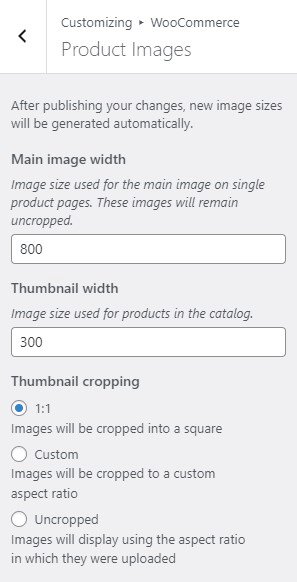
    thumbnail cropping woocommerce

    Before, WooCommerce images need to be a specific size that you set in WooCommerce settings. That is no longer the case. WooCommerce now uses a lighthouse so images pop up big when users click on it. Large images look great and will help sell your products. However, make sure they are properly optimized.

    For most themes, WooCommerce recommends uploading an image that is at least 800×800 pixels. Don’t worry about the image being bigger than the placeholder as WooCommerce automatically sizes your images and will only show the full resolution when clicked.

    To control thumbnail cropping of your product images, you can go to Appearance > Customize > WooCommerce >Product Images and then select your desired cropping settings.

    If the image is not the problem, there might be a problem with how your images are rendered. You can try to regenerate image thumbnails.

    How to Regenerate Thumbnails

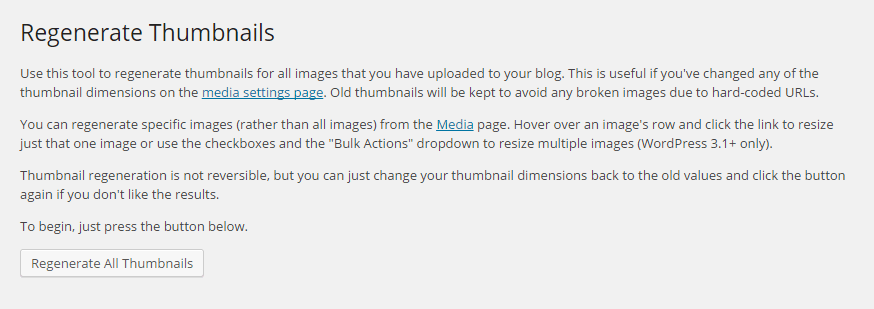
    Other than when changing image settings in WordPress and WooCommerce, you may also need to regenerate the image thumbnails on your website if they appear blurry after a redesign or changing to a different theme. The best and easiest way to regenerate image thumbnails is to use the Regenerate Thumbnails plugin. Simply install and activate the plugin and from there, go to “Tools” and “Regen. Thumbnails”. Just click on the button “Regenerate All Thumbnails” and the plugin will fix the blurry images like magic.

    regenerate-thumbnails

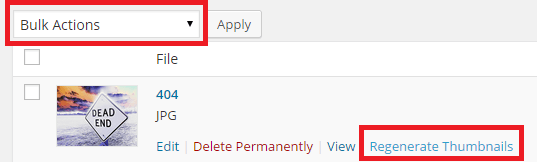
    If you want to regenerate thumbnails for specific images instead, you can do this on the Media page on your admin panel. Make sure you are viewing images with List view. Simply hover over the image and the link to regenerate thumbnail should appear. You can also mark all the images you want to regenerate thumbnails and use Regenerate Thumbnails from Bulk Actions and then apply.

    regenerate-thumbnails-1

    Best Practices on Image Use

    There are a lot of things that you can do to avoid blurry images by following best practices. Once you set an image dimension, make sure that the images you upload comply with that requirement. Uploading a bigger image in WooCommerce is okay but make sure the image is optimized so as not to affect your page load speed. You can set how you want image thumbnails to be cropped. If you upload a smaller image, it might look okay on a mobile device but not on a PC or laptop. It is also important to know what image file types to use.

    Another best practice for images is to always set an alt text for your image. If the image fails to load, the alt text will show up and the user will at least know what the image is about. Also, name your files properly. Don’t name your files after SEO keywords. If you have an image of a ukulele, give it a descriptive file name and not “buy-cheap-ukulele”.

    Filed Under: How-To Articles Tagged With: admin, best practices, conversion optimization, how-to, image optimization, plugins, product management, WooCommerce

    8 Ways to Create Blog Content for Your WooCommerce Store

    January 15, 2020 By John Leave a Comment

    create blog content for your woocommerce store

    Why You Should Have a Blog?

    If you do not have a blog on your WooCommerce store, you should consider creating one. Having a blog is a good way to generate leads, get more traffic and build you brand. It can also become a good channel for providing good customer service. WordPress was created initially as a blogging platform so you should take advantage of it’s powerful blogging features – create blog content for your WooCommerce store.

    Things to Consider Before Writing Your Content

    Before you dive in and start creating blog posts, there are a few things that you should consider such as creating a content marketing plan. Even if you already have a blog, it is still a good idea to do this if you haven’t done it the first time. A content marketing plan can help you align your content with your goals.

    Content Marketing Plan

    A good content marketing plan has two important parts: (1) defining your goal and (2) defining your audience. For defining your goal, ask yourself what you want to achieve using the content that you create.

    For defining your audience, you can create one or more customer personas. You can be as specific as you want and you can even give your customer persona a name. Everyone involved in your content marketing should be familiar with your customer persona.

    Hubspot has a great post on how you can create your own content marketing plan.

    content marketing for woocommerce

    How to Come Up With Content Ideas

    Now that you have a plan, you need to get ideas on what content to create.

    1. Check What Your Competitors are Writing About

    A good first strategy is to spy on your competitors. Find out what content they are writing about and improve on what they have.

    2. Tutorials, Guides, and How-To Articles

    You can create tutorials, guides and how-to articles on topics relevant to your niche or products. For these kinds of articles, it is important that the content helps address or fix a problem that your audience is having.

    3. User Generated Content: Interviews, Guest Blogs

    This one doesn’t require as much effort. You can reach out to influencers and other notable personalities in your industry and ask if they are willing to do an interview. Do remember that your interview must also be interesting to your audience. If it doesn’t resonate with your audience, it is not likely that your interview post will help achieve your goal. You can even coax influencers to write an article for you.

    4. Internal Documents

    Sometimes your internal documents can make for good content. If you have specific processes in place and you have an internal document that details this, you can convert this into in a blog post. You can just leave out the parts that cannot be revealed to the public. Do an audit of the resources you have to determine what documents you can use.

    5. Reviews

    If you use products in your niche, you can do a review post. You can position yourself as an expert in your niche when you do your review. You can even compare several products that do the same thing as a means to help your audience decide which product is a better fit for their needs.

    review post

    6. Listicles

    The internet is abound with listicles. Heck, this post is a listicle. A listicle comes from the root words “list” and “article”. From there, you can deduce that it is an article that contains a list. Many people like to read listicles because they are clear and direct. The reader clicks a listicle because he/she is interested to know what the article lists. You know you click on listicles every now and then and that is a testament to how effective listicles are.

    7. Company Events or Other Company News

    If you have any upcoming or recently-concluded company events, you can write about it on your WooCommerce store’s blog. It’d give your audience a chance to connect with you. You can also leverage this as a networking opportunity.

    You can also write about any news in your company that your audience might be interested in such as having a new member on your team, a move to a new office, or opening a new branch.

    8. Research Work, Do a Survey and Discuss the Results

    This one requires a bit more effort. Doing your own research or hosting a survey and then publishing the result on your blog can make for some good original content. If you take the extra mile on your research work, you can even leverage it as a link building opportunity. Imagine linking your study from a high-authority site like Wikipedia or some researcher catching wind of your study netting you a link from a high-authority “.edu” site. Google loves those.

    9. Cornerstone Content

    Cornerstone content should be the core articles on your blog. It should be detailed and well-researched. Cornerstone content should tell your readers everything they need to know about a certain topic in 2,000 words or more. Cornerstone content is great for SEO. Make sure you link it to different articles across your blog. Several links to external reputable sources will also help. Use keywords relevant to your niche but never over-optimize.

    Depending on your niche, there will be other opportunities for creating great content that resonate with your customer persona. It is up to you to figure out what that kind of content will work for you.

    If you have other ideas for creating great content for your WooCommerce store, let us know in the comments.

    Filed Under: How-To Articles Tagged With: content marketing, customer persona, SEO strategy, woocommerce seo

    How to Increase Mobile Conversion Rates for Your WooCommerce Store

    January 21, 2020 By John Leave a Comment

    Over the last few years, optimizing for mobile devices has become increasingly more important. More and more users browse the internet using their phone. According to Statista, 52.2 percent of web traffic comes from mobile phones and it has only been increasing from the previous years. As a WooCommerce store owner, you must optimize your website for conversion on these smaller screen sizes. Learn how to increase mobile conversion rates for your WooCommerce store by following the tips below.

    How to Increase Mobile Conversion Rates for Your WooCommerce Store

    How to Optimize Your WooCommerce Store for Mobile Devices

    Use a Responsive Theme

    All modern themes are now built to be responsive. A responsive theme adjusts to various screen sizes. You can check with your theme developer if your theme is responsive. You can also do a quick test by going to your WooCommerce store and then try scaling down the size of your browser. If you see the elements on your website move to adjust to the smaller window, then you are using a responsive theme. If you find that your theme is not responsive, don’t worry. You can switch to a responsive theme. We can recommend Storefront and the Genesis framework.

    Storefront was made by the same developers that developed WooCommerce. It is built specifically for WooCommerce so you can expect full compatibility with WooCommerce and official WooCommerce plugins.

    Genesis, on the other hand, is a framework. You need to use a Genesis child theme with the Genesis framework. Genesis is well-maintained, responsive and compatible with WooCommerce. 

    User Test Your Mobile Site

    Open your WooCommerce store on your smartphone and do some user testing. Perform actions that you expect your customers to do on your WooCommerce store. Important elements to test are:

    • making a purchase
    • subscribing to your newsletter
    • sending a message using your contact form
    • filling out the checkout fields
    • updating your shopping cart
    • commenting on blog posts
    • tapping on call-to-action buttons

    There may be more that you need to test that is specific to your website. Take note of any difficulties that you encounter and get them fixed. Should you need help fixing any issues, the Wooassist team can help.

    Use White Space and Large Fonts

    Don’t skimp on using white space on your mobile site. Use it to your advantage. Since mobile devices have small screens, it makes it hard for the user to navigate or read your site if the elements are too close together. Also, make sure your site is easy to read by increasing font size.

    Optimize Your Checkout Page

    Your checkout page is one of the most important pages on your website. Limit your checkout form fields to only the necessary details. Remove any distractions to completing checkout. Make sure that the form fields are tall enough that they are easy to tap and fill out. Make the checkout button large enough so it is easy to tap. Don’t make the checkout process a burden to your customers.

    Remove AutoPlay Videos and Pop-ups

    Pop-ups and autoplay videos are annoying for desktop sites. Even more so on a mobile site. Don’t burden your customers with extra data charges from autoplay media. In some cases, these elements may be necessary. But if they don’t help you increase your sales, consider removing them. Instead, focus on making your customers click on your call-to-action buttons.

    Improve Your Site Speed

    Site speed has become very important as it is now a ranking factor for SEO. On the mobile platform, site speed is critical with mobile data speeds being slower than a wired internet connection. If your mobile site takes too long to load, the user will just leave. There are a lot of tools at your disposal to determine how you can improve your site speed. Google PageSpeed Insights even shows recommendations specific to your mobile site. Other tools that we can recommend are GTmetrix and Pingdom Website Speed Test. 

    Optimize Your Images

    This is related to site speed but deserves its own section. Many WooCommerce store owners neglect optimizing images and just upload willy nilly. If you upload large images without optimizing them, your mobile conversion rates would take a hit. You can use a plugin to optimize the images you’ve already uploaded. However, if you’ve uploaded images that have dimensions bigger than the image placeholders, they will need to be manually optimized. If you’ve been doing this for years, then you’ve got a big task ahead of you. To manually optimize images, you can follow the instructions in this blog post.

    Optimize Your Site Navigation on Mobile

    Poor navigation can make or break a mobile website. Make sure that your mobile website is easy to navigate otherwise your customers will leave your site out of frustration. Use a hamburger menu. If you are using a responsive theme, the hamburger menu should be built in. If not, you can custom code your mobile menu or use a plugin.

    Offer Multiple Payment Gateways

    It is important to offer the payment gateway that your customers prefer. On the mobile platform especially, depending on your location, mobile wallets are a thing. If you can tap into that market, you can improve your conversion rate. For iPhone users, there’s Apple Pay which you can enable on WooCommerce.

    Just follow all the tips above to increase your mobile site’s conversion rates. If you have any tips that you can add or any questions at all, let us know in the comments.

    Filed Under: How-To Articles Tagged With: checkout, checkout form, conversion optimization, image optimization, mobile friendly, navigation, responsive design, site speed optimization, woocommerce checkout

    Why is it Important to Keep Your PHP Version Updated?

    December 18, 2020 By John 4 Comments

    The WordPress ecosystem is built on the PHP programming language. PHP is continuously being developed to improve security and make code execution faster among many other improvements.

    PHP End of Life

    At some point, a version of PHP will become obsolete which is referred to as the “end of life” of that version. This means that version of PHP will no longer receive any security fixes.

    Unfortunately, many websites are still running on outdated PHP versions. All these websites are at risk.

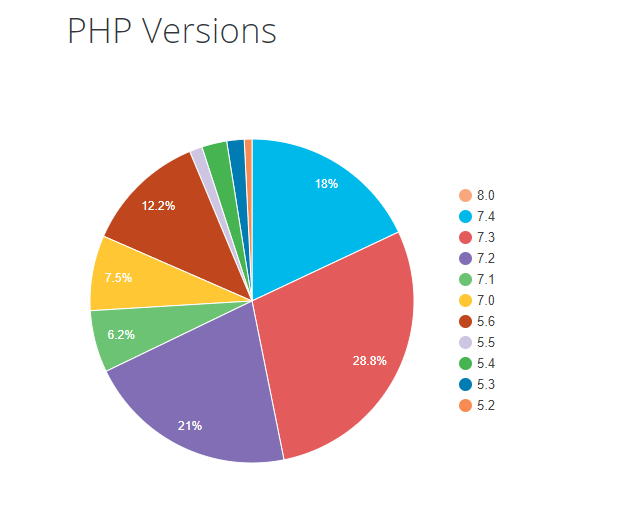
    According to WordPress statistics, 18.5% of WordPress sites are still running on PHP 5.6 or lower. Support for PHP 5.5 ended on December 2018. Another 34.7% of WordPress sites are running PHP 7.2, 7.1 and 7.0. Support for PHP 7.2 ended November 20,2020. That would make 53.2% of WordPress sites vulnerable to PHP exploits.

    WP PHP versions
    Source: WordPress.org

    Why are Majority of WordPress Sites Running Outdated Versions of PHP?

    Many users most likely don’t even know what PHP version they have since updating it is more complex than updating themes and plugins. Many non-technical WordPress users are wary of touching their hosting settings or cPanel. And for good reason. one wrong click on cPanel could cause your site to go down if you don’t know what you are doing. This seems to be the biggest barrier to adoption of newer PHP versions.

    Some hosts are also slow to adopt and offer newer PHP versions. We recommend WPEngine and Siteground as they are quick on the uptake when it comes to PHP version offerings.

    Why You Should Update

    Better Security

    The main reason that you should update your PHP is for security. As we have already mentioned, older PHP versions are no longer getting security fixes. That means known vulnerabilities are not being fixed on that version which leaves your site open to attacks.

    Site Speed

    Newer PHP versions will execute code faster so that means faster page load speeds. Faster page load speed means better user experience and good SEO signals. Site speed is an SEO ranking factor. So if you want to hit page one of Google search results, invest in site speed.

    Ongoing Support

    If you are running the latest PHP versions, you are protected from the latest known vulnerabilities. People work to fix security vulnerabilities in PHP when they come to light. The same goes for known bugs.

    How Do You Check Your PHP Version?

    Now you’re curious how to update your PHP version. First off, you have to find out what version of PHP you are using. There are several ways to check your PHP version. You can actually check on your WordPresh Dashboard.

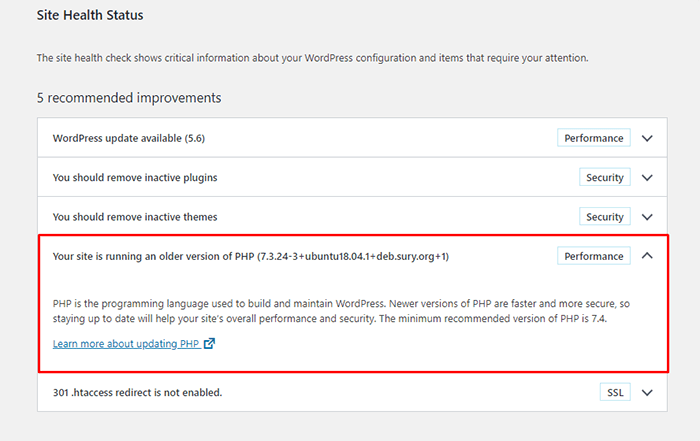
    Site Health Page

    The Site Health page that you can access from your WordPress Dashboard contains a plethora of useful information that you can address to keep your site secure. You can reach it by going to Tools and then clicking on “Site Health”. Or you can just append your domain with:

    /wp-admin/site-health.php

    WooCommerce Status Page

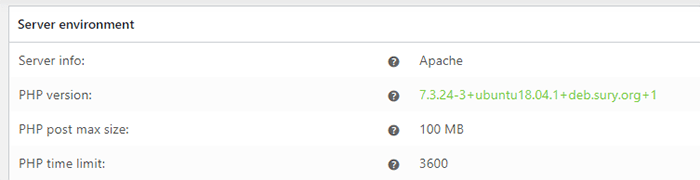
    If you are using WooCommerce, you can also click on WooCommerce and then on Status. You can see your PHP version when you scroll down to the “Server environment” table.

    woocommerce PHP version

    There are other ways to view your PHP version but these are the easiest methods for WordPress users.

    You Know What Version of PHP You are Running, Now What?

    If you not running an outdated version of PHP, then you don’t need to do anything. If you find that your PHP version is outdated, there are a few things you need to do before you update your PHP version.

    1. Create a staging environment. You can test all your updates here before updating your live site. You will, essentially, also need to test the PHP upgrade on a staging environment so this is a necessary step.
    2. Create a backup of your site.
    3. Update your WordPress core.
    4. Update all your themes and plugins. If you are using premium themes and plugins, make sure you have an active license for everything so you can receive automatic updates.
    5. Remove unused plugins.
    6. Find and remove abandoned plugins. This could get complicated if your site relies heavily on an abandoned plugin. We have a separate guide for removing abandoned plugins.

    Now You’re Ready to Upgrade Your PHP

    We recommend letting a developer upgrade your PHP version in case something goes wrong or at least have a developer at your beck and call before you proceed.

    How you upgrade your PHP depends on your hosting provider so you should consult your hosting provider’s documentation. You will most likely need to navigate cPanel or your hosting account’s dashboard. Some hosting providers will actually require you to create a support ticket to request a PHP upgrade.

    Make sure you are testing the PHP upgrade on a staging environment first so you can sort any issues in a controlled environment.

    Have your hosting provider’s contact information at the ready so you can reach out to them right away if you encounter a problem.

    If you need technical help with any of the steps leading to the PHP upgrade or the actual upgrade, you can contact us.

    If you have any questions, you can also let us know in the comments.

    Filed Under: How-To Articles Tagged With: security, site speed optimization, website maintenance, WordPress updates

    • « Previous Page
    • 1
    • …
    • 9
    • 10
    • 11
    • 12
    • 13
    • …
    • 24
    • Next Page »
    Let us support your online store so you can manage your business

    Get started today

    Get 2 Hours of FREE SUPPORT

    We are so confident that you will love our services that we will give you your first 4 hours at a 50% discount

    That’s 4 hours for only $75

    BUY NOW

    Free eBook

    5 Things Every Online Store Can Fix On Their Website In The Next Week To Increase Sales

    Quick Links

    • How it Works
    • Pricing
    • Blog
    • Contact
    • About Wooassist
    • My Account
    • Checkout
    • Privacy Policy
    • Cookie Policy
    • Terms and Conditions

    Wooassist

    Australia:
    59 Luke St.
    Hemmant QLD 4174

    Philippines:
    San Miguel St.
    Poblacion, Iligan City 9200

    Connect


    Copyright © 2026 · Wooassist

    Yours FREE!

    5 Things Every Online Store Can Fix On Their Website In The Next Week To Increase Sales