Wooassist

Assistance for Your Woocommerce Store

  • How it Works
  • Pricing
  • Services
    • Site Maintenance
    • AI SEO and Content Marketing
  • Blog
    • How-To Articles
    • Code Snippets
    • SEO For E-Commerce
    • Theme and Plugin Reviews
    • Wooassist News
    • WordPress/WooCommerce News
    • Interviews
  • About Us
  • Contact
You are here: Home / Archives for optimizations

Why You Should Do a Plugin Audit on Your WooCommerce Store?

January 14, 2018 By John Leave a Comment

Have you ever wondered if you can make your WooCommerce store load faster? Have you ever looked at your plugins page and thought about removing some of them? If you answered yes to both of these questions, then you are on the right track. That’s a little something we like to call a “plugin audit” and this can help make your website load faster.

What is a Plugin Audit and Why You Need to Do It?

A plugin audit is an analysis of the plugins currently installed on your WooCommerce store to determine which plugins you can remove.

Why Remove your Plugins?

Improve Site Speed

You might be asking yourself right now why you would want to remove some of your plugins. The simple answer to that is having too many plugins can slow down your site. And a slow website can have negative effects on your conversion rate.

Compatibility Issues

Another issue with having too many plugins is that it makes your site more prone to breaking when you update your plugins. Your plugins will need to be able to work seamlessly with each other. Having too many plugins means that the odds of one plugin not being compatible with another is high. After every update, plugins can also break compatibility with plugins they were originally compatible with.

Security Threats

Having too many plugins also exposes your site to security issues. Poor coding can result in hackers exploiting vulnerabilities in some plugins. If you only have a few plugins, then the odds of your website being hacked through plugin vulnerabilities is also reduced.

But How Many Plugins is Too Many?

There is no definitive number that equates to a “right” number of plugins that you need to have on your WooCommerce store. But a good rule of thumb is to just use the plugins that you really need.

Also, don’t install multiple plugins that do the same thing. Avoid using plugins like Jetpack that bundle numerous plugins into a single plugin. Jetpack is not bad per se. Feel free to use it if you use all of its features but chances are you won’t be using everything that Jetpack has to offer. In which case, Jetpack’s unused features needlessly eat up your WooCommerce store’s resources. It would be better to determine which features of Jetpack you use and find a plugin that does only that.

Which Plugins Should You Remove?

Plugins that do the same thing. If you have two or more plugins that do the same thing, you should remove the other plugins and choose the best one for your needs. The duplicate plugins just hog up your resources so there’s no reason for you not to remove them.

Plugins that can be supplemented with custom code. Sometimes you will need to install some kind of code somewhere on your site to remove a feature you don’t want or to add support to a service that you are using. But since you are not a developer, you find a plugin that will insert the code for you. Over time, these plugins could add up. When doing a plugin audit, you can list down all the plugins that can be supplemented by inserting custom code and then you can hire a developer to insert all these codes for you in one go. To an experienced developer, this should be doable in less than an hour but we recommend spending a bit more time for testing.

Plugins that you don’t use. If you have installed some plugins that you are not using, then there’s no sense in keeping them. You keep telling yourself, you might need them in the future. Uninstall them now and just install them again when you actually need them.  

Plugins that your customers don’t use. Maybe you installed a Wishlists plugin but then you find that none of your customers have actually used it. Because this plugin does not provide any value to your store, you might as well just remove it.

Plugins that have not been updated in a long time. Outdated plugins can break after some time so it is best to find another plugin that does the same thing and has been updated recently. Also, outdated plugins can be a security concern. Even when installing new plugins, you should check if the plugin you will be installing is being updated regularly.

Final Words

After doing a plugin audit, you will have a site that is faster and less prone to breaking during updates. Should you need help in doing a plugin audit for your WooCommerce store, you can contact us and we can help you out.

If you have any questions, comments or suggestions, you can let us know in the comments.

Filed Under: How-To Articles Tagged With: conversion optimization, optimizations, plugins, site speed optimization

10 Things You Can Do Right Now to Improve Your WooCommerce Store

October 10, 2017 By John Leave a Comment

Ecommerce - Improve your WooCommerce StoreAs a WooCommerce store owner, your goal is to make your business as profitable as it can be. Here, we list down 10 things that you can do today to improve your WooCommerce store.


1. Add a call-to-action button on your home page

Adding a call-to-action button on your home page encourages your visitors to take whatever action you want them to take. You can direct them to click on your shop, sign up to your email newsletter, send you an email, call you, or add a product to the cart.

thumbs-up

2. Add your contact details

Making sure that your contact details are immediately visible will increase your site’s trust rating. It can be your email or phone number. You can even add your store’s address if you have a physical store.

3. Add an email capture form

Getting your customer’s emails will allow you to send newsletters or special offers to those who sign up.

4. Remove distractions from your checkout page

Removing distractions from your checkout page will reduce cart abandonment. When a customer reaches your checkout page, you don’t want them clicking anything else except that “Pay Now” button.

5. Add related products to your product page

Adding related products to your products page will encourage your customers to purchase more items from your store. This will increase your average order value.

6. Offer free shipping

Not everyone can offer free shipping. But if you are able to, free shipping can really amp up your conversion rates. You can also offer free shipping with a minimum order value or for specific locations only. Make sure your visitors know you offer free shipping by placing a notice in a prominent area of your site.

7. Optimize your product copy

There are a lot of ways to optimize your product copy. You can optimize your copy to appeal to customers by emphasizing on the problems that your products can solve. You can also optimize your product copy to include technical details. Lastly, you can optimize your copy for ease of reading. How you optimize your product copy really depends on your product and your customer profile. You can use Hemingwayapp to check your copy’s readability score.

8. Optimize images on your WooCommerce store

product-zoom-in

When uploading product images, you must first optimize your product images to make sure you are uploading the correct image sizes. To determine the correct image sizes for your theme, you will need to use the “Inspect Element” feature of your browser. You will then need to go to WooCommerce settings to set the correct image size. Uploading anything bigger than the image placeholder’s size is a waste of resources and will just slow down your site. You can learn how to optimize images for the web in this blog post.

9. Remove sliders and use a single hero image with a call-to-action

Sure, sliders look good. But the truth is, they may actually do more harm than good to your site. Sliders can really slow down a site and a slow site is bad for SEO and conversion rate. Also, sliders can confuse customers and makes for bad user experience. Your website must send a clear message on what you want your customers to do. A slider just confuses your customers with various images that look like advertisements.

10. Make your site is mobile responsive

If you have not updated your site’s design for years, it might not be mobile responsive. This means that your website does not adapt to different screen sizes which makes browsing on a mobile device difficult. This is not good for your site’s user experience. Also, having a mobile responsive WooCommerce store is an advantage in terms of SEO. You can address this by using a responsive theme such as Storefront or the Genesis framework with a Genesis child theme. Both these themes are compatible with WooCommerce.

If you need any help getting any of these things done, you can contact us and we will help you get these sorted. If you have any questions, you can let us know in the comments section.

Filed Under: How-To Articles Tagged With: admin, best practices, call-to-action, content marketing, conversion optimization, design tweaks, e-commerce, how-to, optimizations, page speed, responsive design, website maintenance

Why Use Long-Tail Keywords for your WooCommerce SEO

October 13, 2016 By John Leave a Comment

Are you optimizing your WooCommerce products but find that you are not getting any traction? It could be because you are optimizing for the wrong keywords. Many e-commerce businesses find more success with long-tail keywords. But what are long tail keywords and why use long-tail keywords for your WooCommerce SEO?

What are Long-Tail Keywords?

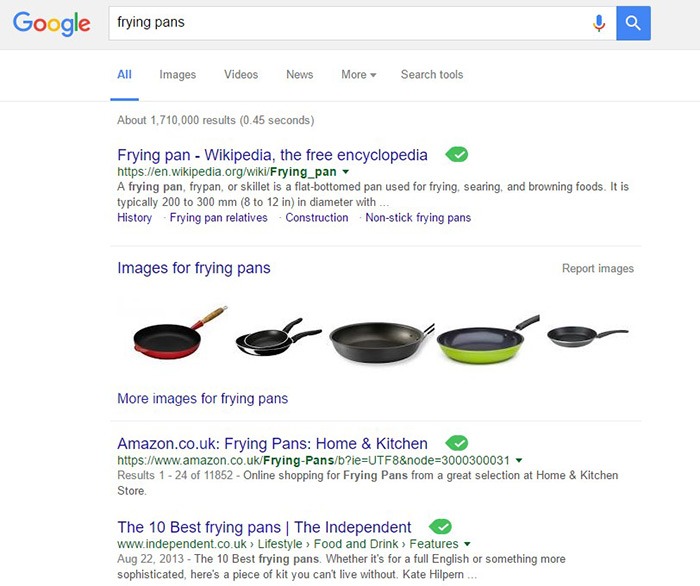
Long-tail keywords are longer, more specific keywords; much like a keyphrase. For example, if you are running an e-commerce store that sells frying pans, you could be tempted to optimize for keywords such as “frying pans”. However, ranking for “frying pans” would be very difficult. Do you expect to beat Wikipedia or Amazon who holds the top two spots in Google’s search results page? Even if you hire the most expensive SEO agency, that’s going to be hard to topple.

Why Use Long-Tail Keywords for your WooCommerce SEO

Let’s try to improve the keyword “frying-pan”. “Non-stick frying pan” is an improvement. It is more specific compared to just “frying pan” but this can still be made more targeted. “Non-stick stainless-steel frying pan” or “non-stick stainless-steel frying pan for induction stove” is taking it a step further.

bulls-eyeBenefits of Using Long-Tail Keywords

Long-Tail Keywords Produce Targeted Traffic that Converts Better

Long-tail keywords may or may not result in less traffic. The traffic that you do get will be more targeted and that means better conversion. Don’t stress yourself too much about losing traffic because traffic is a useless statistic. The important statistic to watch out for is your conversion rate because this is the moneymaker. Optimize your e-commerce store for increased conversion; not for increased traffic.

Long-Tail Keywords are Easier to Rank for

Because there is less competition for long-tail keywords, it is easier to rank for them. With a properly optimized page, you can land a top spot in the search results page. As long as you follow other known SEO best practices, this is achievable.

seo-google

But They Have Low Search Volume?

You might be looking at search data using Google’s Keyword Tool or any other tools. Then you see that there is no search volume for the long-tail keyword that you want to target. Don’t fret. Having no search volume does not mean that it will not show up in search results. Long-tail keywords are actually valuable. In the video below, Rand Fishkin talks about how valuable long-tail keywords are.

How to Choose the Right Long-Tail Keywords

Choosing the right long-tail keyword for your WooCommerce store is not difficult if you know who your customers are. If you already have a definitive image of your customers, then that’s a good thing. If not, it is imperative to identify your customer persona.

When you’ve created your customer persona, put yourself in your customers’ shoes. Think. What keyword would you search for if you were looking for the product you are selling? There is no single correct way to go about this. Most of the time, you will find that customers are looking for something specific. And once you identify that, that’s what you optimize for.

customer-persona

How Does Long-Tail Fare vs Popular Keywords?

If you choose to optimize for regular keywords, then you’re going to have a hard time getting to Page 1 of Google’s search results page. And if you don’t hit page one, then it won’t even matter. Page 1 of the search results page shows the top 10 results for the keyword. If you are ranked 11th, you’ll hardly get any traffic. This is not meant to discourage you to pursue the big keywords since it is not an impossible feat. It is possible but it’ll take some real genius or a lot of luck. Long-tail keywords, on the other hand, are easier to rank for.

Use Long-Tail Keywords with Other SEO Best Practices

seo-strategy

Using long-tail keywords alone won’t make your e-commerce store a conversion powerhouse. You need to use these keywords with other known SEO best practices. If you are using long-tail keywords right but doing everything else wrong, then it is not likely that you will get conversions.

You should create quality content that is easy to read. You should use proper URL structuring. Make your URLs readable. Implement proper navigation and good user interface. Upload a sitemap and make sure search engines can crawl your site. Use images properly and optimize your site for increased conversion. There’s a lot more to this but here’s a guide from Google to help you get started on best practices.

And that explains why you should use long-tail keywords for your WooCommerce store. If you have any questions, let us know in the comments.

Filed Under: SEO For E-Commerce Tagged With: best practices, e-commerce, marketing strategy, optimizations, SEO strategy

The Wooassist Blueprint: What Goes on in the Wooassist Backend

July 22, 2016 By John Leave a Comment

We’ve created our fair share of WordPress sites and provided support for other WooCommerce store owners since 2014. At the same time, we maintain and improve Wooassist.com. But what goes on in the Wooassist backend? Here we’ll provide a sneak peek of what goes on behind the scenes.

Publishing Platform

wordpress-logo

WordPress is one of the best Content Management System (CMS) with over 60 million websites powered, Woasssist included. It is free and open-source, with thousands of available plugins and themes to change and extend the look and functionality of your site.

Hosting Provider

WPEngine-logo-white

WPEngine provides one of the best WordPress hosting services on the web. Our hosting plan with WPEngine comes with caching, backup features and Content Delivery Network (CDN) provided by their partner MaxCDN. They use Ever Cache for speed and massive scalability. They also have one of the best support compared to other hosting providers.

WordPress Themes

Genesis Framework

logo-Genesis-Framework

Genesis Framework is a powerful foundation for building websites in WordPress. It is compatible with WooCommerce and anything can be customized around its core code using child themes. It is also SEO optimized.

 Parallax Pro

logo-Parallax-Pro-white

We use Parallax Pro theme on top of the Genesis framework. Notice how the Wooassist homepage content has a vertical design for easy visual eye movement and flow. As you scroll down the page, you will see that the content is divided into sections. The theme is also mobile responsive.

Installed Plugins

It is best practice to deactivate and delete any unused plugins on your site to minimize site bloat. Just stick to what features you need and the plugin that offers just that.

WooCommerce

WooCommerce

Since Wooassist provides WooCommerce support, it makes sense that we use WooCommerce.

Built with developers in mind, WooCommerce is extendable, adaptable and open source. It works with the core features of WordPress and is one of the most widely used ecommerce plugins. It’s free and allows for maximum flexibility and customization. You can even expand its features with a growing collection of more than 300 extensions.

WooCommerce Customizer

WooCommerce-Customizer

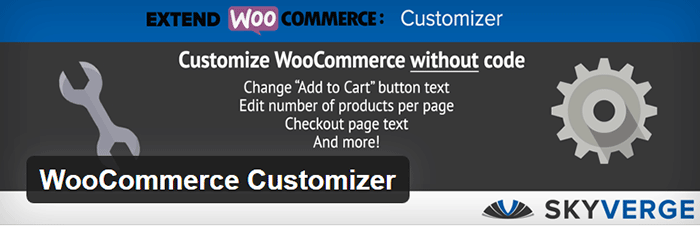
WooCommerce Customizer is a free plugin that adds an extra settings page for WooCommerce. This helps you make quick changes which otherwise would require writing some custom PHP functions. Basically, you can optimize the look of your WooCommerce store for optimum conversion, without writing any code.

Genesis Connect for WooCommerce

Genesis-Connect-for-WooCommerce

When WooCommerce is installed on a site using the Genesis platform, you may find some product pages do not display properly. Genesis Connect for WooCommerce fixes this by replacing WooCommerce’s built-in shop templates with its own Genesis-ready versions. These templates are single-product.php, archive-product.php and taxonomy.php.

WooCommerce Google Analytics Integration

WooCommerce-Google-Analytics-Integration

WooThemes created WooCommerce Google Analytics Integration plugin and is a must to integrate analytics in WooCommerce versions 2.1 and up. This plugin inserts tracking codes into your store pages.

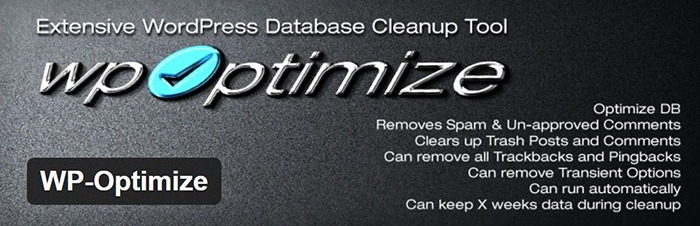
WP-Optimize

WP-Optimize

We use WP-Optimize to clean and keep our database down to a reasonable size. The plugin helps clean up your WordPress database by removing old revisions of posts and stale/trashed comments. It also allows for optimization of your WordPress core tables.

WordPress Related Posts

WordPress-Related-Posts

WordPress Related Posts automatically adds thumbnails at the footer of your content. This helps readers find other relevant posts in our blog for further reading.

WooCommerce Paypal Pro

WooCommerce-PayPal-Pro

We use WooCommerce Paypal Pro as our payment gateway. Our clients can pay with their credits cards. A Paypal account is not necessary.

WooCommerce Checkout Manager

WooCommerce-Checkout-Manager

We use WooCommerce Checkout Manager to customize the fields on our checkout page. This allows for faster and easier checkout.

Akismet

Akismet

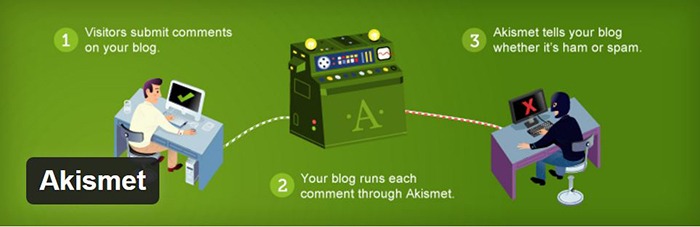
We trust Akismet to safeguard our site against spam comments. This product by Automattic comes bundled with WordPress installations. You just need to sign up at their website and get your API key to activate it. Akismet automatically checks incoming comments and moves ‘spam-like’ comments to the Spam folder.

PopupAlly

PopupAlly

We use PopupAlly to show time-delayed and exit intent popups for our free e-book offer and newsletter subscription, respectively. The plugin makes it easy to customize popup forms even for novice users.

Yoast SEO

Yoast-SEO

We use Yoast SEO to optimize our blog post and pages for SEO. It is a powerful plugin that helps to give any site an SEO boost. This plugin can also help optimize product pages and product categories in WooCommerce.

Visual Form Builder

Visual-Form-Builder

We use Visual Form Builder to create forms such as our contact form and custom package form. Visual Form Builder is easy to set up and use even for novice users.

Responsive Pricing Table

Responsive-Pricing-Table

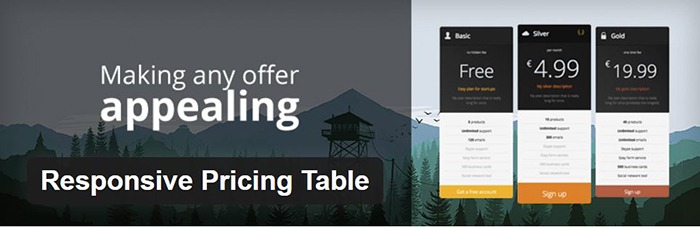
We use Responsive Pricing Table plugin to add a ‘Pricing Tables’ tab in the WordPress admin panel . This allows for creating pricing tables without coding. You can add features of up to 5 plans and display the price table anywhere with a shortcode.

Redirection

Redirection

Redirection is a free plugin that makes managing our 301 redirects easier. It also helps us keep tabs on any 404 errors. We use this mainly when changing slugs of blogs post when optimizing for SEO.

Filed Under: Theme and Plugin Reviews, Wooassist News Tagged With: Genesis, navigation, optimizations, plugins, PopupAlly, redirection, website development, Wooassist, WooCommerce, WooCommerce products, woothemes, WordPress, WPengine, Yoast

How to Speed Up Your E-commerce Site through Caching and Minification

February 12, 2015 By John Leave a Comment

speed-up-your-websiteHow fast your website loads affects your conversion rate and ultimately, your revenue. If it takes 12 seconds to load up your website, that’s just a little too long and many potential clients could be annoyed and just click on the close button; go back to Google and click on something else. If that’s not bad enough, that person could forever remember that your website is that one website that loads very slowly. Any chance of converting from that person is gone.
There are a lot of ways to speed up your website. One is by optimizing the images that you use for your e-commerce site which I discussed in another post. This time around, we’ll look at how to speed up your e-commerce site with caching and minification.

What is Caching?

Caching is a means of serving your content as static pages instead of being dynamic pages. Serving static content is faster as opposed to dynamic content which means longer page load times. Essentially, caching is storing your dynamic content in the server as static content which will then be served when a browser communicates with the server. The static content that is saved on the server is updated at set intervals.

What is Minification?

When developers make code, they make code with a lot of white space. This is best practice in the sense that the code becomes easier to read and understand for humans. This however is not best practice for servers that read and parse the code to load up all the elements of your website. Computers don’t need that white space. All that white space just makes reading the code take longer for the machine. Even when you’re using a premium theme, you’ll see a lot of white space when you try to look at the code. This is where minification comes in. Minification removes all that white space and optimizes your code so that it becomes easier to read for machines to make parsing the webpage faster.

Implementing Caching and Minification

w3-total-cacheNow that we know what caching and minification is, it’s time to get to know how to implement it. If that sounds all too complicated, don’t worry. It is really very simple. All you need is one plugin to do both. That’s the beauty of WordPress. Seemingly complicated stuff becomes easy work. For this bit, we would recommend the W3 Total Cache plugin, because it has caching and minification solutions all in one plugin.
Setting up Caching with W3 Total Cache

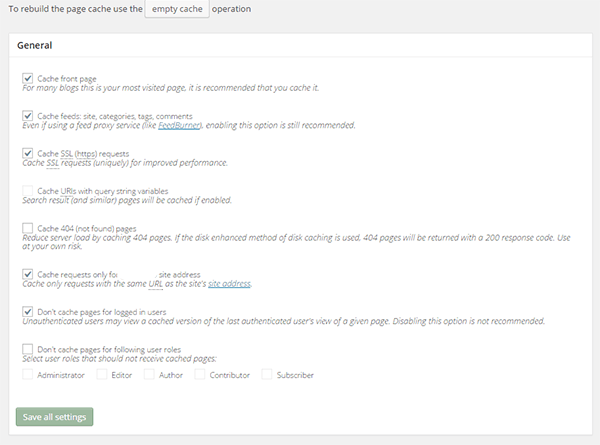
Install the plugin and activate it. After that, click on Performance on your WordPress dashboard and click on Page Cache. From there, you can turn on specific settings based on your caching needs. There is no single effective setting for all websites so feel free to go with your own settings and test page loads speeds after. When you’re done tweaking, just click on “Save all settings”.

A note on caching… When you’re updating your website like adding new products, editing blog posts, or adding new functionality,  it would be best to turn off caching entirely while working so you can see all the changes you make right away. Just don’t forget to turn caching back on when you’re done.

caching

Setting up Minification with W3 Total Cache

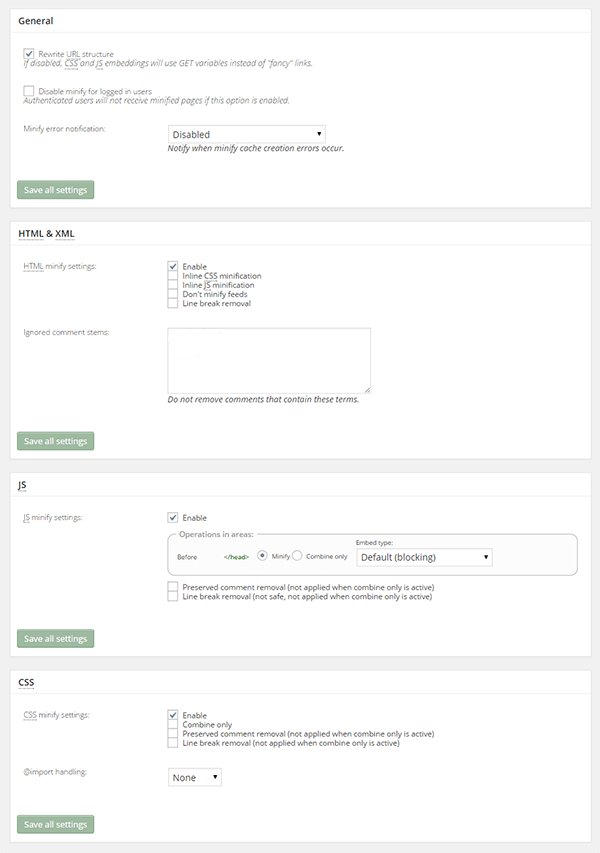
While you can set up minification manually, there’s no need to do it when all you need is a plugin and a few clicks. To set up minification with W3 Total Cache, just click on Performance then on Minify. After that, just tick “Enable“ for HTML & XML, JS, and CSS. You can tick other settings on and off as needed. When you’re done, just click on “Save all settings” and you’re all set for minification.

minification

Filed Under: How-To Articles Tagged With: caching, how-to, minification, optimizations, plugins, site speed optimization, W3 Total Cache, WordPress

  • « Previous Page
  • 1
  • 2
  • 3
  • 4
  • Next Page »
Let us support your online store so you can manage your business

Get started today

Get 2 Hours of FREE SUPPORT

We are so confident that you will love our services that we will give you your first 4 hours at a 50% discount

That’s 4 hours for only $75

BUY NOW

Free eBook

5 Things Every Online Store Can Fix On Their Website In The Next Week To Increase Sales

Quick Links

  • How it Works
  • Pricing
  • Blog
  • Contact
  • About Wooassist
  • My Account
  • Checkout
  • Privacy Policy
  • Cookie Policy
  • Terms and Conditions

Wooassist

Australia:
59 Luke St.
Hemmant QLD 4174

Philippines:
San Miguel St.
Poblacion, Iligan City 9200

Connect


Copyright © 2026 · Wooassist

Yours FREE!

5 Things Every Online Store Can Fix On Their Website In The Next Week To Increase Sales