Wooassist

Assistance for Your Woocommerce Store

  • How it Works
  • Pricing
  • Services
    • Site Maintenance
    • AI SEO and Content Marketing
  • Blog
    • How-To Articles
    • Code Snippets
    • SEO For E-Commerce
    • Theme and Plugin Reviews
    • Wooassist News
    • WordPress/WooCommerce News
    • Interviews
  • About Us
  • Contact
You are here: Home / Archives for conversion optimization

10 Things You Can Do Right Now to Improve Your WooCommerce Store

October 10, 2017 By John Leave a Comment

Ecommerce - Improve your WooCommerce StoreAs a WooCommerce store owner, your goal is to make your business as profitable as it can be. Here, we list down 10 things that you can do today to improve your WooCommerce store.

1. Add a call-to-action button on your home page

Adding a call-to-action button on your home page encourages your visitors to take whatever action you want them to take. You can direct them to click on your shop, sign up to your email newsletter, send you an email, call you, or add a product to the cart.

thumbs-up

2. Add your contact details

Making sure that your contact details are immediately visible will increase your site’s trust rating. It can be your email or phone number. You can even add your store’s address if you have a physical store.

3. Add an email capture form

Getting your customer’s emails will allow you to send newsletters or special offers to those who sign up.

4. Remove distractions from your checkout page

Removing distractions from your checkout page will reduce cart abandonment. When a customer reaches your checkout page, you don’t want them clicking anything else except that “Pay Now” button.

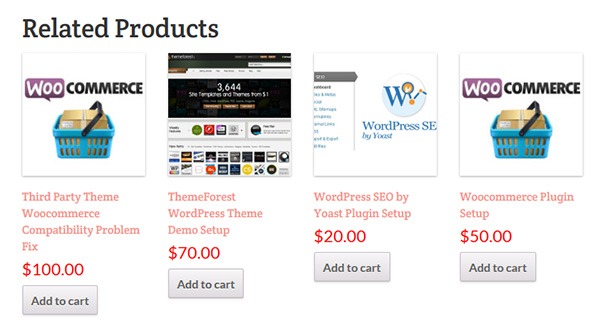
5. Add related products to your product page

Adding related products to your products page will encourage your customers to purchase more items from your store. This will increase your average order value.

6. Offer free shipping

Not everyone can offer free shipping. But if you are able to, free shipping can really amp up your conversion rates. You can also offer free shipping with a minimum order value or for specific locations only. Make sure your visitors know you offer free shipping by placing a notice in a prominent area of your site.

7. Optimize your product copy

There are a lot of ways to optimize your product copy. You can optimize your copy to appeal to customers by emphasizing on the problems that your products can solve. You can also optimize your product copy to include technical details. Lastly, you can optimize your copy for ease of reading. How you optimize your product copy really depends on your product and your customer profile. You can use Hemingwayapp to check your copy’s readability score.

8. Optimize images on your WooCommerce store

product-zoom-in

When uploading product images, you must first optimize your product images to make sure you are uploading the correct image sizes. To determine the correct image sizes for your theme, you will need to use the “Inspect Element” feature of your browser. You will then need to go to WooCommerce settings to set the correct image size. Uploading anything bigger than the image placeholder’s size is a waste of resources and will just slow down your site. You can learn how to optimize images for the web in this blog post.

9. Remove sliders and use a single hero image with a call-to-action

Sure, sliders look good. But the truth is, they may actually do more harm than good to your site. Sliders can really slow down a site and a slow site is bad for SEO and conversion rate. Also, sliders can confuse customers and makes for bad user experience. Your website must send a clear message on what you want your customers to do. A slider just confuses your customers with various images that look like advertisements.

10. Make your site is mobile responsive

If you have not updated your site’s design for years, it might not be mobile responsive. This means that your website does not adapt to different screen sizes which makes browsing on a mobile device difficult. This is not good for your site’s user experience. Also, having a mobile responsive WooCommerce store is an advantage in terms of SEO. You can address this by using a responsive theme such as Storefront or the Genesis framework with a Genesis child theme. Both these themes are compatible with WooCommerce.

If you need any help getting any of these things done, you can contact us and we will help you get these sorted. If you have any questions, you can let us know in the comments section.

Filed Under: How-To Articles Tagged With: admin, best practices, call-to-action, content marketing, conversion optimization, design tweaks, e-commerce, how-to, optimizations, page speed, responsive design, website maintenance

Conversion Rate Optimization for WooCommerce – An Infographic

August 24, 2017 By John Leave a Comment

As a WooCommerce store owner, you want to make your store as profitable as it can be. This is where conversion optimization comes in. We created this easy-to-follow infographic to help you optimize your store’s conversion rates. Should you ever need help getting some of these things done, just send us a message and we can help you out.

If you want to share this infographic on your site, just paste the code below on your site’s text/HTML editor.

<a href="https://wooassist.com/conversion-rate-optimization-for-woocommerce-an-infographic"><img class="aligncenter wp-image-3020 size-full" src="https://wooassist.com/wp-content/uploads/2017/08/Conversation-Rate-Optimization-for-WooCommerce-An-Infographic-by-Wooassist.png" alt="Conversion Rate Optimization for WooCommerce - An Infographic by Wooassist" width="700" height="4428" /></a>

Filed Under: How-To Articles Tagged With: call-to-action, checkout, conversion optimization, free shipping, image optimization, marketing strategy, testimonials

7 Things You Can Do to Increase the Trust Rating of Your WooCommerce Store – An Infographic

August 23, 2017 By John Leave a Comment

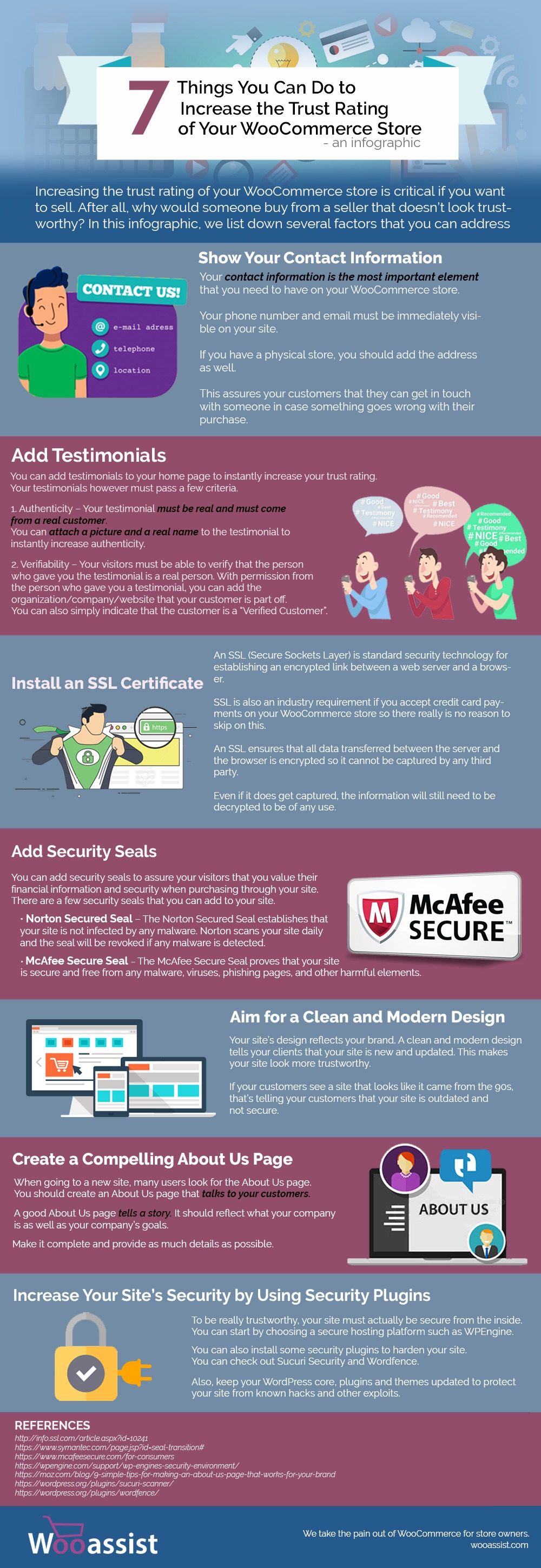
We listed down the 7 things that you can do to increase the trust rating of your WooCommerce Store in one handy infographic.

If you want to share this infographic on your site, you can use the code below and paste it in your HTML/text editor.

<a href="https://wooassist.com/7-things-you-can-do-to-increase-the-trust-rating-of-your-woocommerce-store-an-infographic"><img class="aligncenter wp-image-3017 size-full" src="https://wooassist.com/wp-content/uploads/2017/08/Increase-Trust-Rating.jpg" alt="Increase the Trust Rating of Your WooCommerce Store - An Inforgraphic by Wooassist" width="700" height="2030" /></a>

Filed Under: How-To Articles Tagged With: conversion optimization, security, testimonials, WooCommerce

How to Change the Number of Related Products in WooCommerce

May 12, 2016 By John Leave a Comment

How to change the number of related products in woocommerceChanging the number of related products in WooCommerce is a relatively easy task if you know how to do it. WooCommerce defaults to two related products in the single product page but store owners may want to show their visitors more than just two related products.
Why Change the Number of the Related Products?

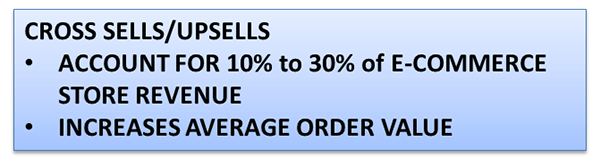
Showing more products in the Related Products section will increase and develop the browsing or buying choice of the user. This strategy is basically cross-selling/upselling. It is the strategic way of introducing your customers to other products that are related to what they are already interested in. Research shows that product recommendations account for 10% to 30% of e-commerce store revenue and increase average order value.Cross-Sells_Upsells

Setting up the Number of Related Products

There are two ways you can set up the number of related products. First is to insert a code snippet in the functions.php file on your theme. Second is to install a plugin to do it for you. The first method may seem intimidating to some WooCommerce shop owners, but it is actually as easy as copy and pasting a code. This method is recommended because it doesn’t bloat your site with unnecessary code.

In some themes, authors have added custom functions that allow users to edit WooCommerce and this includes the number of related products. Buying themes that come with a lot of custom functions however are generally not recommended as they can add unnecessary bloat to your site.

How to Change the Number of Related Products in WooCommerce Using Code Snippets

The best way to edit the number of related products is by using a code snippet that you insert into your child theme so that the code doesn’t get overwritten when you update your theme. Don’t get discouraged by the thought of coding but do take extra caution as one wrong code can break your entire site. If you do not know what you are doing, it would do you well to hire a developer to do this for you. If you are comfortable working with code snippets, then proceed with the steps below.

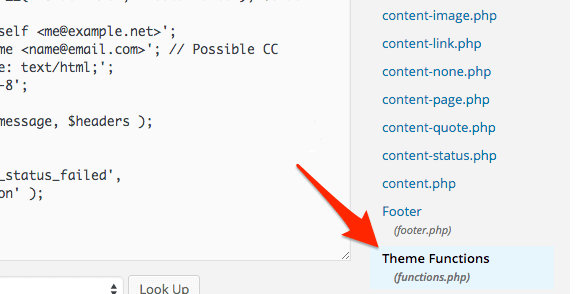
    1. To start, locate functions.php in the WordPress file system. Go to your WordPress Dashboard. Navigate to Appearance > Editor. Choose the theme you are using from the dropdown in the upper right sidebar and locate at the bottom right the functions.php file. You can also access your site’s file through an FTP client and edit the functions.php file from there.

WordPress-Dashboard_Edit-Themes_Themes-Function

  1. Next is to copy and paste the code below at the very bottom of your functions.php file.
    /**
    * WooCommerce Extra Feature
    * --------------------------
    *
    * Change number of related products on product page
    * Set your own value for 'posts_per_page'
    *
    */ 
    function woo_related_products_limit() {
      global $product;
      
      $args['posts_per_page'] = 6;
      return $args;
    }
    add_filter( 'woocommerce_output_related_products_args', 'jk_related_products_args' );
      function jk_related_products_args( $args ) {
      $args['posts_per_page'] = 4; // 4 related products
      $args['columns'] = 2; // arranged in 2 columns
      return $args;
    }
    
  2. The piece of code above will make the number of related products into 4 per page arranged in 2 columns. This is defined in these lines of code:

    “$args[‘posts_per_page’] = 4; // 4 related products”, and “$args[‘columns’] = 2; // arranged in 2 columns”.

    In order to have the desired number of related products, you just need to vary the values. For example you want to have 6 related products in a single column, change the 4 to 6 and 2 to 1. So it will be:

    “$args[‘posts_per_page’] = 6; // 6 related products” and “$args[‘columns’] = 1; // arranged in 1 columns”.

  3. Save the file when you are done.

How to Change the Number of Related Products in WooCommerce Using a Plugin

For less technical store owners, you may want to change the number of the Related Products in your WooCommerce store by using a plugin. Using a plugin will save you from editing important website files that can break your site. Here are some plugins that we can recommend:

Booster for WooCommerce

Booster for WooCommerce was previously called WooCommerce Jetpack. This enables you to tweak a lot of settings for WooCommerce not just changing the number of related products. For anyone using the WooCommerce platform, this plugin is highly recommended because it provides a lot of functionality.

To change the number of related products, follow the steps below:

    1. First, install and activate the plugin.
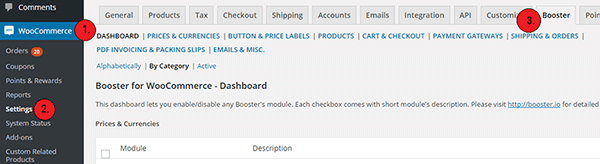
    2. Go to WooCommerce > Settings > Booster.

Booster-for-WooCommerce

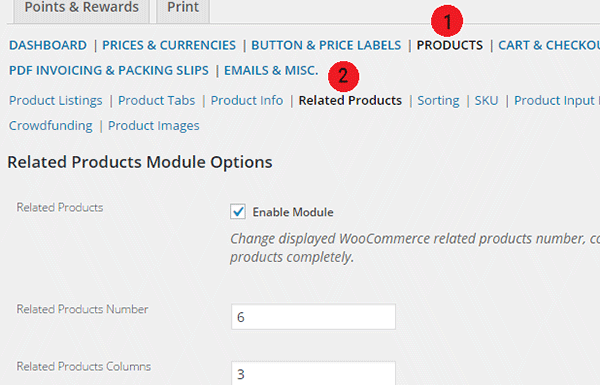
    1. In the Booster menu, click on the Products tab > Related Products.

Booster-for-WooCommerce_Related-Products-Tab_Options

  1. Enter the number of Related Products that you want. You can also change the number of columns for the Related Products Section.
  2. Check the Enable Module, save and you’re done.

While WooCommerce Booster is a powerful plugin in itself, you may want to use a different plugin if you just need to edit the number of related products. This is because the number of features that you wouldn’t be using would just add extra bloat to your site.

Woo Related Products

Woo Related Products is one of the simplest plugins out there for editing related products in WooCommerce. It is light and easy to navigate. It also allows you to change the heading text on the related products section.

  1. To start, install and activate the plugin.
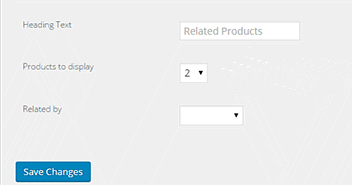
  2. Locate “Related Products” from your WP admin menu panel.
  3. Select the number of related products you want to display. And then click on Save Changes.Woo-Related-Products_Products-to-Display

You want to increase your conversions. By increasing the number of related products from WooCommerce’s default to introduce more products to your customers, you can increase your revenue and average order value. You can follow the steps mentioned in this article to accomplish this for your own website.

Do you know of other strategies that can help increase conversions through cross sells and upsells? Let us know in the comments.

Filed Under: Code Snippets, How-To Articles Tagged With: admin, code snippet, conversion optimization, design tweaks, how-to, navigation, plugins, product management, WooCommerce, WooCommerce products, WordPress

Email Opt-in Solutions for Your Woocommerce Store for Increased Sales

January 29, 2015 By John 2 Comments

SnapCrab_2015-06-26_14-44-28_No-0000Many online entrepreneurs tend to overlook the value of emails because of the rise of social media and other marketing strategies. In reality, it remains one of the best means of delivering promotional messages to potential customers.

Opt-In Email vs. Spam

An opt-in email is a type of promotional email that is specifically requested by the person who is to receive it. It’s the reverse of spam emails, which are sent regardless of whether they were requested or not.

SnapCrab_2015-06-26_14-44-52_No-0000

Here is a better explanation of the difference between opt-in and spam. It also lists the advantages of opt-in emails, like showing consumers how you respect their privacy.

You can promote your products better by taking advantage of personalized opt-in emails. They may contain newsletters or information that consumers take interest in. It can also include special offers that promote specific products or services.

Opt-in Solutions to Increase Sales

Increasing your email opt-ins can actually get you more subscribers, as explained in this article. Aside from boosting your subscription, it can help you realize your conversion and sales goals.If you want an email opt-in form that converts, you have to combine timing, design, and incentive.

SnapCrab_2015-06-26_14-45-05_No-0000

Pop-ups are really effective at getting people to sign-up.However,applying them on an ecommerce store is risky. The goal of most ecommerce stores is to sell. Any barrier to achieve that primary objective is counter-productive and costly. A good compromise is a pop-up on exit, using a plugin like PopupAlly.

Opt-in email continues to be the industry standard for good email marketing. It not only preserves your email marketing reputation, but also saves you time and money.Our Wooassist team can help you find the perfect email opt-in solutions for your business.


Filed Under: How-To Articles Tagged With: conversion optimization, e-commerce, email, how-to, PopupAlly, WooCommerce

  • « Previous Page
  • 1
  • …
  • 4
  • 5
  • 6
  • 7
  • Next Page »
Let us support your online store so you can manage your business

Get started today

Get 2 Hours of FREE SUPPORT

We are so confident that you will love our services that we will give you your first 4 hours at a 50% discount

That’s 4 hours for only $75

BUY NOW

Free eBook

5 Things Every Online Store Can Fix On Their Website In The Next Week To Increase Sales

Quick Links

  • How it Works
  • Pricing
  • Blog
  • Contact
  • About Wooassist
  • My Account
  • Checkout
  • Privacy Policy
  • Cookie Policy
  • Terms and Conditions

Wooassist

Australia:
59 Luke St.
Hemmant QLD 4174

Philippines:
San Miguel St.
Poblacion, Iligan City 9200

Connect


Copyright © 2026 · Wooassist

Yours FREE!

5 Things Every Online Store Can Fix On Their Website In The Next Week To Increase Sales