Wooassist

Assistance for Your Woocommerce Store

  • How it Works
  • Pricing
  • Services
    • Site Maintenance
    • AI SEO and Content Marketing
  • Blog
    • How-To Articles
    • Code Snippets
    • SEO For E-Commerce
    • Theme and Plugin Reviews
    • Wooassist News
    • WordPress/WooCommerce News
    • Interviews
  • About Us
  • Contact
You are here: Home / Archives for best practices

How to Write Easy-to-Read Content for Your WooCommerce Store’s Blog

June 1, 2016 By John Leave a Comment

how to write easy-to-read content

It’s important to come up with a strong headline and back it up with great copy. But if readers find your content hard to read, they could leave your site. To avoid this, you should optimize your content for ease of reading. Use of simple words along with visual aids such as images, charts, graphs, videos, and proper heading structure should help you achieve this.

In this article, we’ll show you some tips on how to write easy-to-read content. We will also recommend a few tools that can help you write simple content.

Why Should Content Be Easy to Read?

A web usability study showed that 79% of web users are ‘scanners’, not readers. This means a typical user will scan the article, picking out individual words and sentences. If the scan deems the page as not very useful, the user won’t bother reading it and promptly skip to the next search result. Users can afford to be picky because of the abundance of good content on the web. With an estimated 3 million new blog posts every day, there’s a lot of competition.

Published content is meant to be read. For this to happen, you need to satisfy the user’s needs in the first 10 seconds as they scan your post. The web user clicked that link to your article because its headline promises an answer to the web user’s question or it has piqued his interest. With content optimized for ease of reading, the user will find more value in reading your content in its entirety.

Maintaining a blog on your WooCommerce store with great, easy-to-read content is an effective way to build traffic and convert visitors to customers. In fact, a survey showed that 57% of companies with a blog acquire customers from their blog.

How to Write Easy-to-Read Content?write-blog-laptop

Forget about complex sentences, long paragraphs, and difficult words. Keep the message clear. Avoid confusing your readers by trying to sound good. Here’s a list of the things that you can do to ensure your content is easy to read.

  • Break up your post with subheadings. Subheadings make the structure of your content clearer and easier to dissect. This is invaluable when writing long articles. Scanners will naturally be guided to the important points that they are searching for.
  • Introduce more white space. Adding just enough white space in between paragraphs makes content easier to read. Without line breaks, your article will look like a big block of content that is unreadable.
  • Use bulleted and/or numbered lists. Bullet lists are best used when enumerating. Numbered lists, on the other hand, are best used when mentioning steps that need to follow a certain order.
  • Structure your paragraphs in the inverted pyramid style. This means you include the most important information at the start of the article and the least important information at the end. This is the structure of most news reports. However, this kind of structure does not work for all audiences so take this with a grain of salt.
  • Avoid long paragraphs. If possible, a paragraph should be made up of 3-4 sentences at most and only deal with one idea. Neil Patel actually uses one-sentence paragraphs throughout his blog and it makes his content easier to read.
  • Avoid passive voice. Using passive voice is not necessarily wrong but it weakens the clarity of your writing.
  • Avoid using adverbs. Adverbs are unnecessary and most of the time is just overly descriptive to the point that it is insulting to the readers. For example, one can say “scream loudly” when in fact screaming is done loudly.
  • A complex topic can be broken into a series of posts. While long articles are good in their own right, short articles are easier to read. If you are looking to write a 2000-word article, you can consider writing a series of short articles instead. This can also help you gain a loyal following on your blog as the readers look forward to the next part of the series.
  • Add relevant links where needed. When you reference something, it is important to link to it. If your reader wants to learn more about that topic, they can simply click on the link. Linking to your sources also adds to your site’s credibility. Not to mention it can be an opportunity to reach out and network with other people in your niche.
  • Use images and other visual content. Images make your post less boring. Choose relevant images and make use of charts and graph as needed. Charts and graphs are especially useful when you are presenting data.
  • Use deep captions. These are captions that are two to three sentences long. Along with the image itself, deep captions can catch your reader’s interest, enough for them to read on.
  • Proofread before publishing. It is important to get a new set of eyes to review your content before publishing. Proofreading your own content is okay but a fresh set of eyes can spot errors that you may miss.

Tools to Help You Write Easy to Read Content

Here are some online tools that read easy-to-read content.

Hemingway Editor
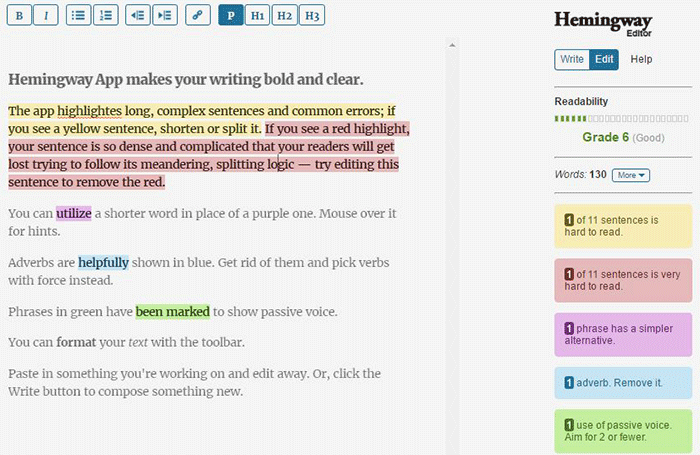
Hemingwayapp

Hemingway Editor checks if your content is easy to read by identifying hard-to-read sentences. In ‘Edit’ mode, you can make changes and see real-time Hemingway feedback to the right of the editor. Adverbs, use of passive voice, difficult words/phrases and hard to read sentences are highlighted so you can fix them on the fly.

This style checker includes a readability grade level based on the Automated Readability Index. Readability is the ease with which your reader can understand your writing. A good target is 7 to 8, but don’t go over tenth-grade level.

Grammarly
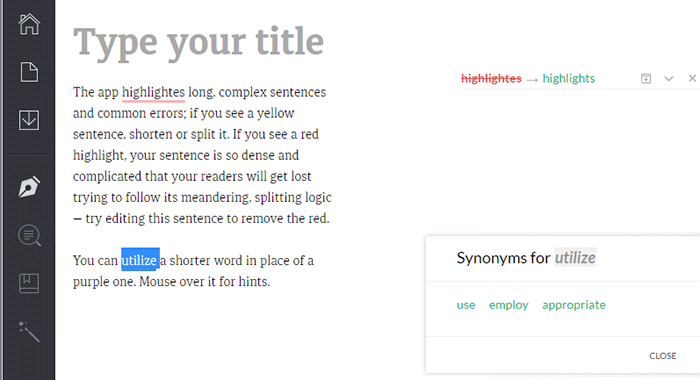
Grammarly

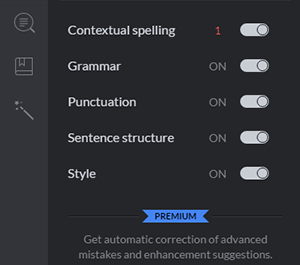
Grammarly_Menu_Grammarly offers free contextual spellchecker, grammar, punctation, sentence structure and style checks. With a premium account you also get plagiarism checks, vocabulary enhancement and professional proofreading.

If you choose to install its Chrome extension, you can use this to edit content in Gmail, WordPress, pretty much anywhere you write on the web.

After the Deadline
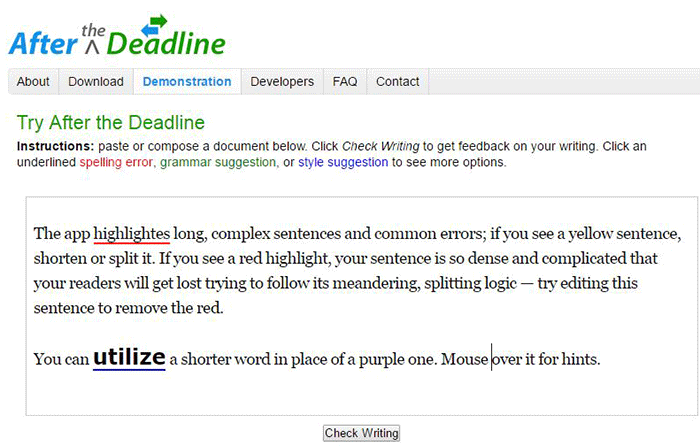
After-the-Deadline

You can use the After the Deadline (AtD) Demo page to check your content online. After you click ‘Check Writing’, click each underlined word to see the suggestion to select or just ignore.

You can also download AtD and use it as a WordPress plugin and extensions to web browsers. This is free for personal use, and they have free server software for commercial needs.

Expresso
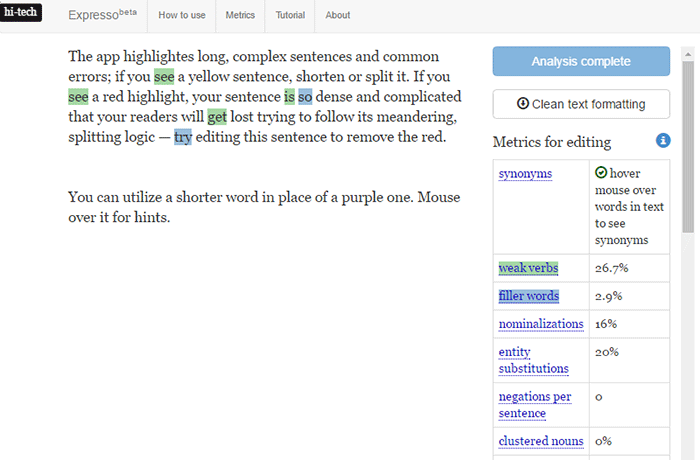
Expresso

Expresso can help you analyze and edit content by helping you choose simpler words and identifying weak verbs, filler words, etc. An extensive list of general and editing metrics are found to the right of the editor. Click on one to highlight the associated words. Note that this is still in its beta phase.

Conclusion

Always aim for great content that is easy to read. This will keep readers on your site for longer periods. If you apply the above tips and make use of the online tools, you’re well on your way to writing easy-to-read content. You can even use these tools to optimize your current content and product copy. Soon enough you will see the payoffs in longer session times and probably an increase in conversion.

We hope the tools and formatting techniques here can help you create easy-to-read content. Do you have any other tips to share for writing easy-to-read content? Maybe you know of some other tools that can help. Let us know in the comments.

Filed Under: How-To Articles Tagged With: admin, best practices, blog, content marketing, how-to, marketing strategy, SEO strategy

Work “ON” Your Business Rather Than “IN” Your Business to Save Time and Increase Revenue for Your E-Commerce Store

May 16, 2016 By John Leave a Comment

work on your business rather than in your businessAs a business owner, you may struggle with having to wear so many different hats and working many hours.

An online business brings with it even more challenges, as you need to develop, secure and maintain your website. These are time-consuming and counter-productive if you do them yourself.

In this article, I’ll show you what steps you can take to effectively work on your business and what are the benefits of outsourcing your tasks.

What Does It Mean to Work “ON” Your Business Rather Than “IN” Your Business?

This popular entrepreneurial mindset has two points: you want a profitable business that produces consistent results, and you won’t need to do the day-to-day activities yourself. Basically, working “in” your business means doing those routine activities that keep the business going every day. On the other hand, working “on” your business means you prioritize developing your business and building customer relationships. Working on your business also means creating a systems-dependent business and delegating work.

Create Business Results that are Systems-Dependent, Not People-Dependent

process-diagramThe system you create becomes the tool everyone uses to get the job done in a way it needs to get done. Working on your business means you need to test and develop these systems to make sure they produce your desired result. When you have an efficient system in place, you’re mostly assured of the quality of work, and that business continues even if the people come and go. Training new staff becomes that much easier.

You may need to personally create these systems on your own. It is important that you document it. For Wooassist, we use DokuWiki to document our processes. You can find your own platform that you are comfortable with. Once the system is in place, it’ll be easier to delegate the task to someone else.

Delegate Work

It’s important that you build a team that you trust. These people will do the day-to-day activities of your business, following the systems you’ve approved or set. Delegation will only be effective if you trust the team to do the job for you. Because you trust these people, you can focus more on being the business owner and developing strategies to sustain and even grow your business.

Outsource Technical Tasks to Save Your Time

networkEven if you love working in your business, chances are there isn’t enough time to get everything done on your own. This is especially true as your business continues to grow. Hire reliable, technology-savvy staff and those with technical skills that match your needs. Doing so will help you better manage your time so you can focus on managing and growing your business.

You Can Be Assured that Experts Will Do a Good Job

You don’t necessarily need to be The Expert on each role in your company. You may only do a mediocre job at a technical task but a skilled professional can save you time by doing a great job on a role where he’s already an expert. You won’t need to spend too much time learning nor trying to do the job yourself. That’s the developer’s job. For an e-commerce store owner in need of a web developer, outsourcing is the way to go if hiring full time isn’t ideal.

You Have More Time for Leisure/Travel

Nanette Miller, founder of The Training Doctor LLC, outsources 40 hours of work weekly for non-revenue-generating tasks. This includes administrative work, website maintenance and social media posts. Outsourcing allowed her to focus on growing her business and keep a manageable work schedule that allows her to have a personal life. She gets to take about 12 weeks of well-deserved vacation per year. Just imagine the places you can visit with that much free time.

You Have More Time to Spend with Family and Friends

When you outsource, you free yourself of the daily worries of running your business. You have a better hold of your work schedule and productivity. After work, you have time to relax and be with your family. You can even go out and spend time with your friends.

WooCommerce Happiness Engineer Dustin Hartzler strictly adheres to his work schedule and wraps up work by 4:30pm. The rest of the evening is spent with his family and on non-computer activities.

Work on Things that Require Your Skills as a Business Owner

puzzle-business-componentsWith routine and technical tasks delegated to staff, you can devote more time in managing and developing your business. This means you can focus on exploring ways to innovate on what your business needs to grow. For an online business, here are some functions a business owner can prioritize:

Planning and Strategy

You should have more time to revisit your business roadmap and make changes as needed. Conduct market research to identify current trends that could help you sell your products. Check your competition and find ways to attract more customers. Devote time on continuous learning. You get to leverage on other people’s expertise, but the decision is still yours to make.

Marketing and Sales

You may feel comfortable handling your own SEO and advertising. This is because you’ve conducted market research and you know who your target customers are. When you have clearly defined your customer personas and know how to use them, you’re well on your way to maximizing your marketing efforts. You can also allot time to learn more online marketing strategies and apply them to your business.

Customer Experience

You build customer relationships. You make sure their needs are met, particularly as they navigate through your website. You may also opt to personally address customer queries. You may need help on this though, depending on your business’ size and nature.

Conclusion

stop-wasting-your-time_300x248While it’s understandable to be very busy at work, especially in the early stages of your business, you also need to know when and how to effectively delegate. Prioritize your core functions as a business owner and focus on growing your business. Set up systems and tools to maintain consistent, quality results for routine activities. Outsource technical and other non-income-generating functions. These actions will help you better achieve a work-life balance. Spend more time with your family and friends and go on much-needed vacations.

Was this post helpful? Do you have anything you’d like to add or share? Let us know in the comments.

Filed Under: How-To Articles Tagged With: admin, best practices, how-to, marketing strategy, outsourcing, website maintenance, Wooassist

The Ultimate Project Management System Review

June 24, 2016 By John 2 Comments

Project Management System Review

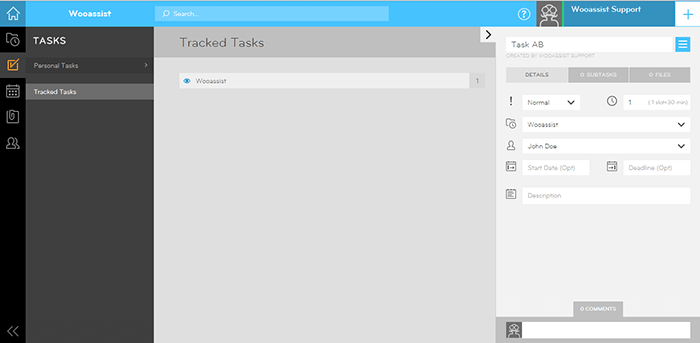
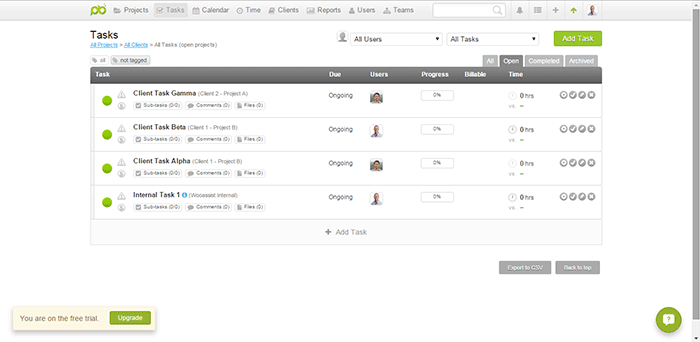
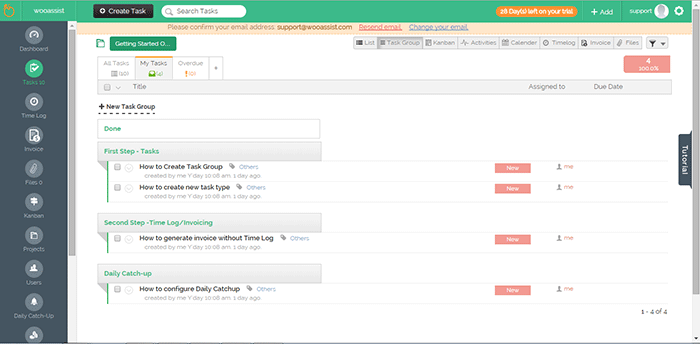
To improve our systems approach to doing business, the Wooassist team needed a project management (PM) system that works for us. So we reviewed the PM systems available online. Our goal was not to determine the best PM tool but to identify which PM tool works best for our purpose. What works for us, may not necessarily work for a different organization so we recommend reading into the reviews beyond the scores.

This was originally an internal document but we decided to share it with our readers to help other organizations choose a PM system that works for them.

Outlining Your Needs

There is a good deal of project management systems out there and it’s easy to get lost with all the choices or get stuck with the most popular brands. We will first need to outline our specific needs to narrow down all the choices. For this review, we have used the following criteria to judge these PM systems according to our needs.

  • Easy collaboration
  • Task management
  • Kanban board functionality/Graphical system
  • Employee timesheets/Timekeeping functionality
  • Pricing

PM systems that did not score high with our criteria were not necessarily terrible. They simply did not allow our organization to function as effectively and efficiently as possible.

Notable Exclusions / Honorable Mentions

Below are some good PM systems that just did not cater to all our needs:

  • Asana
  • Basecamp
  • Trello
  • Wrike
  • LiquidPlanner
  • Producteev

The Chosen Eleven

Even after narrowing down the field, we still came up with 11 contenders. We tested out the free trials for each of these tools and have come up with a concise review for each.

1.  Teamwork

Teamwork

  • Collaboration: 11/15
  • Organization: 11/15
  • Features: 12/15
  • Pricing: 1/5
  • Preference Bonus: 46/50
  • Rating: 81/100

Our first impression was that the main interface was very clean and modern. Teamwork is one of the more well-known project management systems and the standard holds up. While the main interface is clean, under the hood it is packed with a lot of useful features.

If you’re used to another PM system, there will be an initial learning curve as you get used to the functionalities of Teamwork. Employee timekeeping is synced globally so it is a dependable feature as managers can easily view the daily work history of all employees. It also has an “Everything” page where all features are aggregated together so it is easy to track everything.

However, there were also a lot of functionalities that we simply did not need and they just increased the complexity. While the main interface is clean, it is not graphical which would have been user-friendly. There was also no simple prioritization feature for tasks irrespective of the project.

Our conclusion is that Teamwork with a clean interface and a myriad of features is a very good Project Management system. It is more suitable for organizations with higher-value projects and would be a top choice as an initial PM system.  It just did not fit our own requirements as we are an organization with small-value projects. Also, the additional features we did not need simply make it more complicated to use.

2. Orangescrum

Orangescrum

  • Collaboration: 6/15
  • Organization: 11/15
  • Features: 11/15
  • Pricing: 4/5
  • Preference Bonus: 46/50
  • Rating: 78/100

The aspect that first caught our attention was the sketchpad/draft-board design. In viewing tasks in Orangescrum, there are a lot of choices such as “list”, by “task group” and even Kanban.

The Kanban feature was a good inclusion but it seems that it had none of the common features in other Kanbans such as drag-and-drop functionality and customization of the columns. Only 3 columns can be displayed for the Kanban board.

It might be confusing switching between tasks as a task page takes up a whole page but at the same time, this could prove to be more productive as well.  A lot of details can be added to each task and that could be a good thing depending on the organization’s needs.

One problem though is that some of the different elements are separate from each other. The time logs for example. It will be difficult for people that need to work on different projects in a day. Each project is a separate entity and there is no way to aggregate tasks on all projects.

There are no notifications on the interface itself so this limits collaboration. Users also can’t be tagged and there is no common posting system.

Our conclusion for Orangescrum is that it has a clean and user-friendly design. However, it gets lower scores in other aspects such as collaboration and lack of supporting features.

3. GetHarvest

GetHarvest

  • Collaboration: 5/15
  • Organization: 12/15
  • Features: 7/15
  • Pricing: 1/5
  • Preference Bonus: 46/50
  • Rating: 71/100

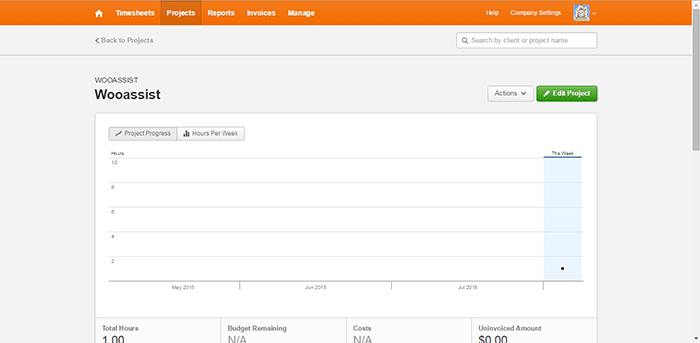
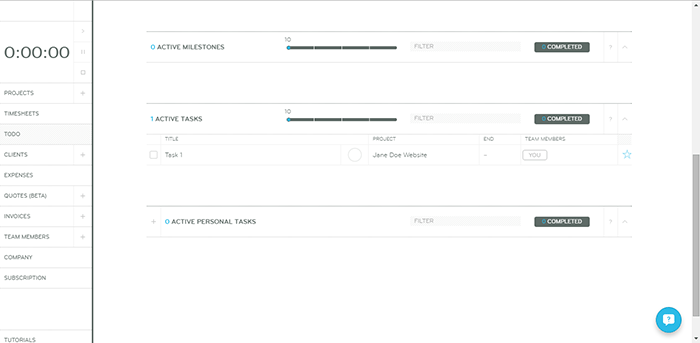
The interface of GetHarvest was one of the cleanest among the PM systems we reviewed. The top navigation bar shows the Timesheets, Projects, Reports, Invoices, and Manage links. These are core features for any PM system without all the fluff.

GetHarvest looked streamlined initially. Upon further assessment, we found that it is essentially a stripped-down Project Management system. It is great for accounting and the default setup is great in that it gives a bird’s eye view of the projects of the organization but it is limited to that. If users require subprojects and task-specific organization, they will need to integrate GetHarvest with other systems such as Asana.

Our conclusion for GetHarvest is that the interface is very clean and minimalistic but out-of-the-box. It simply lacked too many features compared to the other PM systems in this list.

4. Kanbanery

Kanbanery

  • Collaboration: 12/15
  • Organization: 13/15
  • Features: 10/15
  • Pricing: 2/5
  • Preference Bonus: 48/50
  • Rating: 85/100

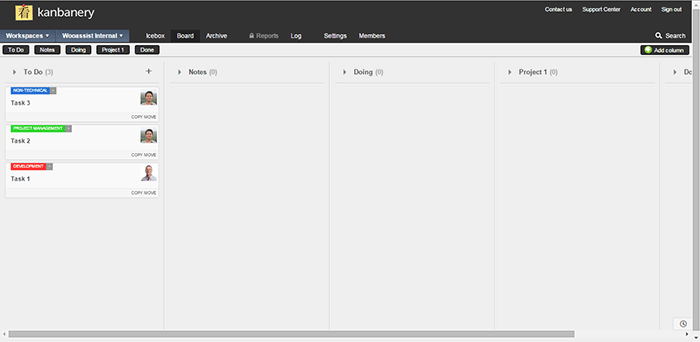
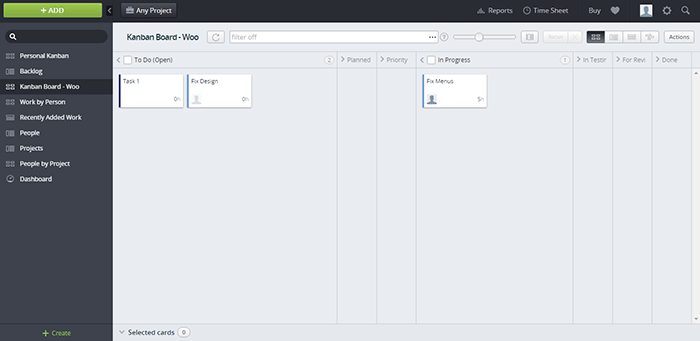
We were actually quite impressed with Kanbanery. Its interface is streamlined and it holds up to its promise of being a Visual Project Management Tool.

The Kanban boards are great and they are really customizable. The customization options are also tucked away quite nicely in that they won’t become cluttered for those that won’t use them. The updates to the boards are also synced in real-time and everyone on the team is informed when there are changes. Moving tasks to different boards is also possible so that’s another plus. It also has an activity stream that acts as a notification area.

One minor gripe is that the pages can be slow to load and changes can also take a while to be set. Although the bigger issue here is with timekeeping. There is no timer, no stopwatch, and no way to log the time at all.

The bottom line for Kanbanery is that it is a very good PM tool that strikes the right balance between a clean exterior and an abundance of settings under the hood, especially for its Kanban board. It also scores well in collaboration but the biggest flaw is the lack of any time-keeping function.

5. Dobambam

Dobambam

  • Collaboration: 9/15
  • Organization: 7/15
  • Features: 12/15
  • Pricing: 3/5
  • Preference Bonus: 46/50
  • Rating: 77/100

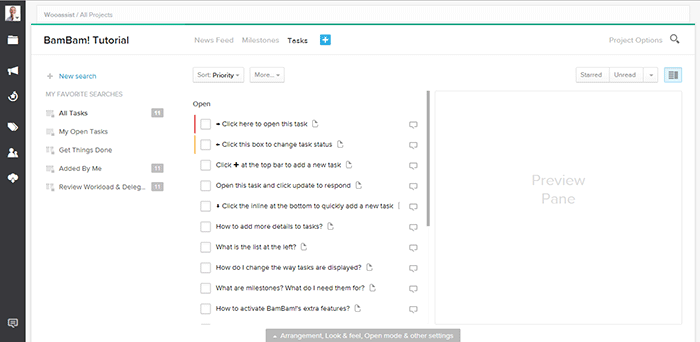
Our first impression of Dobambam was that it looked like a robust system and it felt similar to Asana.

The interface is very customizable. There are a lot of options on the view such as list view or card view. The tasks are very customizable too. It shows a lot of details but might be a bit excessive depending on your specific requirements. It does get confusing with all the available features. Some features you can add to the default functionalities are time-tracking and a wiki.

Our verdict for Dobambam is that it’s a full-featured task management system complete with time-keeping and detailed task views. However, this may also become a disadvantage depending on the organization as it is not as streamlined as other PM systems.

6. TargetProcess3

TargetProcess3

  • Collaboration: 10/15
  • Organization: 10/15
  • Features: 13/15
  • Pricing: 0/5
  • Preference Bonus: 46/50
  • Rating: 79/100

When we signed up for Target Process 3, the first screen that was shown was a choice of workflows: Scrum, Kanban, or a custom one. After choosing, we were presented with an introductory video and a mini-tutorial. These were very informative and did a good job of introducing TP3’s interface. It felt like the TargetProcess organization really cares for its users.

The aspect of the tool that left a strong impression was its overall power. It is extremely customizable and it’s like each user gets a chance to build their own PM system all inside TP3. Whether you prefer lists or a visual view, each user is given the chance to choose along with many other customization options. Another thing we liked is that the boards are all in-sync with each other. This means you can mark a task as in progress on one board and this change is applied across all boards.

The only problem is that with all the power, there’s a very steep learning curve. With all the bells and whistles, it can get confusing for a user. Some users may not even notice that a feature was available or not. In our case, TP3 was a bit over the top.

Our conclusion is that it is a very powerful task management system perfectly suited for software development teams. The customizability is its strongest point but it takes a while to master. This PM tool is best suited for advanced users.

 7. ThriveTeam

ThriveTeam

  • Collaboration: 6/15
  • Organization: 11/15
  • Features: 7/15
  • Pricing: 0/5
  • Preference Bonus: 46/50
  • Rating: 70/100

ThriveTeam is the definition of minimalism. Everything is clean and well laid out.

One of its unique functionalities is that there are no Save/Ok/Enter/Submit/etc. buttons. You will just need to write on the input fields and the changes are automatically saved. It could help with efficiency but the functionality is still awkward for people that are used to having the buttons. Sometimes after filling in a field nothing happens and you’re left guessing what to do next. On another note, its timekeeping system seems to be robust.

One thing is for sure, it is not built for task management and collaboration is limited. This system is similar to GetHarvest in some respect but it is also a slightly poorer version. As with GH, its functionalities are limited.

The bottom line for ThriveTeam is that its strength seems to be in Project Management and Accounting. The interface is clean due to a minimalistic design but the functionalities are a bit awkward and limited.

8. LeanKit

LeanKit

  • Collaboration: 12/15
  • Organization: 13/15
  • Features: 10/15
  • Pricing: 0/5
  • Preference Bonus: 48/50
  • Rating: 83/100

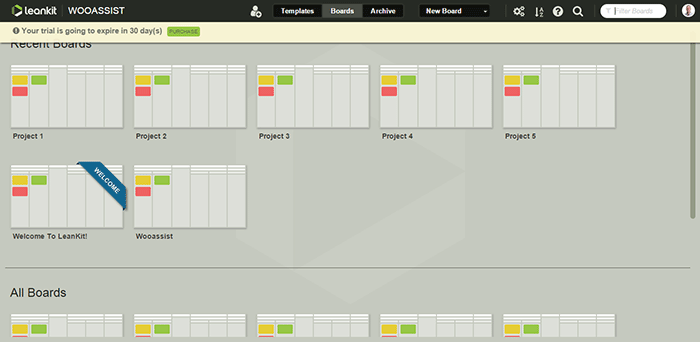
Our first impression of LeanKit is that it is very organized in the board/project level.

The graphical style is a step up from all the other text-type PM systems. Creating boards is easy and straightforward as you only need a title and description. Finding them in your list of boards is easy as well with the help of a search filter. The Kanban boards themselves are highly customizable. However, the board layout editor takes a bit of getting used to.

Another negative aspect is that the email notifications do not provide a preview of the task details. But overall, we were satisfied with its collaboration with real-time updates of changes on the boards. It seems like a complete package but as with Kanbanery, it lacks a time-keeping function which is a big blow to its potential.

Our conclusion for LeanKit is that it is a robust Kanban/Scrum-based project management system. The graphical style makes the setup very clean and organized and it scores great in collaboration and task management. It just lacks any sort of time-keeping functionality that ultimately brings its score down quite a bit.

9. Axosoft

Axosoft

  • Collaboration: 10/15
  • Organization: 13/15
  • Features: 13/15
  • Pricing: 0/5
  • Preference Bonus: 48/50
  • Rating: 84/100

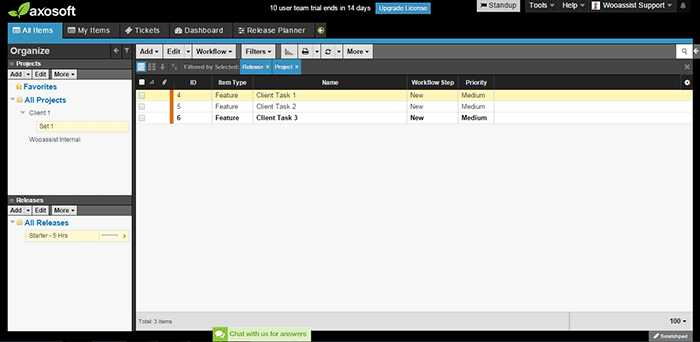
Our first impression of Axosoft is that it is professional, full-featured software (it should be when one considers the price).

Axosoft also offers its software to be installed locally. It is noticeable even in the browser application that the design is closer to a desktop application. Even though there are a lot of settings, tabs, lists, and other buttons, everything feels very organized and intuitive.

It also offers custom workflows which include Scrum and Kanban. We first thought that it would be better for large companies but it turns out that it can be used by any organization.

One weakness though is that there are no notifications. When a task is assigned, the assignee may not realize that a task has been assigned.

All in all, Axosoft seems to be a very powerful system. It really is an enterprise solution for project management. By default, it is geared more towards organizations that develop software but almost any type of organization can benefit from it. The design is organized and intuitive and overall, it is a well-built piece of software.

10. Hiveflux

Hiveflux

  • Collaboration: 9/15
  • Organization: 9/15
  • Features: 12/15
  • Pricing: 2/5
  • Preference Bonus: 46/50
  • Rating: 78/100

The first thing that came to mind when we accessed Hiveflux is that the design goes for a modern look reminiscent of Window’s Metro UI. It is sleek but we didn’t fall in love at first sight.

It is minimalistic but will take some getting used to. It does have good features, such as the built-in calendar that is perfect for synchronizing company events. It also has a powerful search feature, file uploads, and a time-keeping option for tasks. But collaboration between users felt a bit sluggish due to the lack of notifications even on email.

Our verdict for Hiveflux is that it is a sleek and minimalistic PM system with select but powerful features such as file uploads, time-keeping, and search. However, the minimalism also lends itself to a mediocre user experience. It should be a good choice for some teams but it’s not the one for us.

11. ProjectBubble

ProjectBubble

  • Collaboration: 12/15
  • Organization: 12/15
  • Features: 12/15
  • Pricing: 1/5
  • Preference Bonus: 50/50
  • Rating: 87/100

Nothing stood out at first. The design scheme and the setup looked normal. ProjectBubble does have the most important features such as a task management system and employee timesheets. It also has nifty bonus features such as its calendar and helpful reports.

What is special about it is that aside from tasks organized by project, projects are also organized by client. This makes it very useful when a client has multiple projects. Users can also be set up as teams so an entire team can work on a project without getting confused by another team’s projects.

The timesheets feature needs special mention as it is one of the most complete among all the other PM systems in this review.

All in all, ProjectBubble doesn’t sport dazzling game-changing features but it does what it does very well, and it does a lot of stuff. The only weakness would probably be aesthetic but that’s a very small factor. It is definitely not a visual system and it has no kanban. If it gets that feature then it would be perfect.

The bottom line for ProjectBubble is that instead of implementing new game-changing features, it sticks to the basics and does all the fundamental features really well. It scores very well in the most important areas (task management, collaboration, etc.) but its strongest feature is its “complete” timekeeping. The only minor flaw is that the setup is definitely not visual.

 Overall Rankings

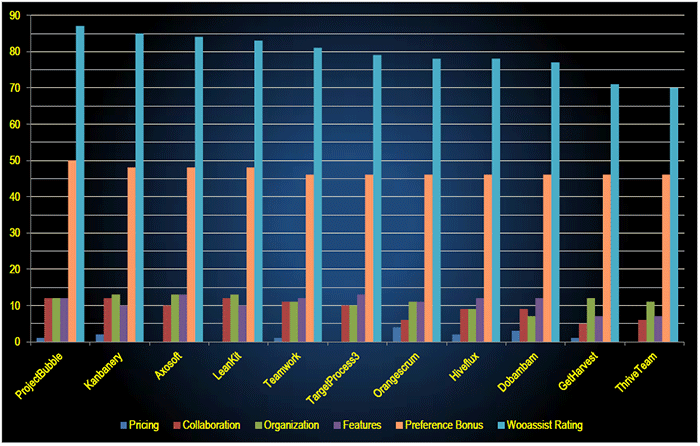
PM-Systems-Review_Overall-Rankings

  1. ProjectBubble (87/100)
  2. Kanbanery (85/10)
  3. Axosoft (84/100)
  4. LeanKit (83/100)
  5. Teamwork (81/100)
  6. TargetProcess3 (79/100)
  7. Orangescrum (78/100)
  8. Hiveflux (78/100)
  9. Dobambam (77/100)
  10. GetHarvest (71/100)
  11. ThriveTeam (70/100)

Conclusion

Reviewing all of the above affirmed the idea that there is no single best project management system. Each system has its strengths and weaknesses. And these may vary depending on the needs and preferences of the user. Make use of the free trial period to determine which tool is best suited to your organization. For us, we decided to go with a system making use of Asana and Kanbanflow. These tools take care of all our needs for now.

If you’re looking to set up your own project management system, this review should lead you in the right direction. Go ahead and make your own list and test each one.

What about you? What project management system do you use in your organization?

Filed Under: Theme and Plugin Reviews Tagged With: admin, best practices, project management, task management, Wooassist

How to Create a Custom 404 Error Page for Your WooCommerce Store

February 25, 2016 By John Leave a Comment

What is a 404 Error

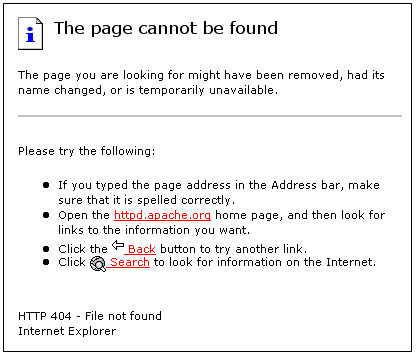
A 404 Error is an error message displayed when an accessed page is not found in the server that you want to access. It is a standard response when an entered address does not match a data from a server.

This happens when you rename, move, or delete a page. This message also appears when the URL is incomplete, mistyped or misspelled. You can change the way your WooCommerce store responds to this error by redirecting or just letting your visitors arrive at a custom 404 Error page.

Creating a Custom 404 Error Page

default-404-error-page_screenshot-pngYou can actually just leave it and most websites would just send out a typical text response. So why create a custom 404 error page for your Woocommerce store? A lot of people are highly visual.


Web design is a huge factor in discerning a company’s credibility. Zabisco found out that 40% will respond to visual information better than plain text. This alludes to the importance of creating a visually-appealing custom 404 error page.

Custom content will not only boost your branding but will make customers have a more positive view of your company. Custom content is one of the many reasons that make a customer feel positive about your website.

Statistics/Case Studies on 404 Error Pages

From a search engine ranking standpoint, 404 error pages will not hurt your ranking per se. It only matters when an important link in your site returns a 404 error. This important link could be your “about” page or “contact” page. Your rankings could suffer since these important pages are actually ranking factors.

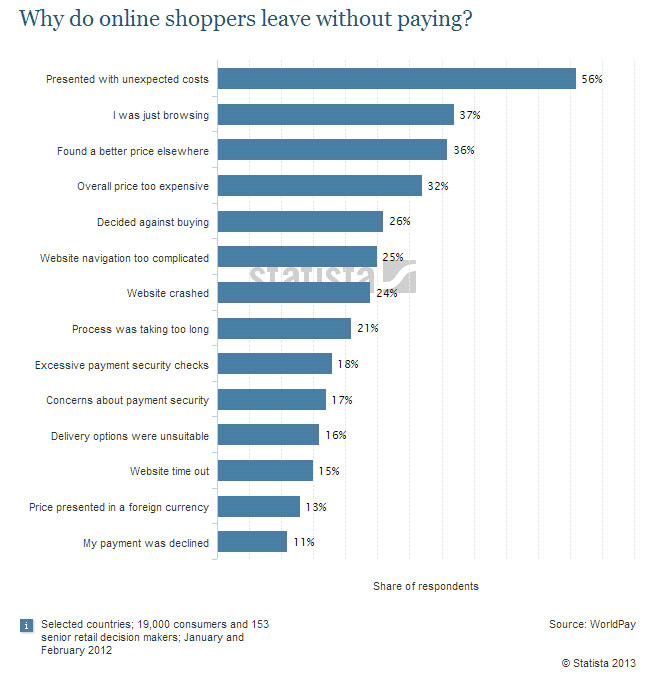
Any other 404 error could also frustrate your visitors and just leave your website. Shopify surveyed why online retailers are losing 67.45% of their sales. They discovered that some of the most common mentioned issues are website problems.

Shopify-survey-why-online-shoppers-leave_screenshot-png

A 404 error also affects a website’s bounce rate. A bounce happens when a visitor comes to your website, does not click on any other page and leaves. Search engines like Google use bounce rate as ranking factor.

A high bounce rate raises several red flags for your WooCommerce store. It may imply poor user experience and your website may be deemed irrelevant to your market.

Elements of a Custom 404 Error Pagelabyrinth

Now before you go and make any changes, keep in mind that each theme is different. There are different ways on how you can create a custom 404 Error page. Here are some important things that you need to consider.

Use Simple Language

A regular site visitor will not understand a typical technical 404 message. Use simple human language to inform your site visitor of what went wrong. You can even use language translations or location specific pages. The goal is to deliver a clear message.

How You Can Help

Apologizing and offering a helpful suggestion should be the main theme. The aim is to change the negative experience from 404 pages into a positive one. You can do this by:

touch-screen_touchscreen

  • Adding a search box
  • Showing your menu navigation
  • Adding a contact, subscription or ticket submission form
  • Adding a sitemap, category lists or key links
  • Linking popular posts or social media accounts
  • Giving out coupons, discounts, or other offers

Time spent in your site should not end in your 404 page. These elements are also engagement and conversion boosters. Your customers stay happy and you get a positive rep.

Examples of Good 404 Error Pages

A lot of huge brands out there appeal to human emotions in their marketing strategy. This is because customers are not buying products, they buy the experience. 404 Error pages in the past are just simple text warnings. Websites now use humor or a bit of personality to communicate their brand to the customers. You can use graphics, animations, or even videos. Here’s some inspiration to get you started.

Popscreen

Popscreen showcases a clean and bright but simple and straightforward 404. You can see a link to the home page and popular videos as well as search bar.

404-error-page_Popscreen_screenshot

GOG

GOG displays a unique design to say that you lost your way. The 404 error page retains the navigation and footer menu so it is easy for users to navigate. Users can also report the error.

404-error-page_GOG_screenshot

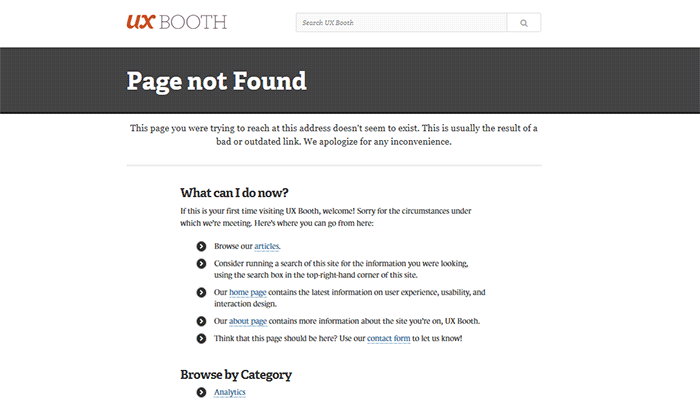
UX Booth

The UX Booth 404 error page uses simple, concise and direct language and an immediate apology. The page suggests popular links on the website as well as the list of categories. It also retains the footer links and the search bar.

404-error-page_UX-Booth_screenshot

Average Joes Blog

Average Joes Blog is a good example of category-rich 404 error page. In fact, the 404 error page is a replica of the home page.

404-error-page_Average-Joes-Blog_screenshot

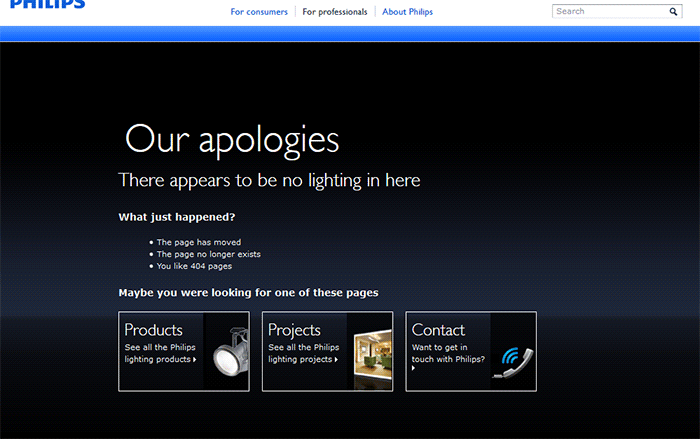
Philips

Philips goes creative and witty with its 404 error page. It mentions the absence of lighting then explains what happened and suggests popular links.

404-error-page_Philips_screenshot

Email Center UK

The Email Center UK website uses humor. Since you are at an error page, it means someone messed up and you get to choose who to fire for the fiasco. Below all that is a simple link to the home page.

404-error-page_Email-Center-UK_screenshot

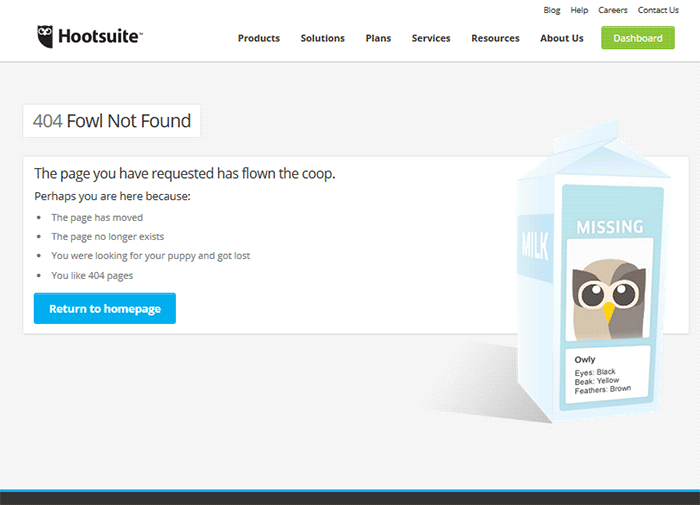
Hootsuite

The Hootsuite 404 error page lists down possible reasons for the error. They used ‘fowl” language to keep the identity of the brand/mascot.

404-error-page_Hootsuite_screenshot

IMDB

The IMDB 404 error page uses a simple layout with a clever idea. Every visit to a 404 error displays a random movie quote. Movie buffs will definitely find this entertaining. A convenient link to the home page is also positioned at the top.

404-error-page_IMDB_screenshot

404-error-page_IMDB2_screenshot

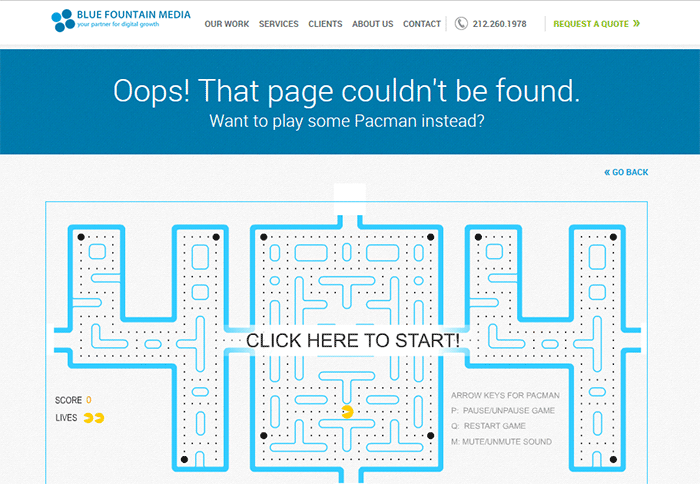
Blue Fountain Media

Blue Fountain Media makes a 404 page that you will look forward to – an actual PAC-MAN game. They retained their main navigation and a “Go Back” link that takes you to the last visited working page.

404-error-page_Blue-Fountain-Media_screenshot

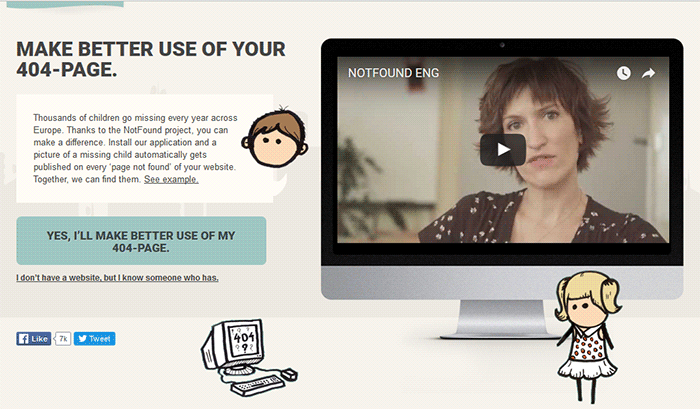
Not Found Org

NotFound.org actually uses its 404 error page to achieve a goal. It is an app that you can install in your website. It lets you customize your 404 page to help their cause – find thousands of children that go missing every year.

404-error-page_Not-Found-Org_screenshot

Creating a Custom 404 Error Page

Now that you have some inspiration, it’s time to create your own. You can check out WordPress’ basic guide here if you are able to code, if not you can check out the plugins below.

Since WooCommerce is installed on the WordPress platform, you can use the power of WordPress plugins to create awesome About Us pages.

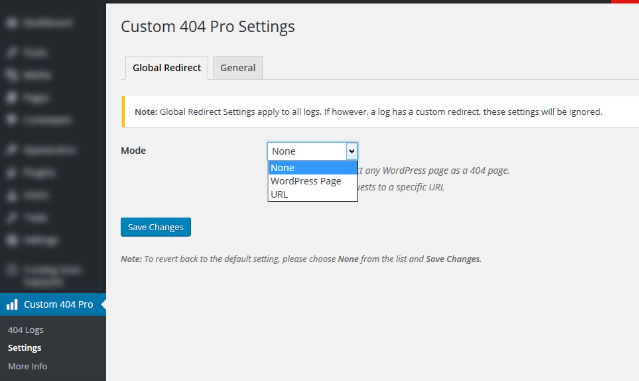
Custom 404 Pro

The Custom 404 Pro plugin lets you override the default 404 page with any page of your choice. To set your custom 404 error page:

  1. Install and activate the Custom 404 Pro plugin.
  2. Create a new page that you want to use as your 404 error page.
  3. Click on Custom 404 Pro on your WordPress Dashboard and then click on Settings.
  4. Set the page or URL that you want to use as your 404 error page and then click on Save Changes.

Create-custom-404-error-page_Plugin_Custom-404-Pro-Settings

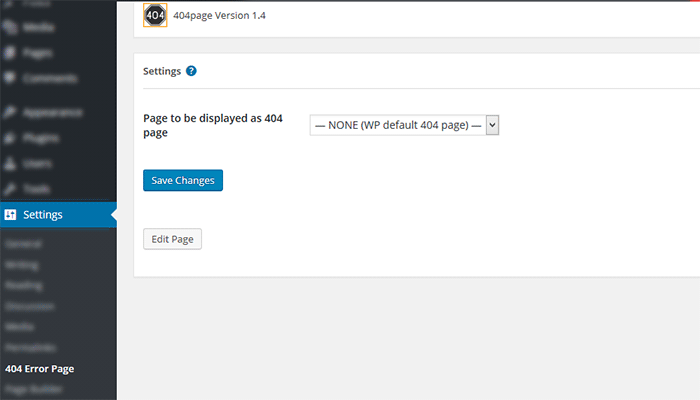
404page

404page is another easy plugin to use to create custom 404 error pages. To create a custom 404 error page using the 404page plugin:

  1. Install and activate the plugin.
  2. Create a new page that you want to use as your 404 page.
  3. Click on Settings and then choose the page that you want to use as your 404 error page.
  4. Click on Save Changes.

Plugin_404page_Create-custom-404-error-page

Test Your 404 Error Page

To test if your new 404 error page is working, just pop any non-existent URL in your domain on your browser. If your new 404 error page does not appear, check if your website is set to redirect to your new 404 error page.

Create-custom-404-error-page_Plugin_404page

Conclusion

404 Error Pages can be annoying but you can use them to your advantage. Customize them to boost engagement and conversion. Align your new 404 error page with your brand image and website goals. It will do wonders for your WooCommerce store and your brand. Do you have any other suggestions for creating a good 404 error page?

Filed Under: Code Snippets, How-To Articles Tagged With: best practices, design tweaks, navigation, plugins, redirection, WordPress

How to Create an Awesome About Us Page for your WooCommerce Store

March 3, 2016 By John Leave a Comment

awesome about us page main-imageYour e-commerce site is the face of your company and your brand on the web. Your “About Us” page tells your visitors who you are and what you do. In this post, we will teach you how to create an awesome About Us page.


What is an About Us Page?

The About Us page introduces your brand to your visitors. More people check a website’s About Us page before making online purchases.

About Us Page Statistics

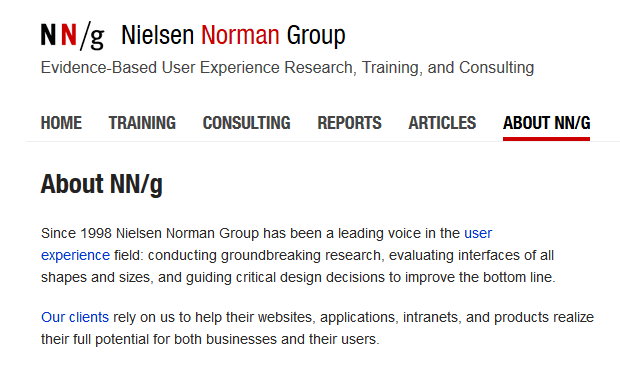
According to the NN Group, while most websites do have an About Us page, these websites often do a poor job of presenting their About pages. They also found that there are more people who couldn’t find information about a company or organization. Factual information from these websites was replaced by out of place marketing. As a result, the subjective satisfaction of website users decreased from 5.2 to 4.6, on a 1-7 scale.

Importance of an About Us Page

Increased Trust Rating

People who shop online check for proof that the company they are buying from is legit. Showing your website’s legitimacy boosts your credibility. This just shows that consumers are very wary of where they spend their money. The About Us page helps you show consumers that you are worthy of their trust, money, and time.

Increased Conversion

In another study, consumers spent five times more when shops tweaked their About Us page. They even spent 22.5% more, on average. These figures may rise depending on how good your About Us page is. Increase your profit by connecting with your visitors on a more personal level.

about-us-boost-conversion

SEO Opportunity

The SEO opportunity in About Us pages is no rocket science. This page can just contain more keywords related to your niche than other pages in your website. It’s a good idea to fit niche-related keywords all over the page, just don’t over-optimize.

Increased Engagement

Adding important internal links, other media and links to social media pages can help increase engagement. You can also add a contact form to serve as a lead generation tool to gather emails.

What Info Should I Put on My About Us Page?

Before creating an About Us page, here are a couple of things you need to do.

First, identify your audience or target market. Better yet, create a customer persona. Use this knowledge to customize the content on your page and reach out to that audience. Stay away from the typical general corporate-speak. Rather, use a personal but professional tone and feel.

Second, provide key context. The About Us page should show what your customers want to know about you. Every element, from text to multimedia, should be a part of your story. Make this page appear ‘human’. Customers enjoy getting a sense of the company behind a product and website.

How to Structure Your About Us page

Teaser or Tagline

This is a brief phrase or statement that summarizes your organization. Copyblogger was witty enough with their power statement. What is your company about in a nutshell?

about-sample-copyblogger

The Round-Up

This section usually contains a paragraph or two. It features your company information, vision, goals and main accomplishments. Be careful not to overdo this by using empty superlatives. The goal here is to provide information and not to gloat.

about-sample-nng
A straightforward About Us page example from the Nielsen Norman Group.

Quick Facts

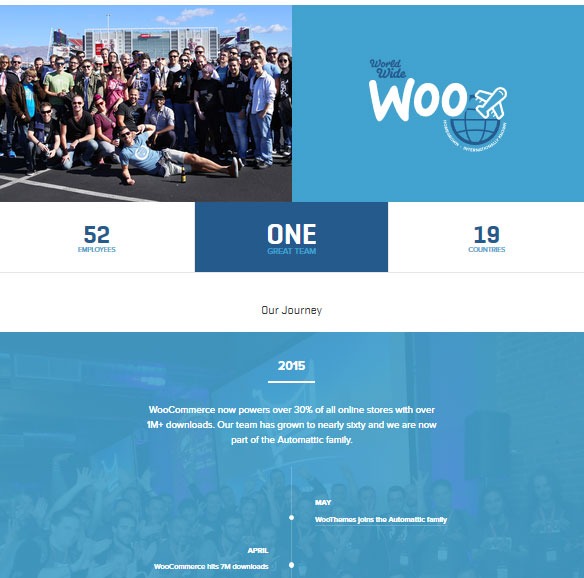
Add some quick facts on your About Us page. This can come in different forms. You can add information about your team, history, performance, or your office culture. Stay with the facts and let your customers be the judge. Get creative by using different multimedia or graphic elements. Just remember that whatever you put should be accurate and verifiable.

about-sample-abbvie
Easy on the eyes information from AbbVie.
about-sample-woothemes
Simple but informative layout from Woothemes.

Outsider’s Perspective

If you have industry awards, reviews and testimonials, let them be known in your About Us page. If you have a lot, you can add some highlights in the About Us page and link to a sub-page where the rest of the info is placed.

about-sample-blue-fountain-media-awards

Engagement

This is an avenue for interaction. Add elements like a contact form, social media buttons, and calls-to-action.

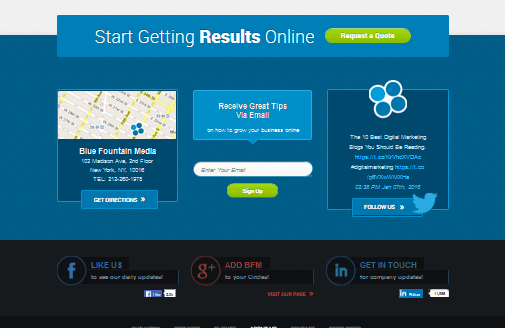
about-sample-blue-fountain-media-2

Introduce Your Team

Adding information about the people behind your company will boost your credibility. Take time to post photos or some quick information about your team. The National Center for Biotechnology Information found that photos inflate subjective feelings of truth.

How to Create an Awesome About Us Page

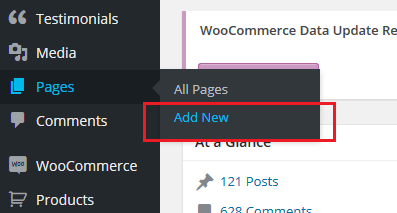
You can create your About Us page just as you would any other page. Some WordPress themes have a built-in special About Us page template. If your theme does not have that, you can create a simple About Us page by going to Pages and clicking on Add new. Add your content and then click on Publish to save your page.

about-us-add-new-page

Add content to your About Us page as you would to any other kind of page.

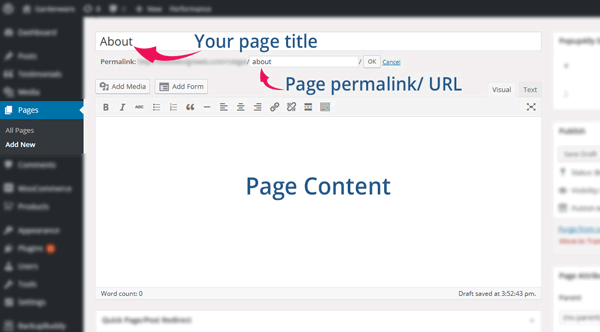
about us create page add content
Name your page “About”, “About Us” or “About ”. Use the same for the permalink.

about us create page

How to Add Your About Us Page to Navigation Menu

Once you’re done saving your page, you need to add it to your navigation menu. Go to Appearance > Menus.

To display your About Us page in your menu navigation, select About Us page in the list of pages. After that, click Add to Menu. Drag it to desired position. Click on ‘Save Menu’ when you’re done.

Plugins that Can Help Create an About Us Page

Plugins are your go-to solution if you don’t know how to code. Here’s a list of plugins that you can use to create an awesome About Us page.
Powr About Us

powr-about-us-pluginPowr About Us is a plugin with free and premium versions. The free version lets you create profiles for your company and employees. It has the features from the premium version, but it shows the plugin’s watermark logo and has limited support. The premium version has premium support, analytics, no access limits and no watermark logo. Once installed and activated, you will see a plug icon integrated in your Pages editor. It’s a drop down menu that lets you add shortcodes in the content area. This will help you create a professional About Us page. Once added, you will be able to edit them on the front end of your site.

Page Builder by SiteOrigin

page-builder-site-origin-pluginPage Builder by SiteOrigin is a free drag and drop page builder. It adds a ‘Page Builder’ tab in the Pages editor after installation and activation. This plugin has a lot of options that you can use to create an About Us page. It allows customization of page dimensions, layouts, and adding different elements to the page. For more advanced users, you can also use CSS to further tweak the look of your page. The plugin allows for creating some very unique About Us pages.

Team

team-about-us-pluginThe Team plugin by ParaThemes will help you build a responsive grid team profiles in WordPress. It uses pure HTML & CSS3 and is easy to customize. It lets you create profiles that include descriptions and links to social media profiles. The free version gives you enough customizations with unlimited team members. If you are not satisfied with the free version’s options, you can get their pro version which gives more in-depth custom controls. It has drag and drop, pop-up profiles, and more display options.

In Summary

The About Us page is an essential part of any website as it introduces your company or organization to your audience. For a Woocommerce site, having a good About Us page may result to an increase in the site’s performance. Creating an About Us page is simple and easy but you need to build it with your users in mind. You may also enlist the help of a plugin to help you create one. Do you have any more tips or ideas that you’d like to share regarding About Us? Let us know in the comments.

Filed Under: How-To Articles Tagged With: best practices, conversion optimization, how-to, plugins, WordPress

  • « Previous Page
  • 1
  • 2
  • 3
  • 4
  • …
  • 8
  • Next Page »
Let us support your online store so you can manage your business

Get started today

Get 2 Hours of FREE SUPPORT

We are so confident that you will love our services that we will give you your first 4 hours at a 50% discount

That’s 4 hours for only $75

BUY NOW

Free eBook

5 Things Every Online Store Can Fix On Their Website In The Next Week To Increase Sales

Quick Links

  • How it Works
  • Pricing
  • Blog
  • Contact
  • About Wooassist
  • My Account
  • Checkout
  • Privacy Policy
  • Cookie Policy
  • Terms and Conditions

Wooassist

Australia:
59 Luke St.
Hemmant QLD 4174

Philippines:
San Miguel St.
Poblacion, Iligan City 9200

Connect


Copyright © 2026 · Wooassist

Yours FREE!

5 Things Every Online Store Can Fix On Their Website In The Next Week To Increase Sales